

How to update variants for published products?
If you want to add new sizes, colors, or other attributes for the products already published to your store, this article will guide you through the process.
1. Open the “Product Templates” menu, go to the “Published” tab, and select your store.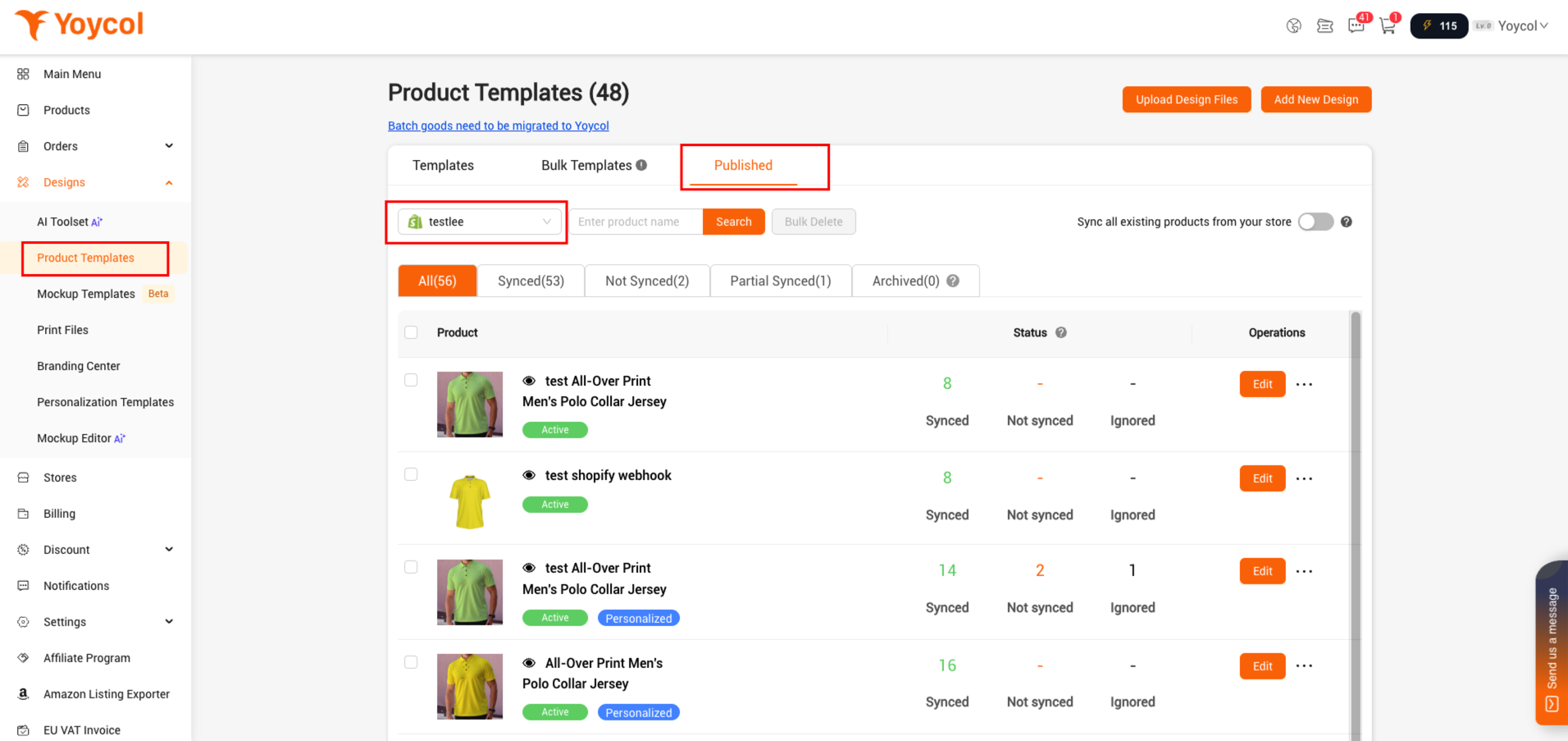
2. Find the product that you want to update variants. Click ‘edit’.
If the product is going to be achived, you could find it in 'Archived'.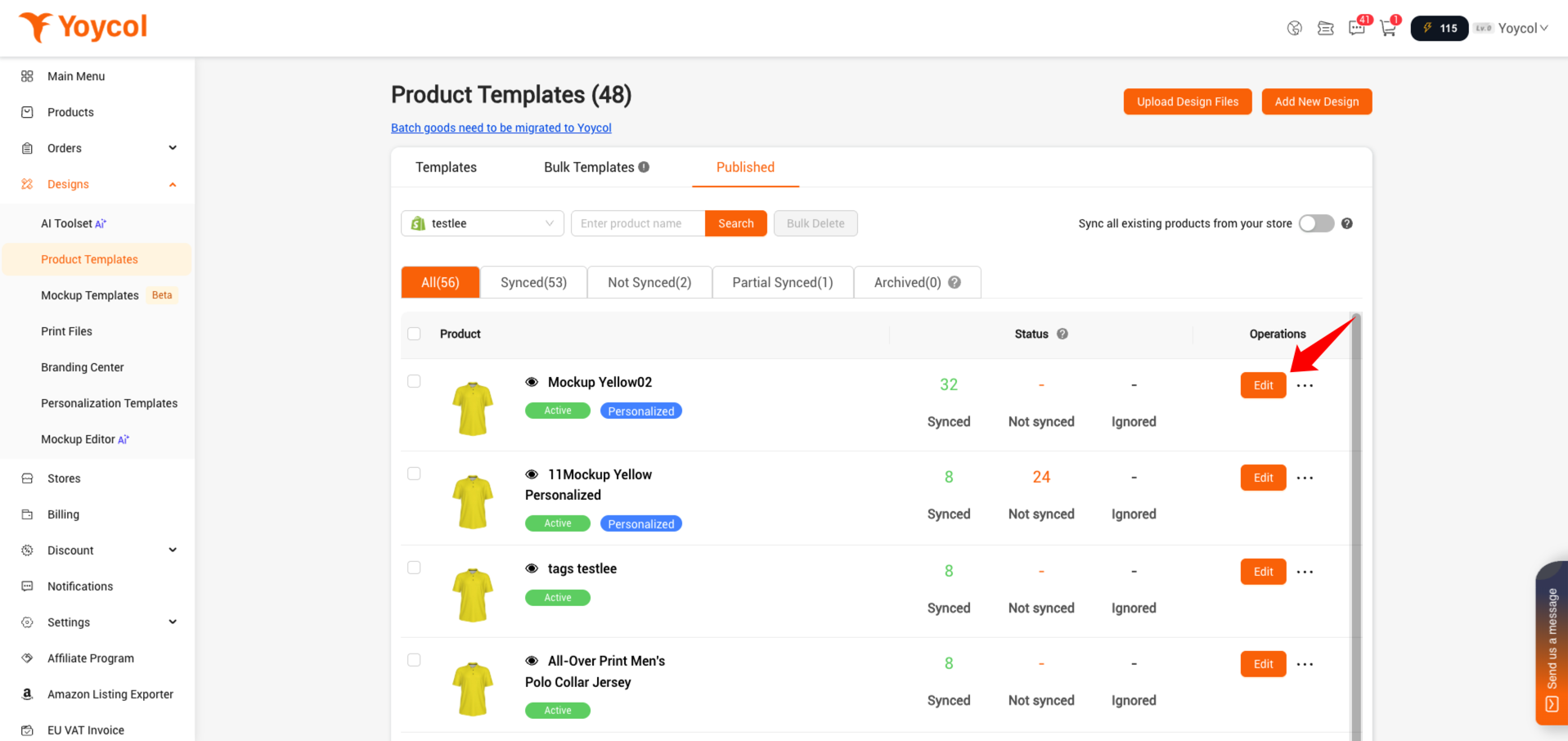
3. Update variants
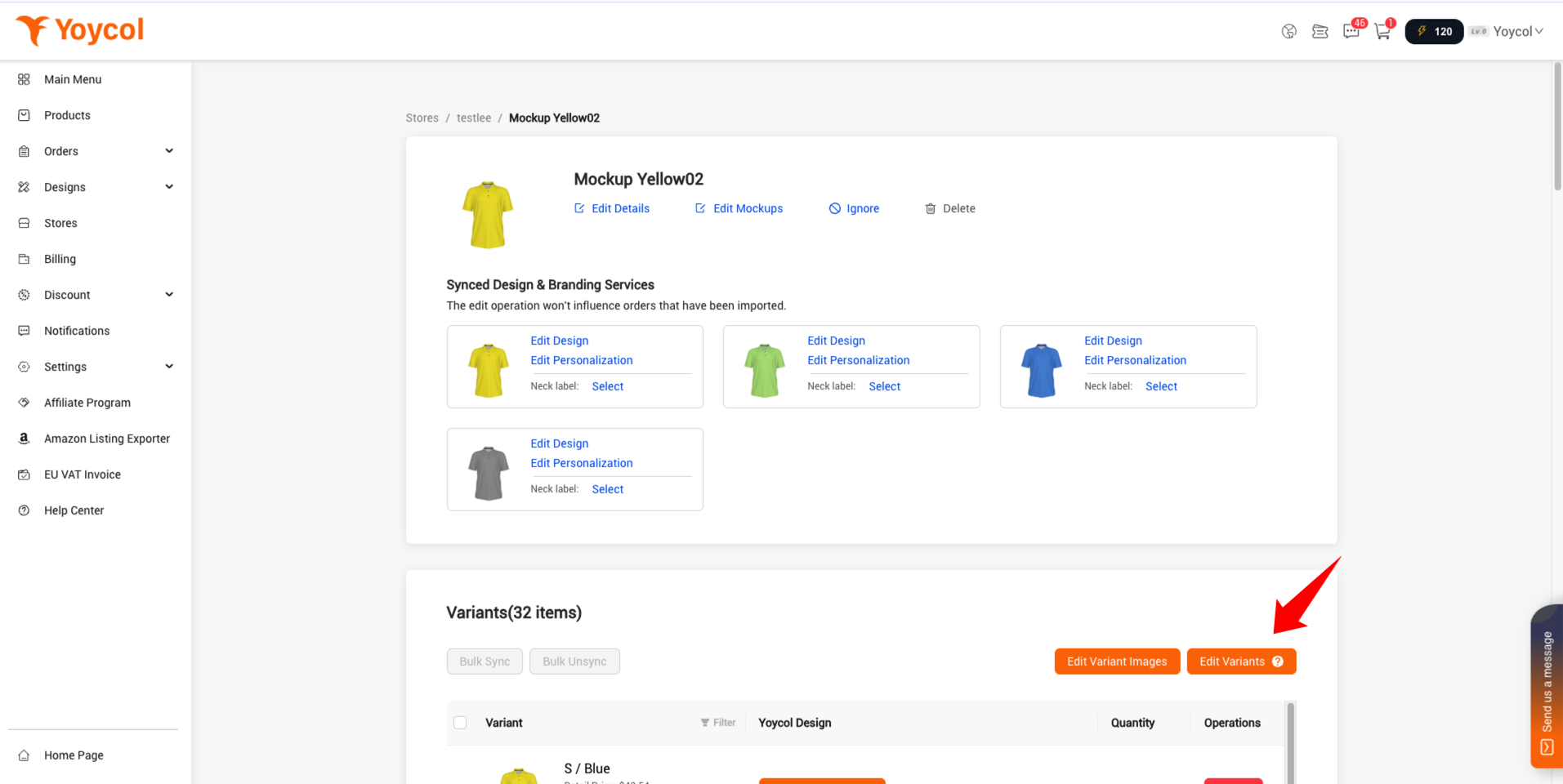
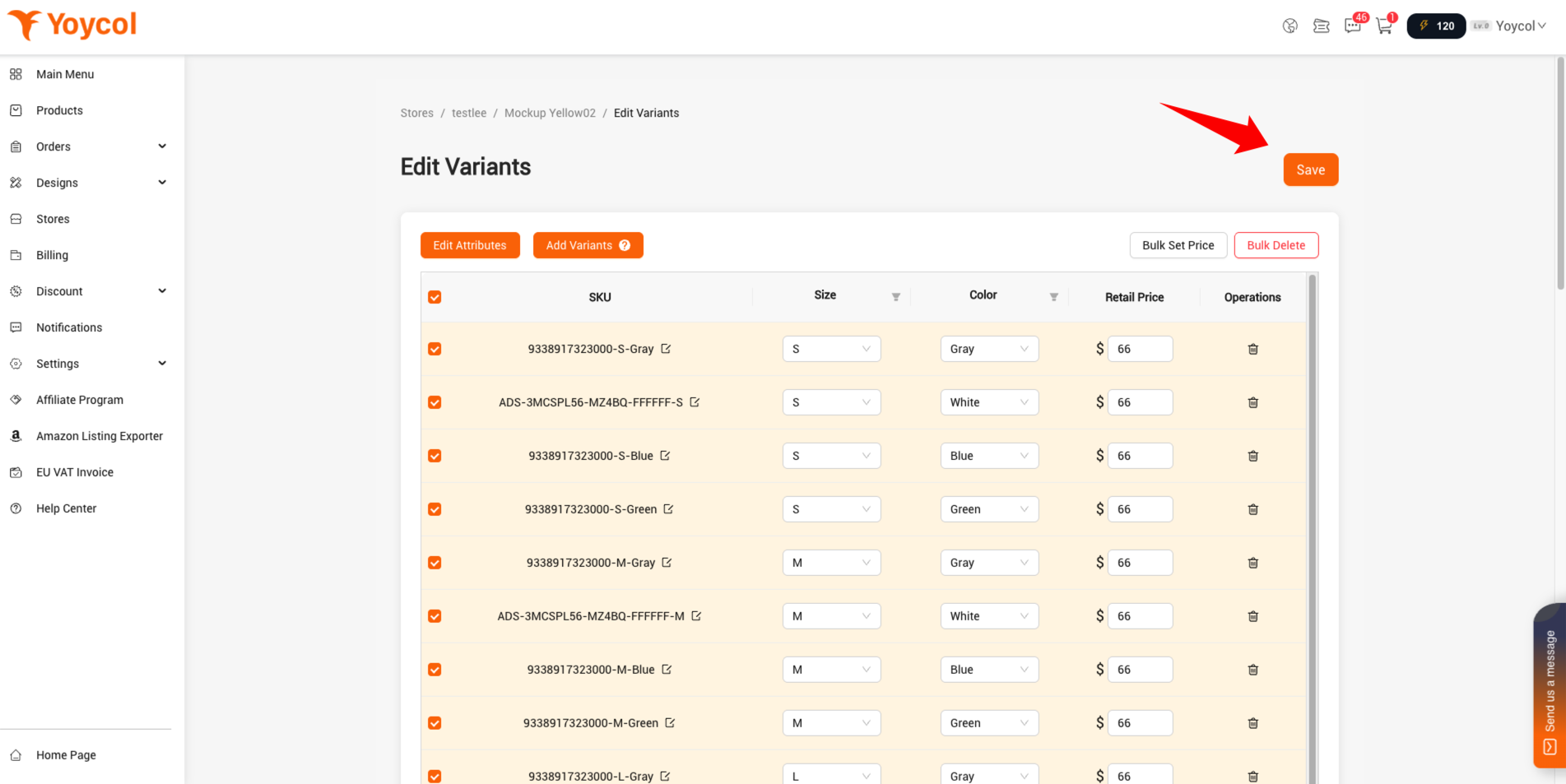
3.1 Click 'Edit Variants'
3.2 Click 'Edit Attributes'
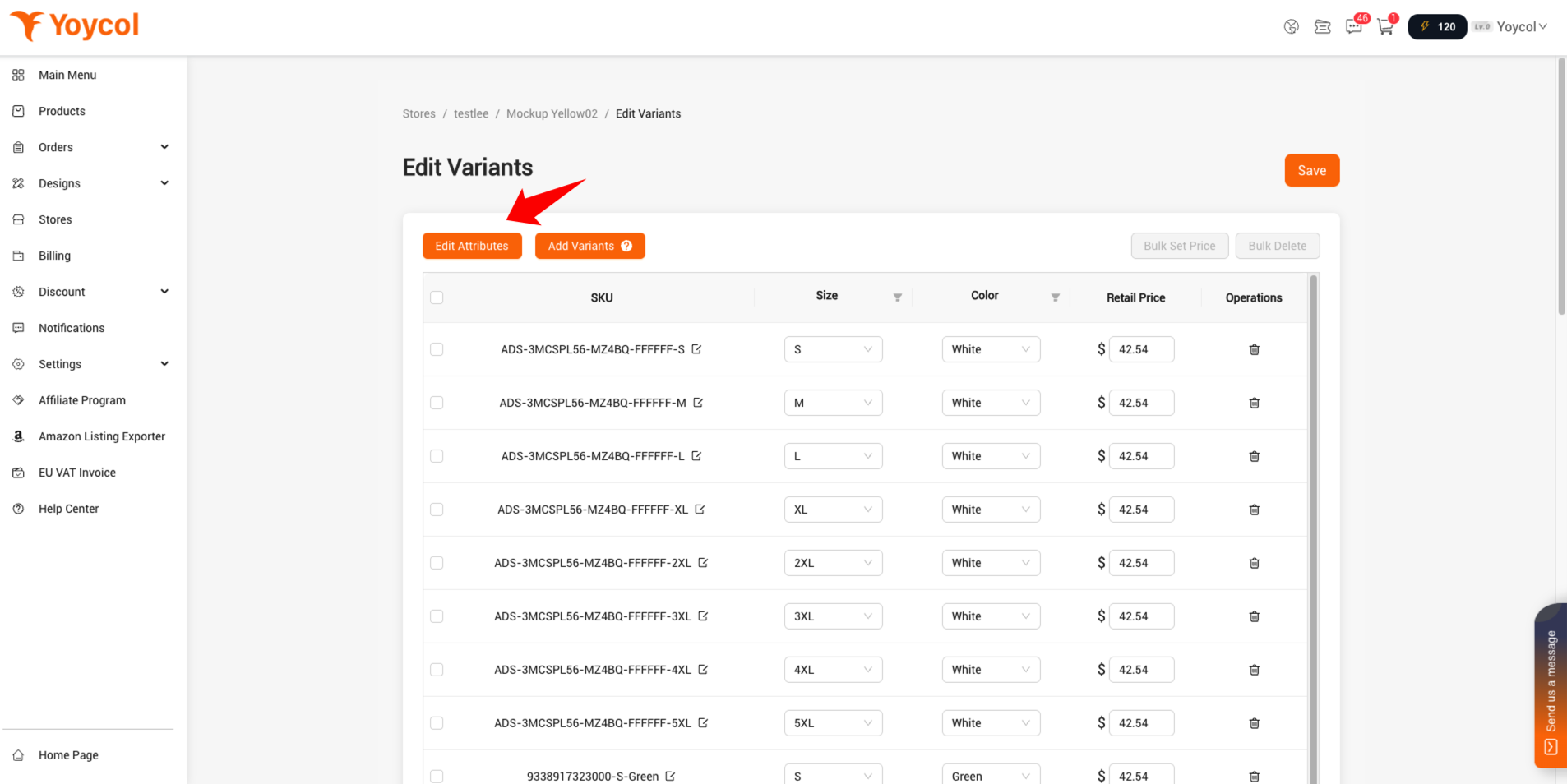
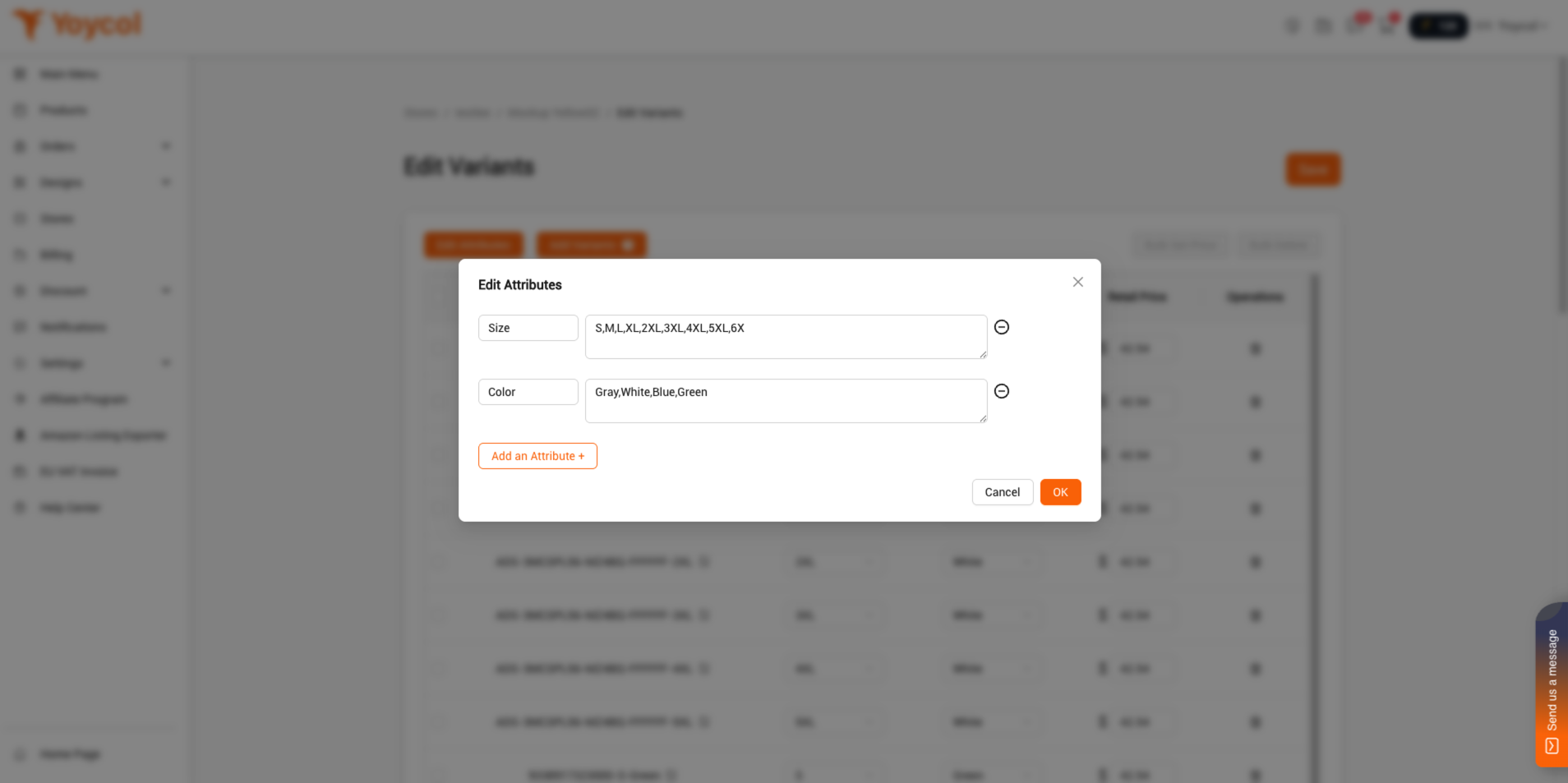
3.3 Update the attribute and attribute values in the popup, then click 'OK'. Variants will be generated based on the latest attribute values.
1) You can add attribute values to existing attributes. You need to separate the attribute values with commas.
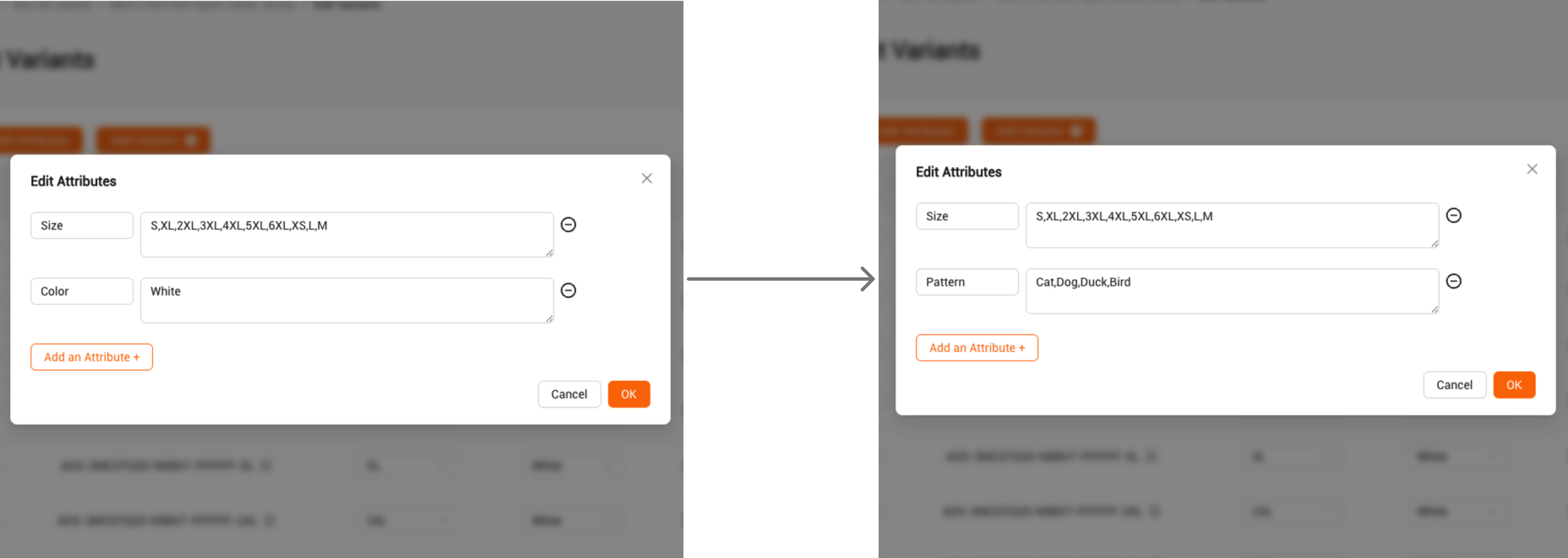
2)You can also delete the original attributes, click 'Add an Attribute', then add new attributes and attribute values. For example, you can delete attribute 'Color', and add attribute 'Pattern'
3.4 Update prices
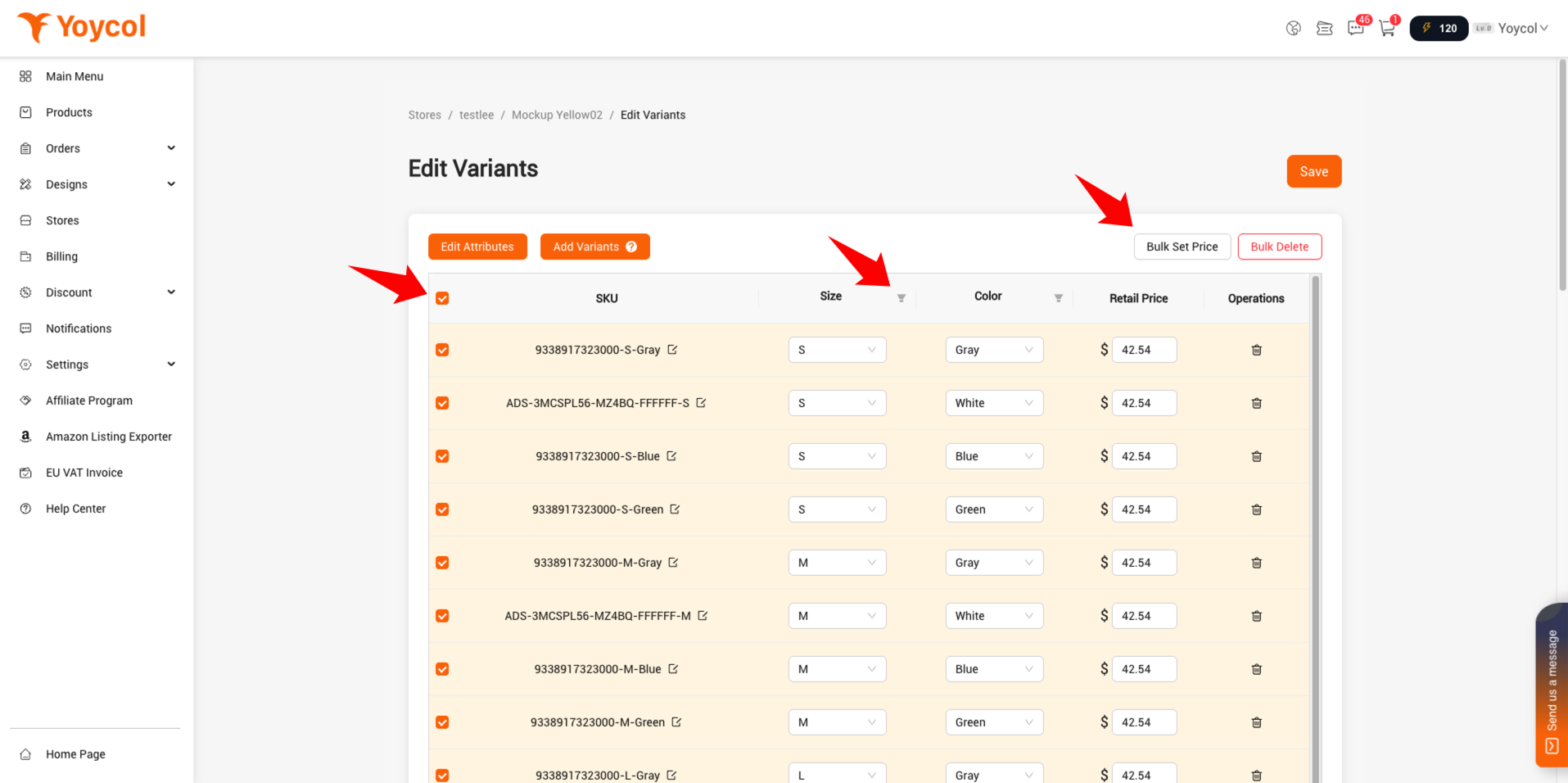
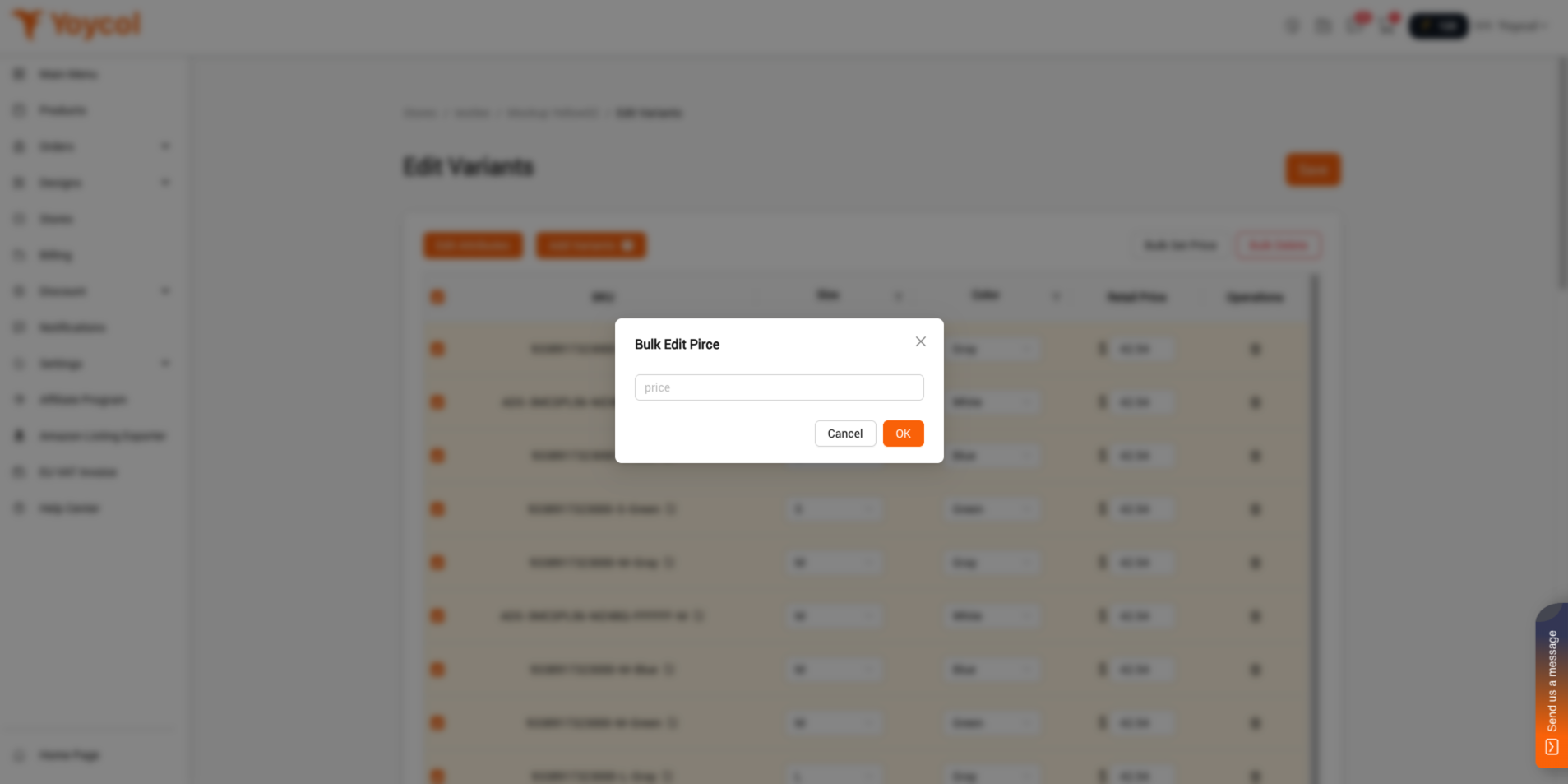
If all variants share the same price, you can select all variants and click “Bulk Set Price”. Enter the price in the popup and click "OK".
If the variants have different prices, you can filter by attributes first, then select all filtered variants, click “Bulk Set Price”. Enter the price in the popup and click "OK".
After setting the price, click “Save”.
4. Sync design for new variants
4.1 If the product is synced with a single design
1) you can select all variants and click “Bulk Sync”.
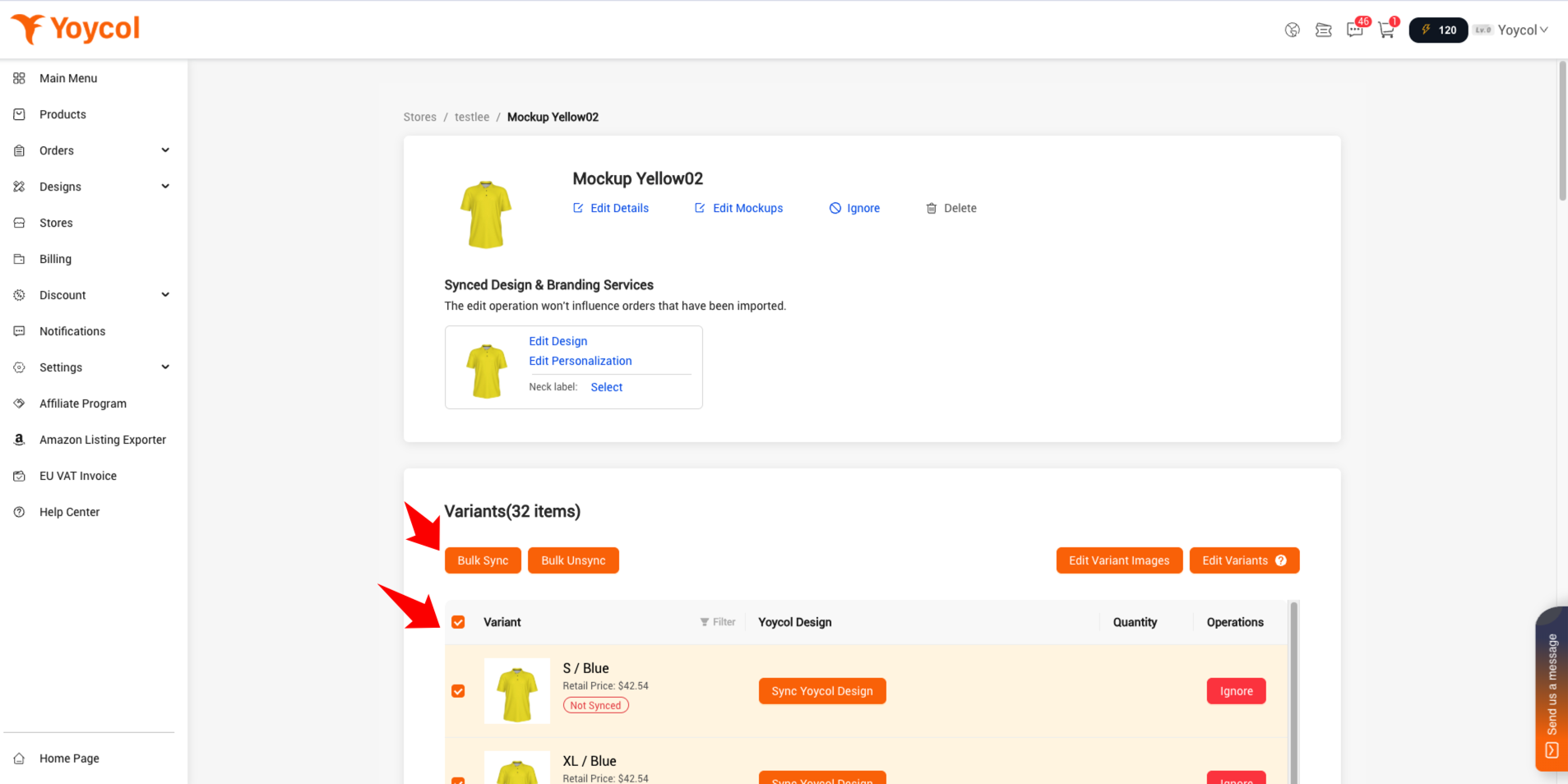
2) In the popup, switch to the “Synced Designs” tab and select the design.
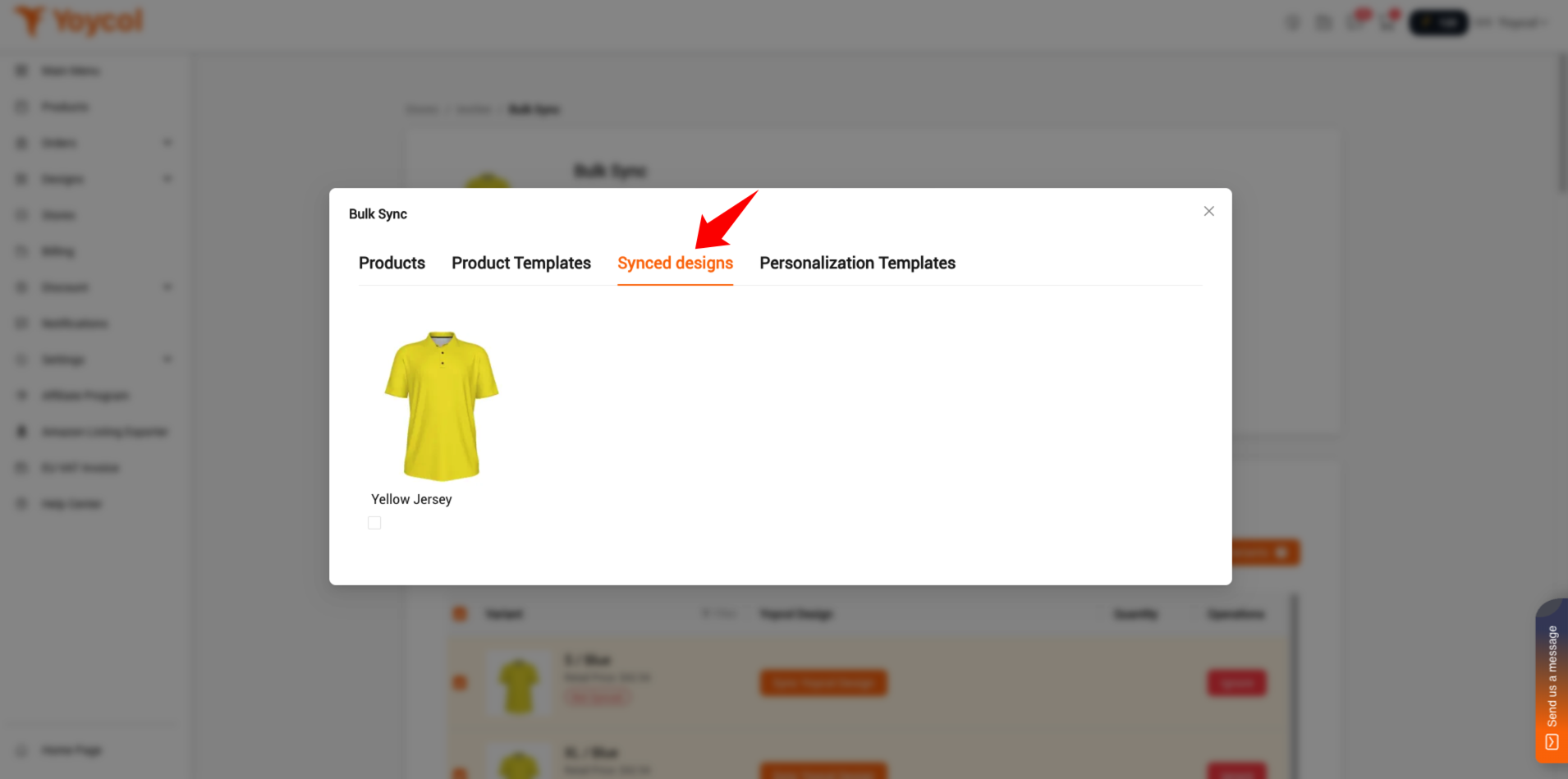
3) Select and review the variants, and click "Save".
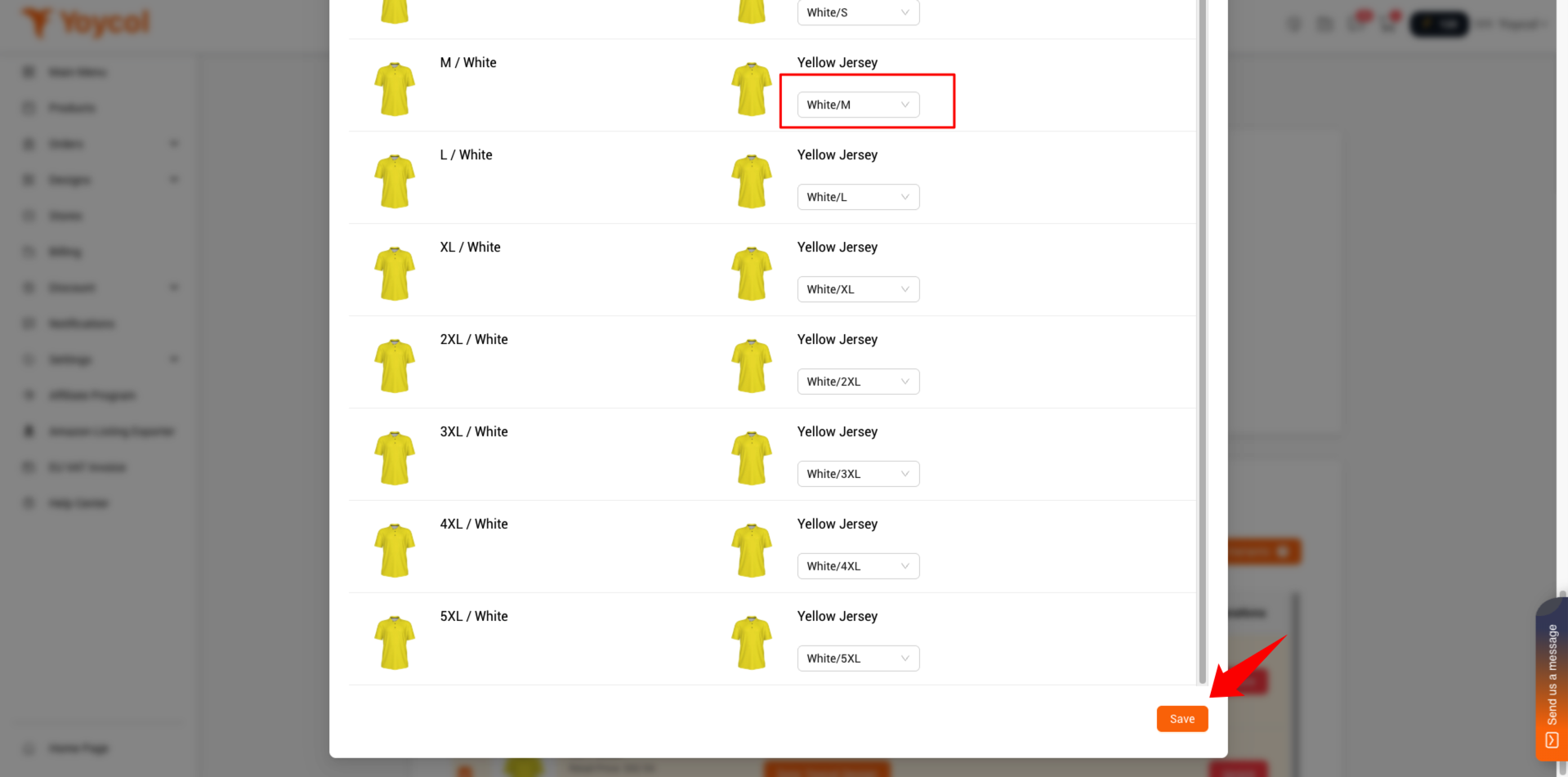
4.2 If the product is synced with multiple designs
1) First, filter the variants that need to be synced with the same design, then select the filtered variants and click “Bulk Sync”.
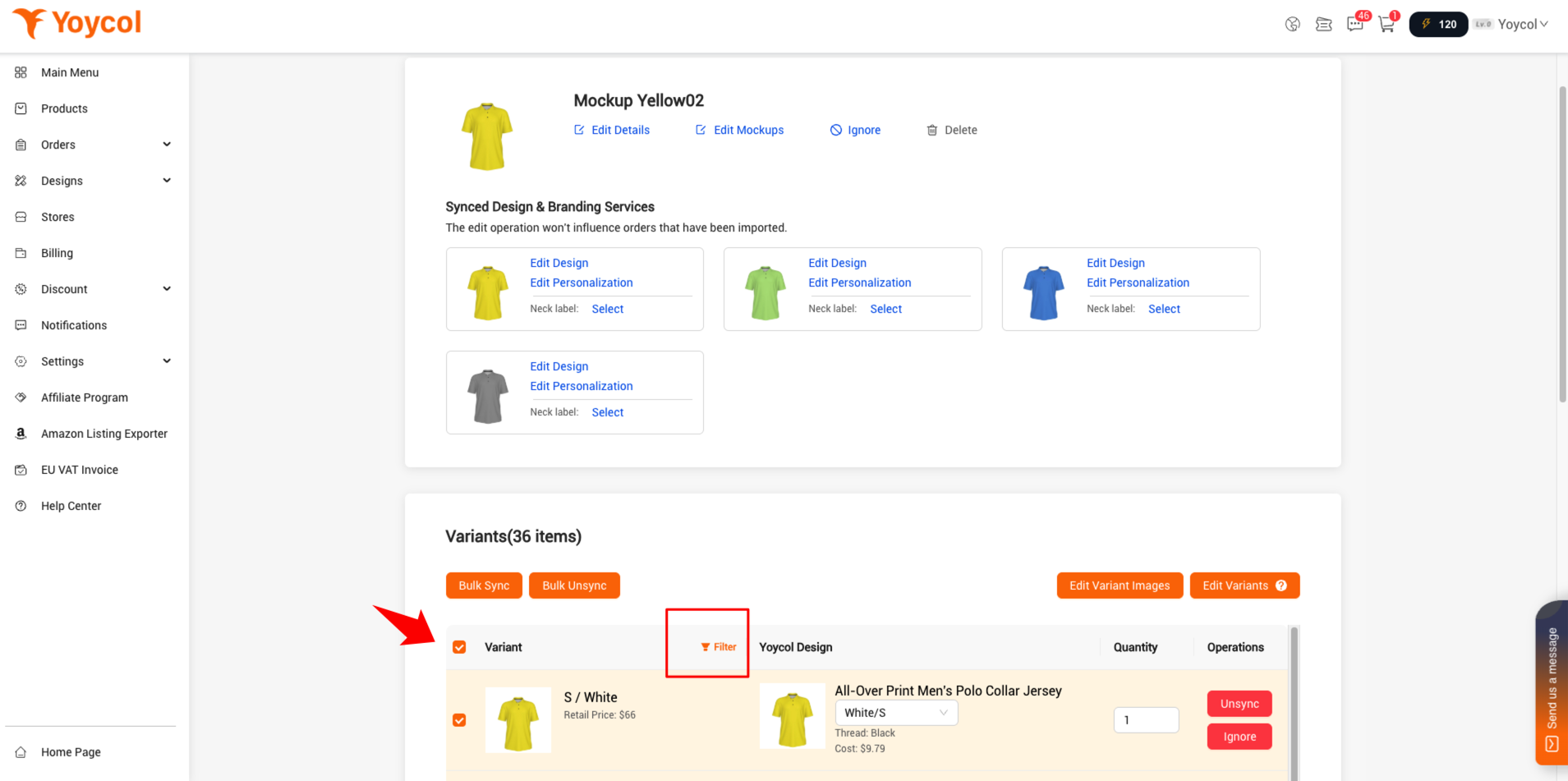
2) In the popup, switch to the ”Synced Designs“ tab. select the design.
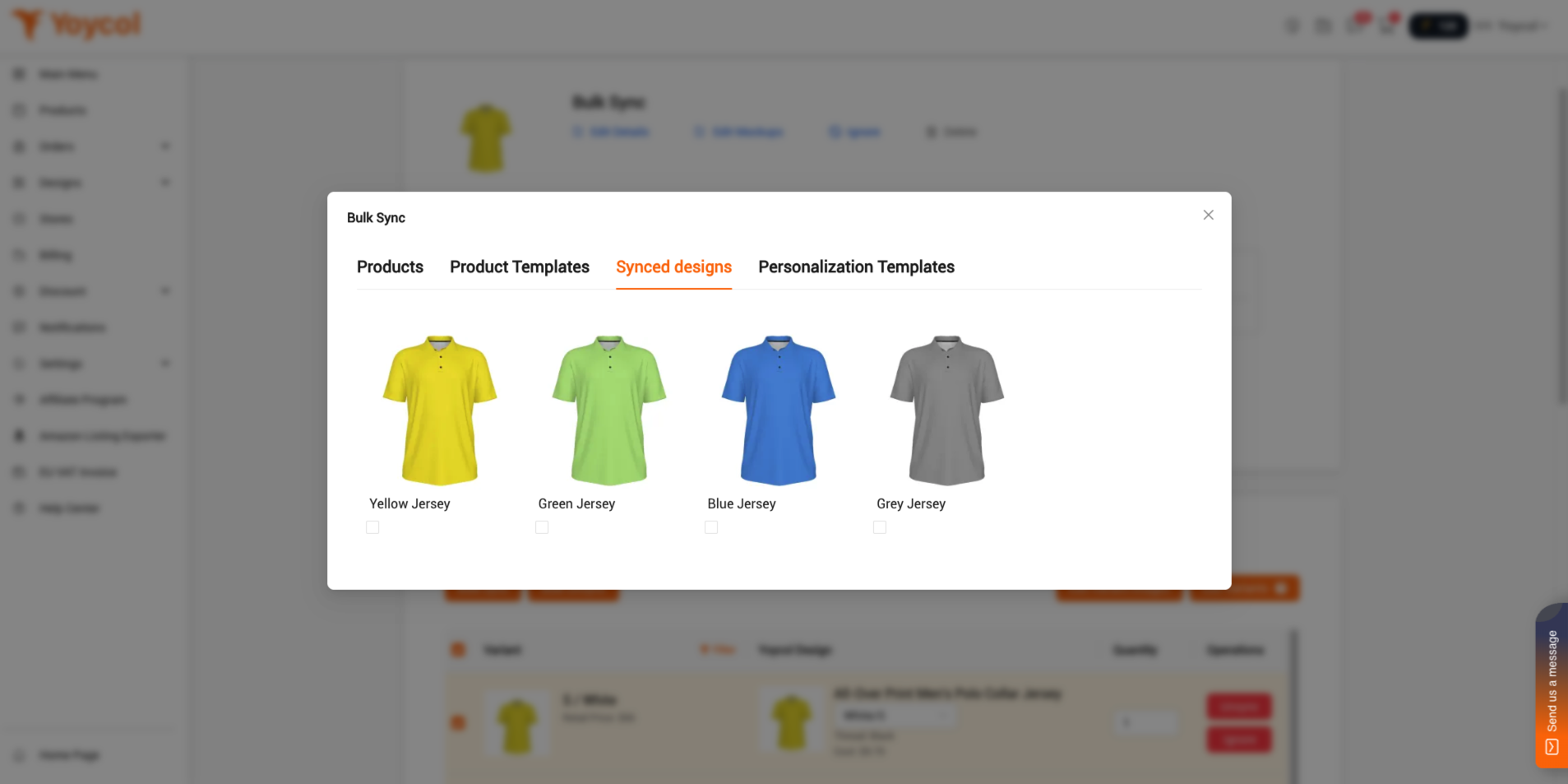
3) Select and review the variants, and click "Save".
5. Update your mockups
If you don’t want to update the mockups, you can skip this step.
Currently, updating mockups is only supported for Shopify stores.
For other channels, support will be added in the future. You can download the mockups and manually upload them in the channel’s backend.
1) Click 'Edit Mockups'
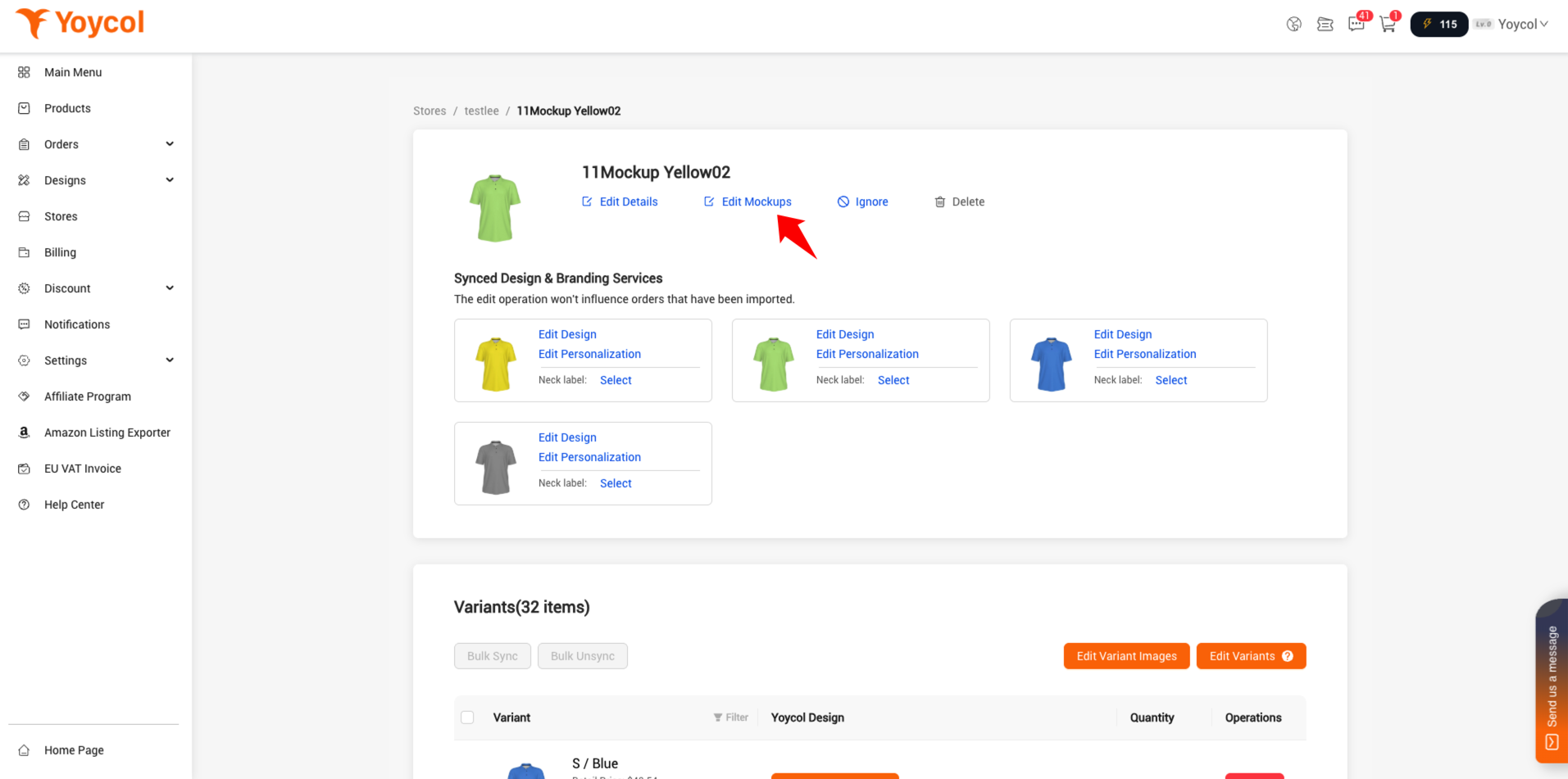
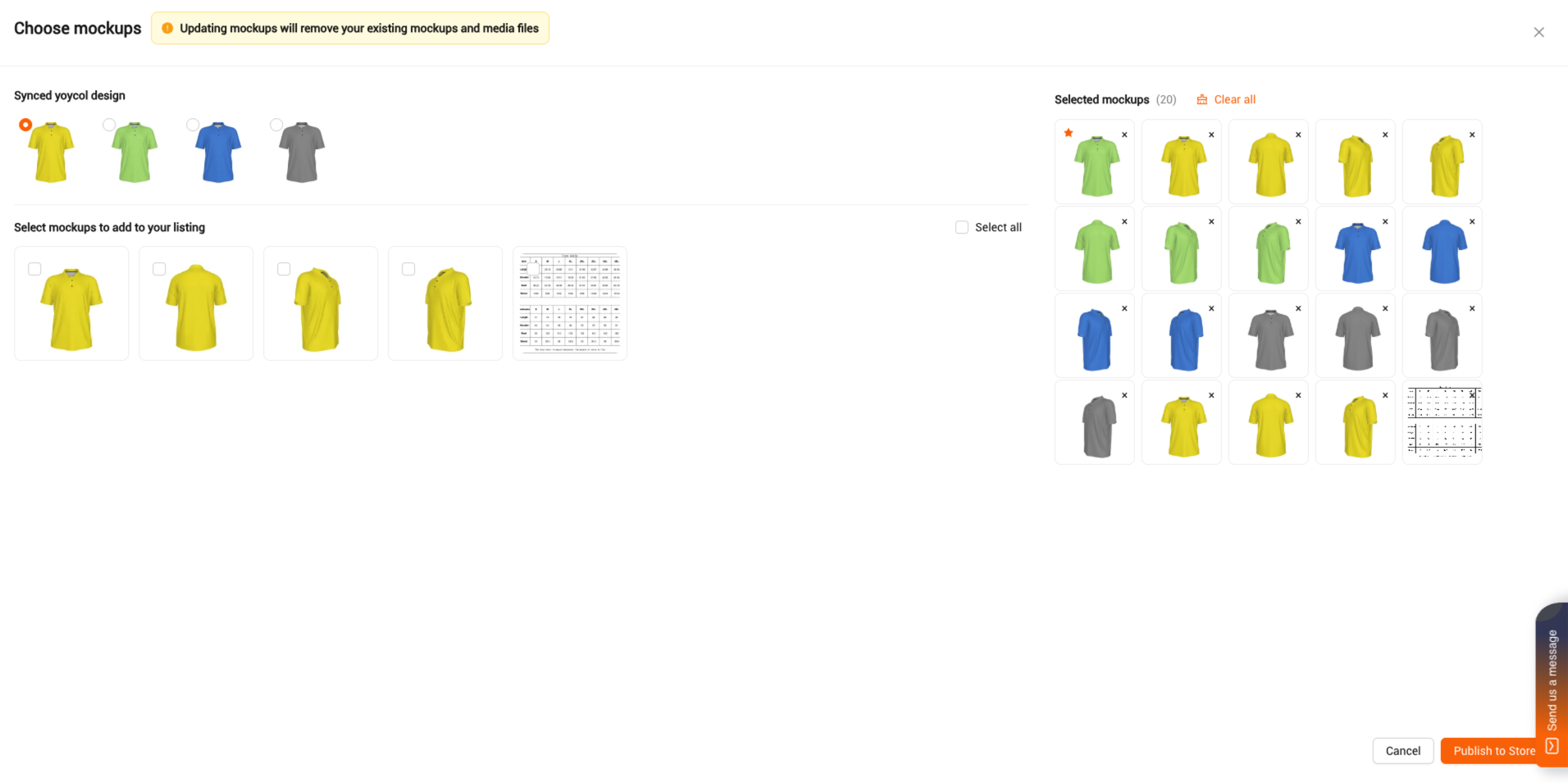
2) On the right , under 'Selected mockups', you can see the mockups that have already been added to Shopify.
On the left, you can also see all synced designs. Choose a design, then select the mockups to add them to the 'Selected Mockups' section on the right. Click ‘Publish to Store'.
6. Update variant image
1) Click 'Edit Variant Images'
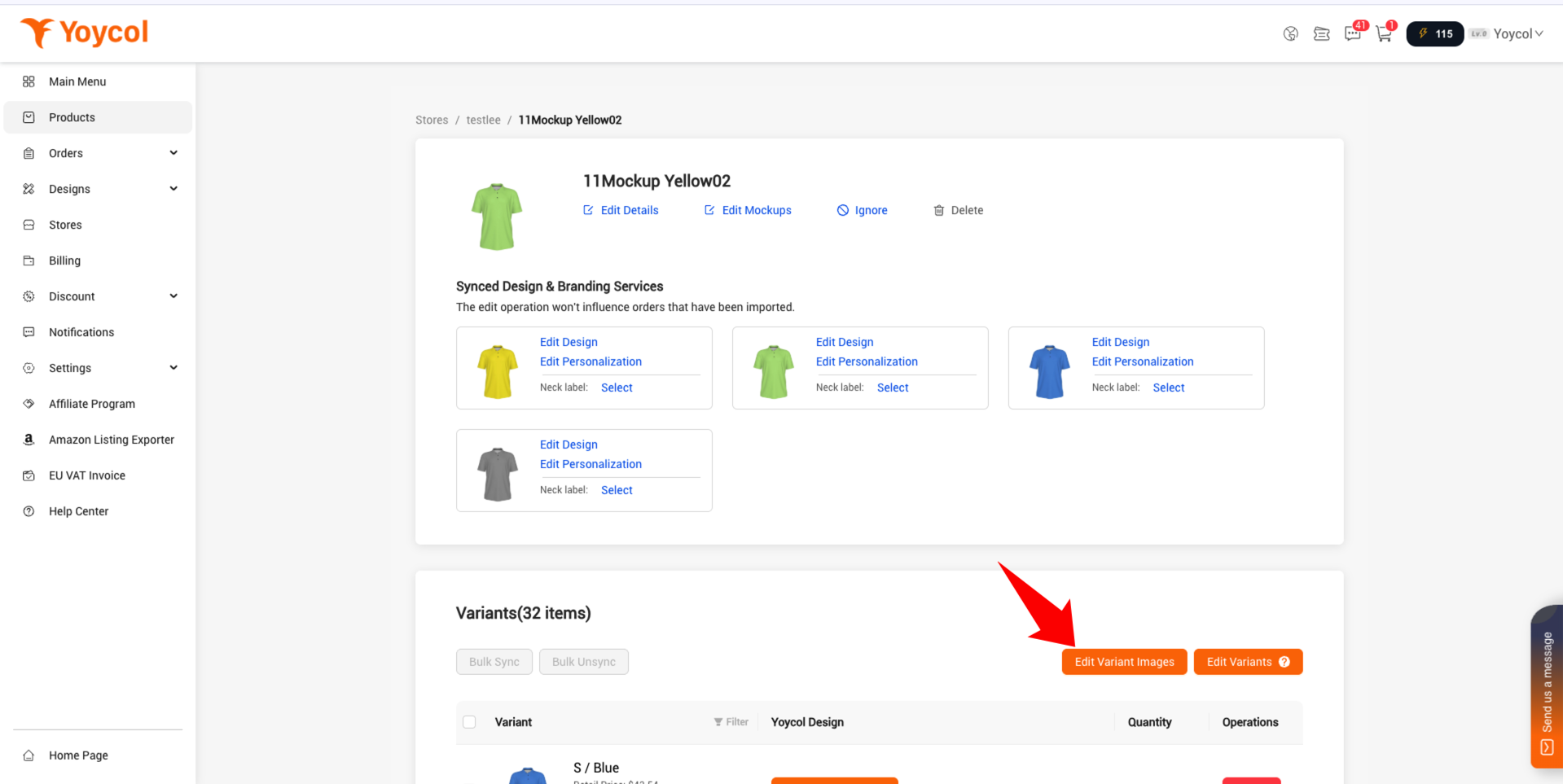
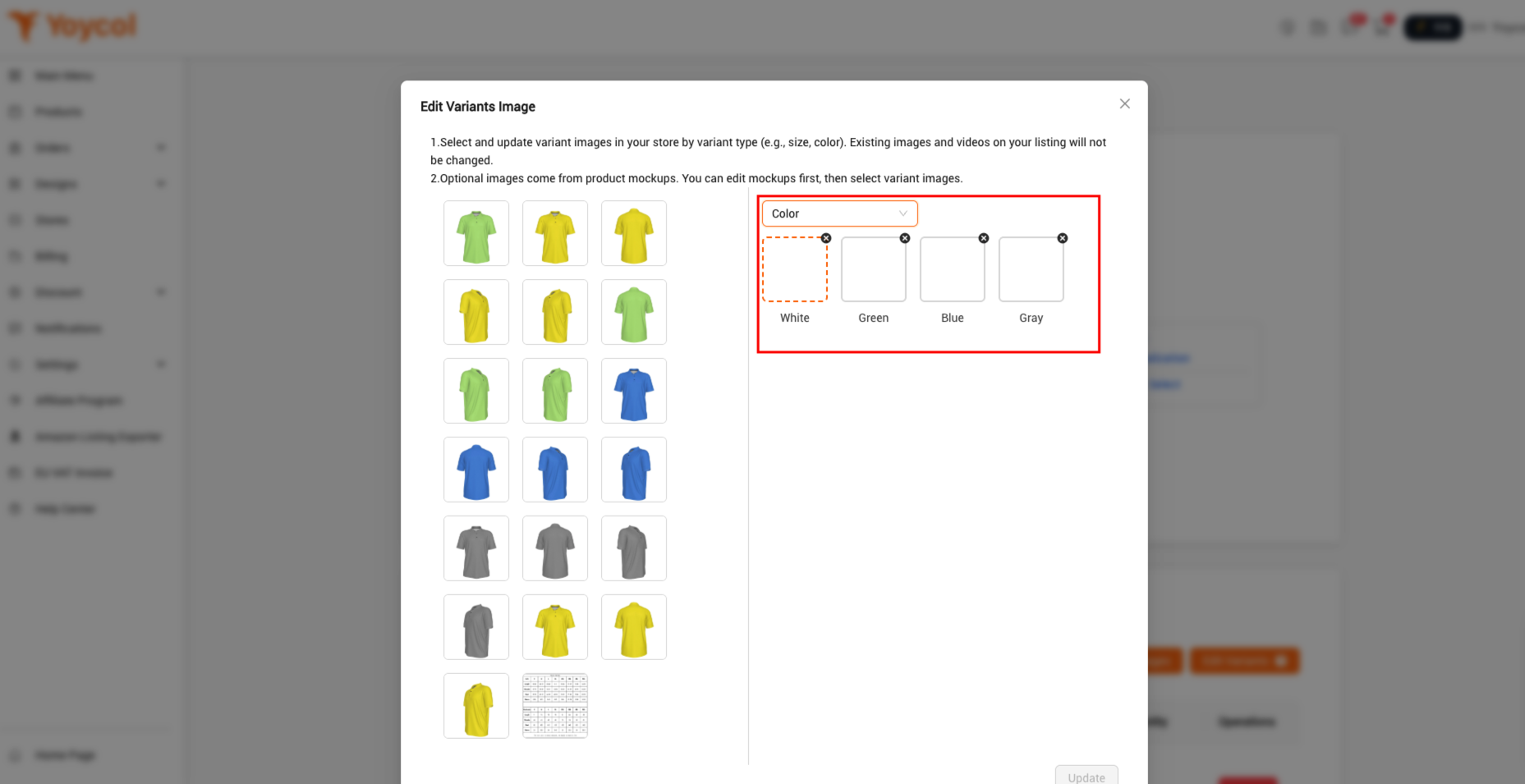
2) Select and update variant images to your Shopify store by variant type (e.g., size, color) and click 'Update'.
If you have other questions, welcome to contact us.