
AI Mockup - How to use AI Models' functions
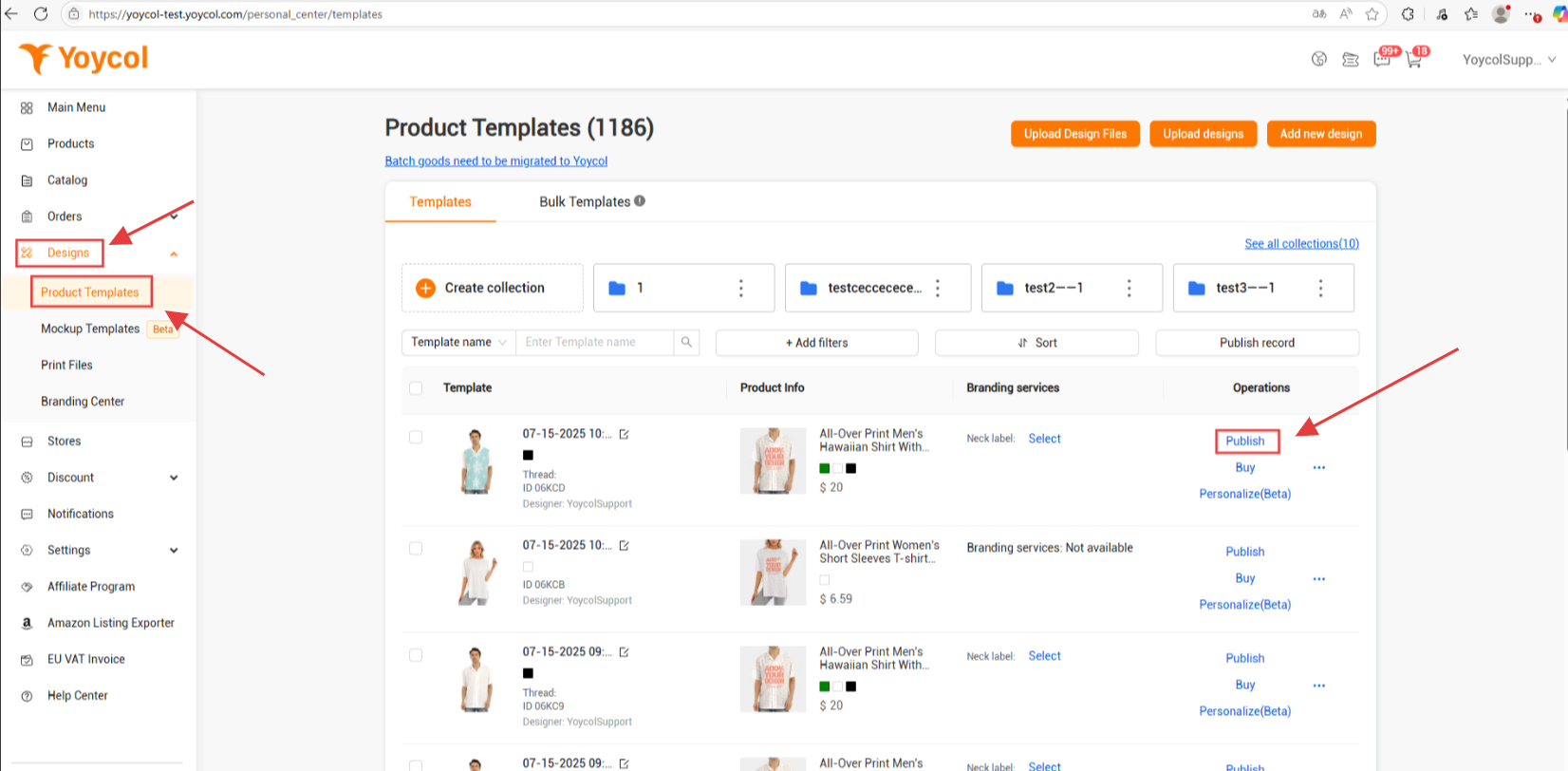
1.click Designs
2.click Product Templates
3.click publish
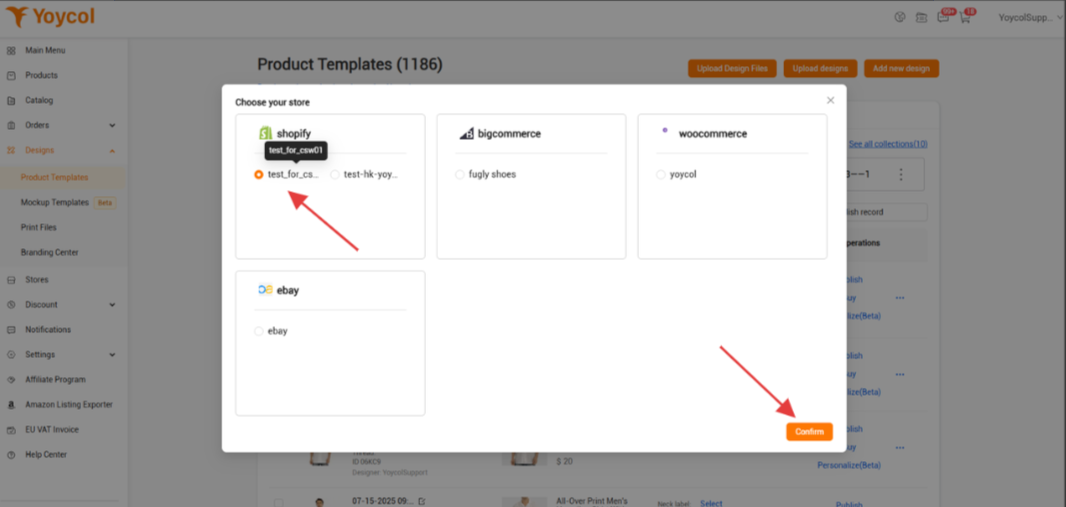
4.choose a store
5.click AI mockup
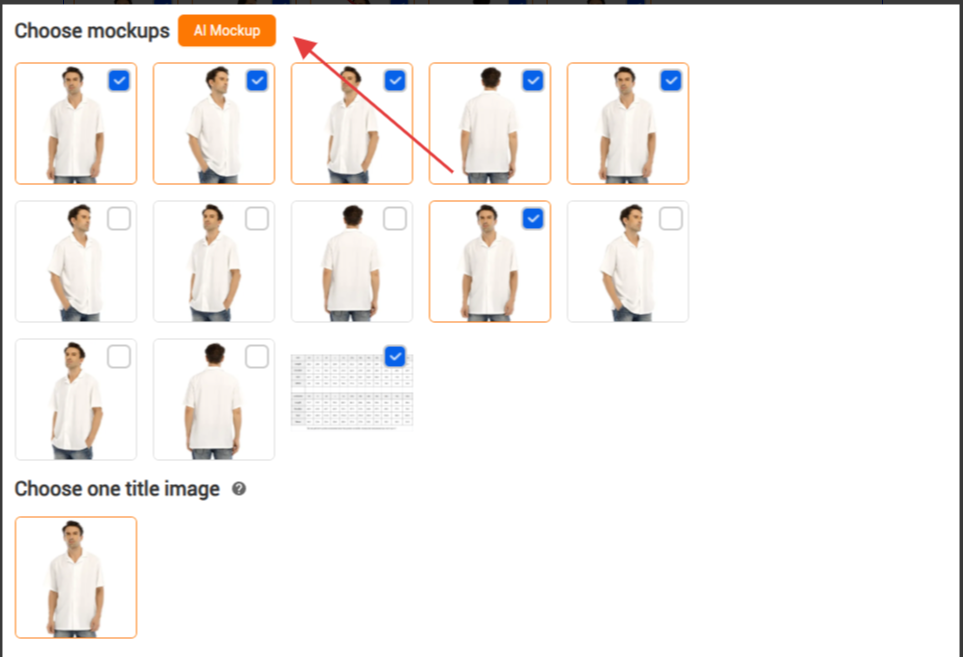
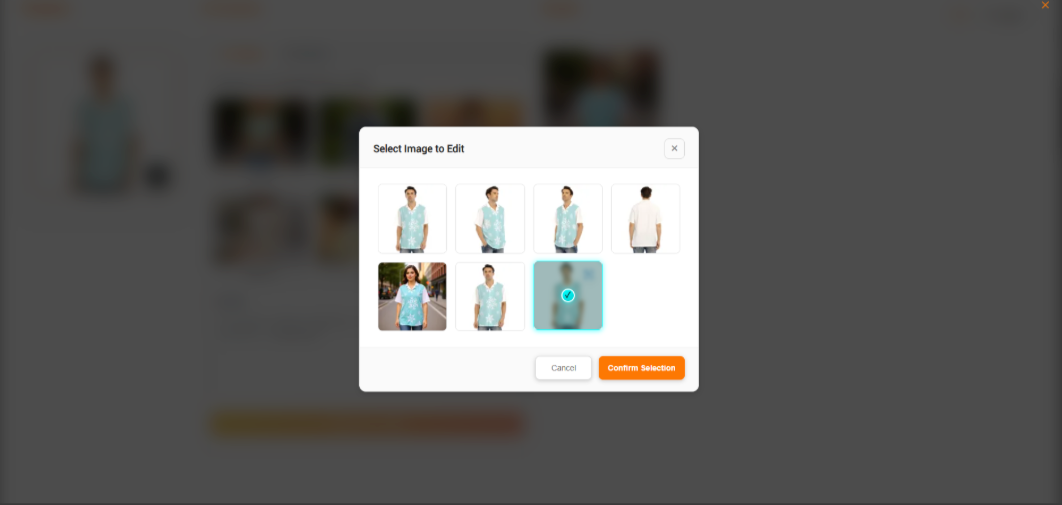
6.Click the icon at the bottom right corner of the template image to switch the selected mockup; after selection, click Confirm Selection
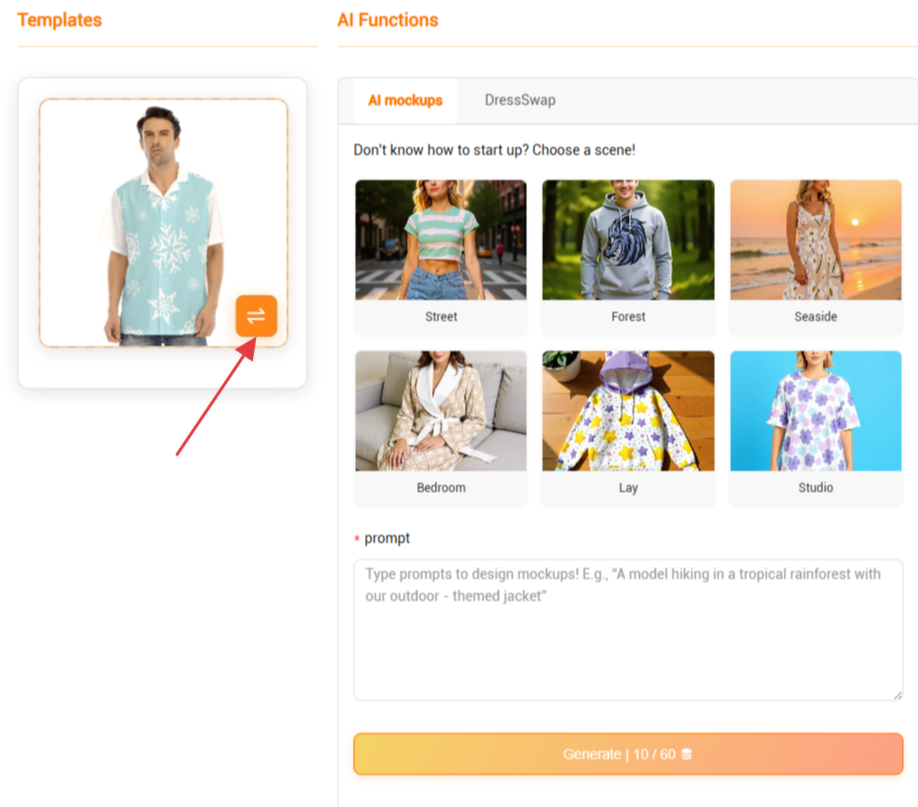
7.Enter the prompt words describing the desired model and scene in the prompt bar. If you don't know how to write the prompt, you can click the example image, and a corresponding example prompt will be provided.
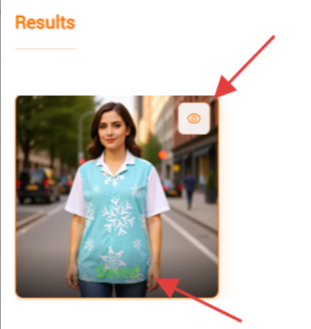
8.After writing the prompt, click Generate below, and the generated mockup will appear in the Results bar on the right.
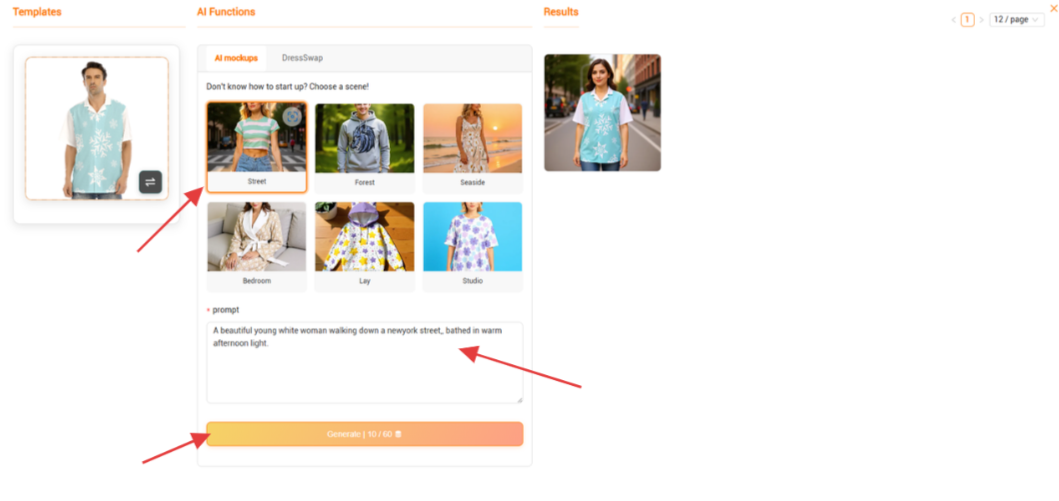
9.Hover the mouse over the generated AI mockup, an eye icon will appear in the upper right corner; click it to zoom in for a detailed view. A Save button will appear at the bottom; click it to save the image.