

How to integrate with Order Desk
Before starting the integration, please contact the Yoycol customer support team. Yoycol will arrange a technical specialist to help with the setup and testing. The following is the complete integration process.
1. Applicable Scenario
This guide explains how merchants can send orders from Order Desk to Yoycol for fulfillment.
After the rule is configured in Order Desk, merchants only need to move the orders that should be fulfilled by Yoycol into the specified folder. Yoycol will automatically receive the order, write back the processing result, and return shipment information.
2. Overall Flow
Order enters Order Desk
        ↓
Merchant moves the order to Ready for Yoycol
        ↓
Order Desk automatically sends the order to Yoycol
        ↓
After Yoycol receives the order successfully, the order moves to Sent to Yoycol
        ↓
Yoycol produces and ships the order
        ↓
Yoycol returns shipment information, and the order moves to Fulfilled by Yoycol
3. Folders to Create
Please create the following 3 folders in Order Desk. The names must match exactly, including capitalization and spaces.
| Folder Name | Meaning | Operated By |
|---|---|---|
Ready for Yoycol |
Orders waiting to be sent to Yoycol | Merchant |
Sent to Yoycol |
Orders successfully received by Yoycol | System |
Fulfilled by Yoycol |
Orders shipped by Yoycol | System |
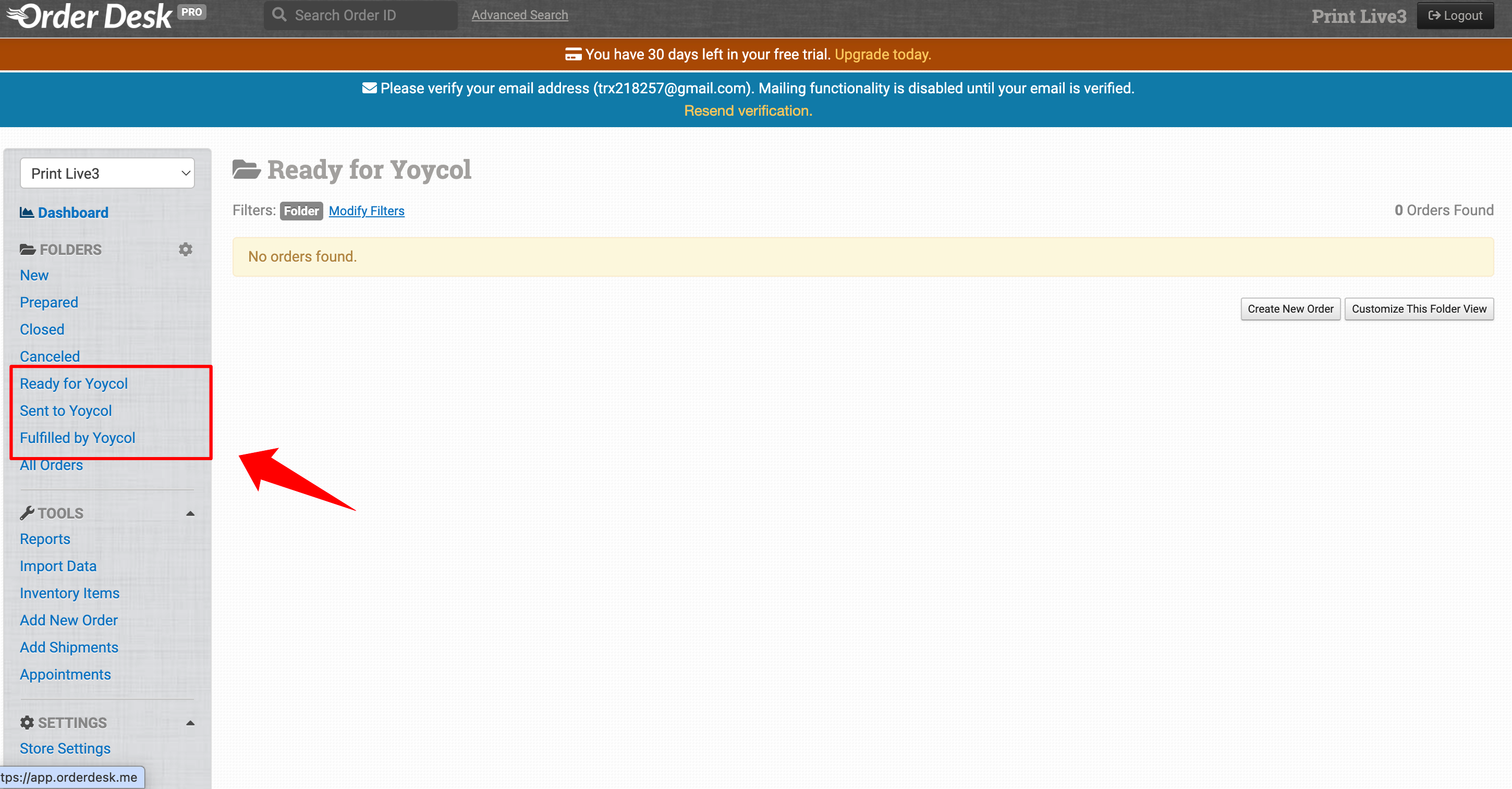
In daily use, merchants only need to manually move orders to Ready for Yoycol.
Please do not manually move orders to Sent to Yoycol or Fulfilled by Yoycol. These two folders are updated automatically by the system.
4. Order Desk Rule Setup
The Rule Builder is used to automatically send an order to Yoycol when the order enters Ready for Yoycol.
Before setup, please contact the Yoycol support team to confirm:
| Information | Purpose |
|---|---|
| Yoycol order receiving URL | Used for Post Order JSON |
| Shipping method | Used for Set Shipping Method |
Setup steps:
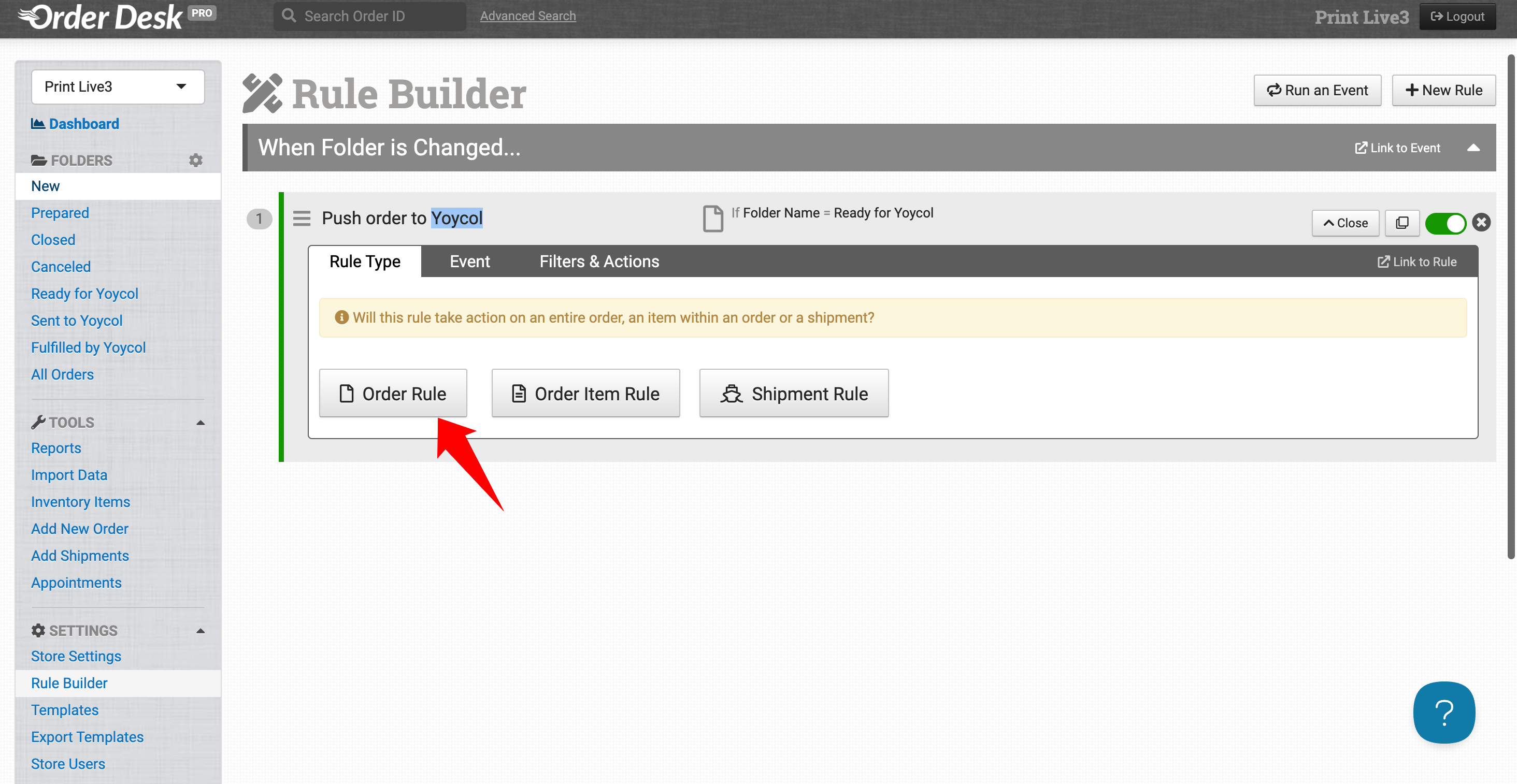
- Go to Rule Builder.
- For
Rule Type, selectOrder Rule. - For
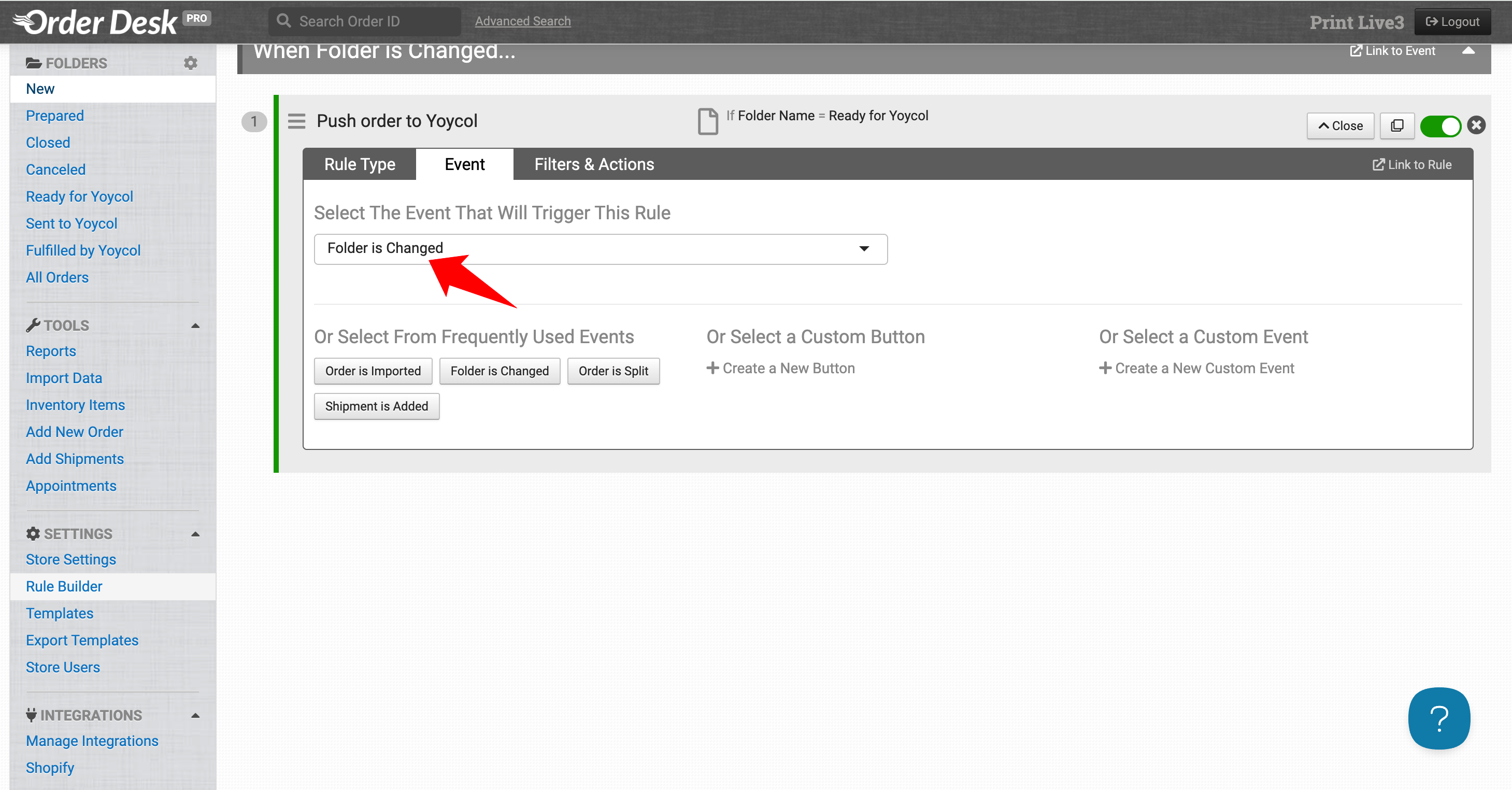
Event, selectFolder is Changed. - For
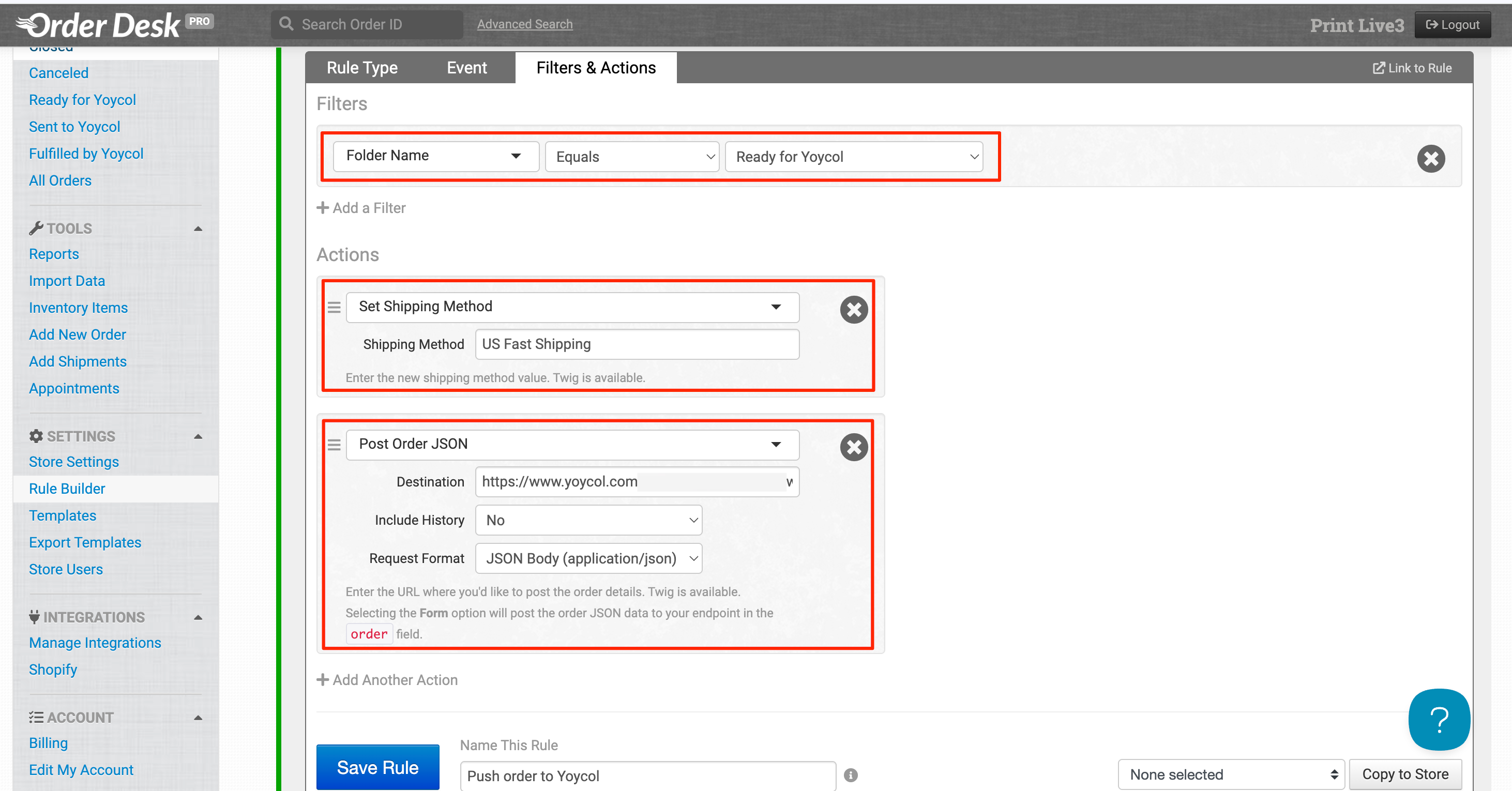
Filters, setFolder Name->Equals->Ready for Yoycol. - Add the first Action:
Set Shipping Method, then select the shipping method you want to use. Please confirm the shipping method with the Yoycol support team in advance. - Add the second Action:
Post Order JSON, then enter the URL provided by the Yoycol support team. - For
Name This Rule, we recommendSend Order to Yoycol. - Save and enable the rule.
5. How to Submit Orders
When an order needs to be fulfilled by Yoycol:
- Open the order in Order Desk.
- Confirm that the product SKU, quantity, design file, and shipping address are complete.
- Move the order to
Ready for Yoycol. - Wait for the system to automatically send the order to Yoycol.
- Check whether the order moves to
Sent to Yoycol.
If the order moves to Sent to Yoycol, it means Yoycol has received the order successfully.
6. Product Information Requirements
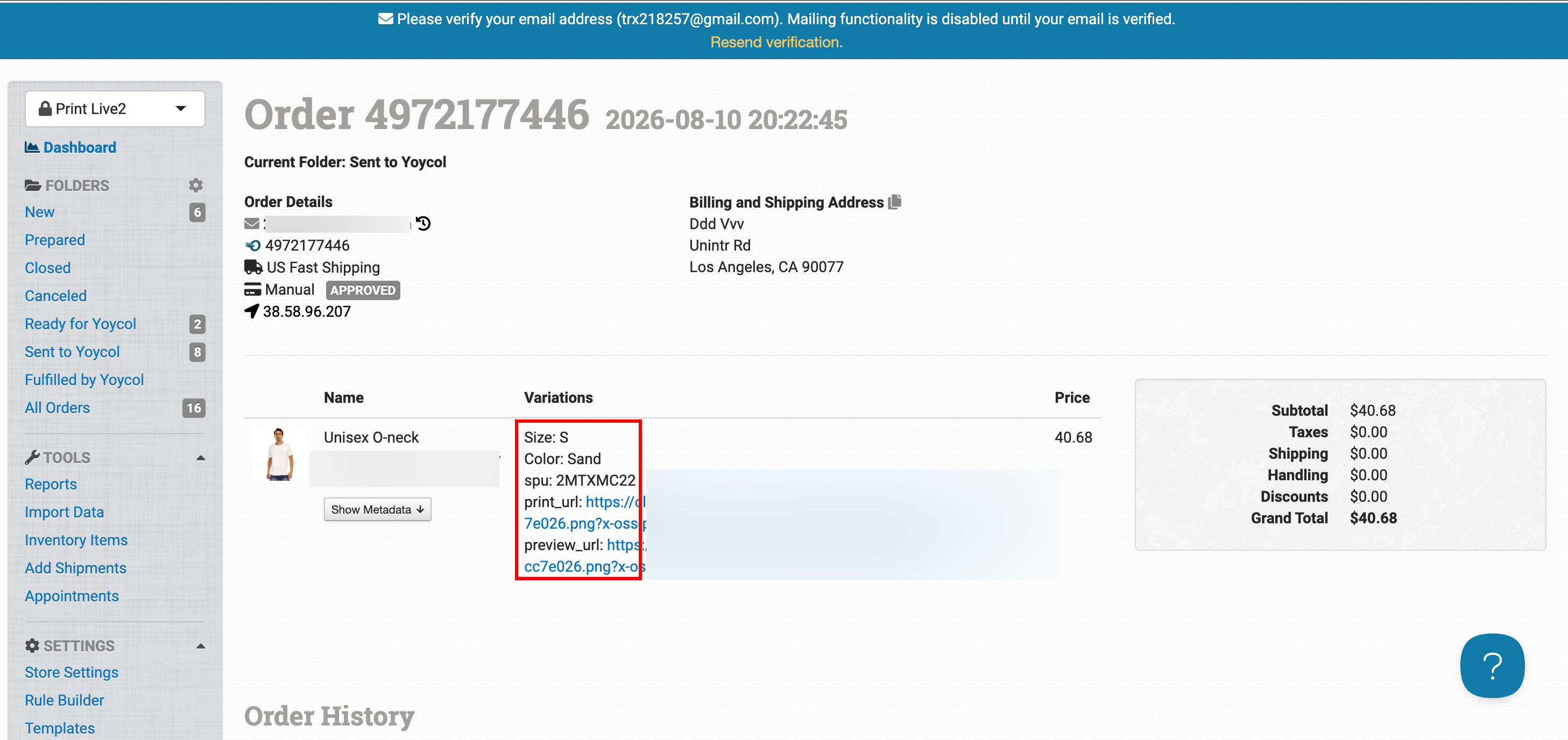
Each product needs product identification information and design file links.
The following fields should be filled in the Order Desk order item's Variants or Metadata.
| Information | Field | Required | Example | Description |
|---|---|---|---|---|
| Product identification option 1 | print_sku |
Required, choose one of the two options | ADS-3MCSPL56-00000-FFFFFF-XL |
Enter the Yoycol Sku Code. It can be downloaded from the Yoycol product detail page. |
| Product identification option 2 | SPU + Size + Color | Required, choose one of the two options | 3MCSPL56 + XL + White |
The SPU Code can be downloaded from the Yoycol product detail page. Size and Color must match Yoycol exactly. |
| Design file link | print_url / print_url_1 / print_url_2... |
Required | https://example.com/front.png |
Used for production printing. The link must be publicly accessible and downloadable. |
| Preview image link | preview_url / preview_url_1 / preview_url_2... |
Recommended | https://example.com/preview.jpg |
Used to check the product preview. The link must be publicly accessible and downloadable. |
7. Check Processing Results
Yoycol will write processing results into Order History.
| Scenario | What Order History Shows |
|---|---|
| Order received successfully | Yoycol has successfully received the order |
| Order failed to be received | The specific failure reason |
| Yoycol shipment | Tracking number, carrier, and tracking information |
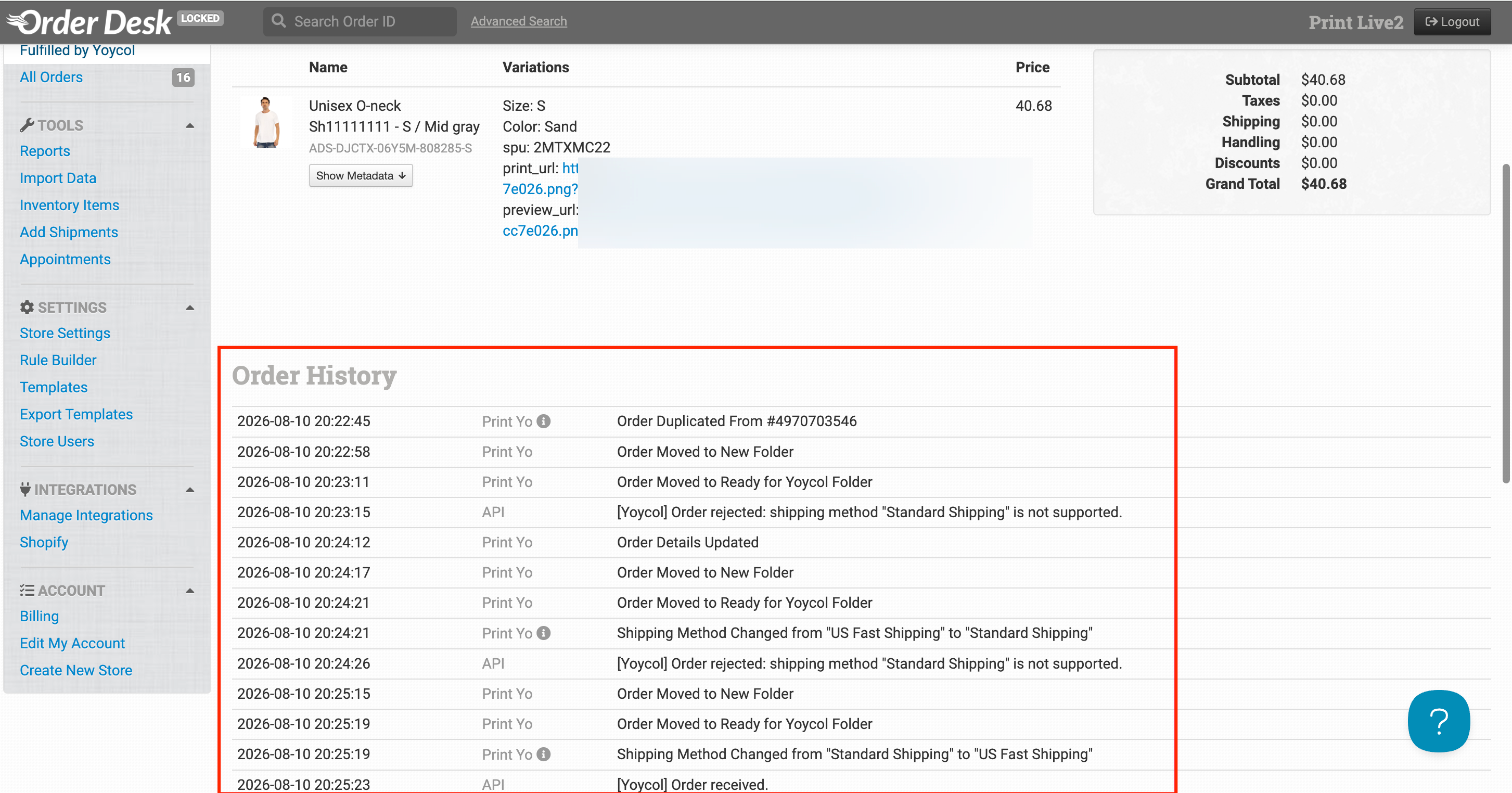
If the order fails to be received, please correct the order based on the reason shown in Order History, then move the order to Ready for Yoycol again to trigger the rule.
8. Multiple Shipments for One Order
If one order is shipped in multiple shipments, Yoycol will write one separate Shipment for each shipment.
Example:
| Shipment | What You Will See in Order Desk |
|---|---|
| First shipment | The first Shipment is written |
| Second shipment | The second Shipment is written |
9. Pre-Launch Test
Before going live, please use one test order to confirm the following results:
| Check Item | Passing Standard |
|---|---|
| Folders are correct | The 3 folder names are exactly correct |
| Rule works | The order is automatically sent after entering Ready for Yoycol |
| Order is received successfully | The order automatically moves to Sent to Yoycol |
| Result is visible | Order History contains records written by Yoycol |
| Shipment can be returned | Order Desk can see the Shipment after Yoycol ships the order |
| Status can be updated | The order moves to Fulfilled by Yoycol after all shipments are completed |
After all checks pass, the integration can be used officially.