Printing files
- Print files requirements
Only JPG and PNG formats with at least 150 dpi files can be uploaded. Yoycol supports uploading images in bulk, but only for the files within 100 MB, with resolution within 16384px*16384px and each pixel limited to 30,000px.
- Print quality and DPI instructions
Print quality will be suggested in the top right corner of designing page. Also, DPI will be shown on the material list. See the following image:
Print quality refers to the printing effect of materials with minimal DPI in the designing area. It can be classified into ‘ High(Over 150 DPI)’, ‘Average(80~150 DPI)’ and ‘Low(below 80 DPI)’.
Printing DPI(the numbers of pixels per inch) is limited to the resolution(the number of pixel) and the effect of stretching.
So, stretching space will be larger if the picture has higher resolution under the condition of great printing effect.
|
|
|
- Printing files source
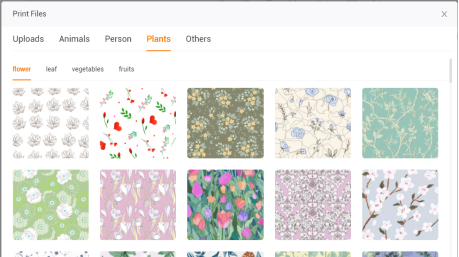
You can upload local printing files as materials or use the images from Yoycol designing library for free. Click ‘Add Image’ to check designing library as follows (Please notice, each canvas only supports up to 10 materials.) :
|
|
|
- Chromatism issue
The image color is determined by monitor and specific display effect. For example, the color gamut of Chrome is RGB. While the the picture you upload shown in CMYK, then chromatism issue arises. To have a great display effect, picture with sRGB is referred. If you have interest in the real print profile of sRGB, please feel free to contact us.
- Practical pieces’ size
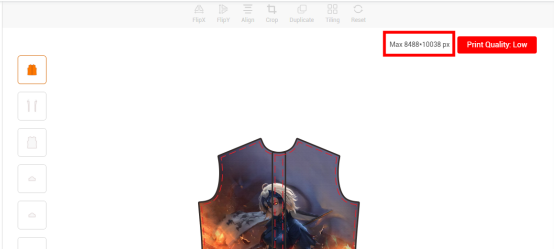
The practical pieces’ size is shown in the top right corner of the designing page. See follows (This shows the practical pieces’ size is, 8488*10038px.) :
|
|
|
- Problems caused by flawed print files
Yoycol’s generator can’t intelligently judge whether there are flaws on the picture uploaded. As shown below (There is a white line on the design.
Please check before uploading a picture. Otherwise, there will have problems after producing.) :
|
|
|
Design tips
- Safe & Stitching area
Safe area: It refers to the major display part of the end product. The design in this area won’t be sewn up during the stitching process.
Stitching area: Design in this area will be sewn up during stitching process.
|
|
|
- Logo safety area
Please make sure to keep the logo far away from the stitching line while designing. As shown below, the logo which is within the safe print area stays too close to the stitching line. Within the allowable range of production error, this may affect logo’s integrity after producing. Therefore, please leave enough margin between logo and stitching line before completing designing.
|
|
|
- Full-bleed images
To guarantee end products’ integrity and beauty, please use full-bleed images. Full-bleed image: It's usually recommended to upload designs beyond the edges of the canvas design area, so that there is no blank after stitching or cutting.
Error 1 (left image below): The image fits the whole design area.
Although the image can completely cover the canvas design area, it may still appear blank while cutting.
Error 2(right image below): The image fits the stitching line.
Within the allowable range of production error, there may exist blank area and the hem is not beautiful.
|
|
|
Therefore, full-bleed image is recommended, as below:
|
|
|
- Problems caused by 3D and 2D mockup difference
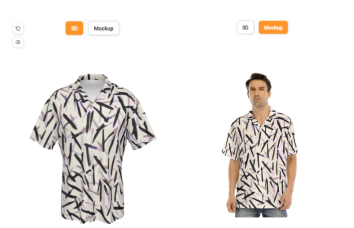
When 3D mockup is incompatible with 2D mockup, the real printing effect refers to 3D rendering.
|
|
|
Mockup
- 3D & 2D mockup
Problems caused by 3D and 2D mockup difference
When 3D mockup is incompatible with 2D mockup, the real printing effect refers to 3D rendering.
|
|
|
Design function tips
-
Color picker
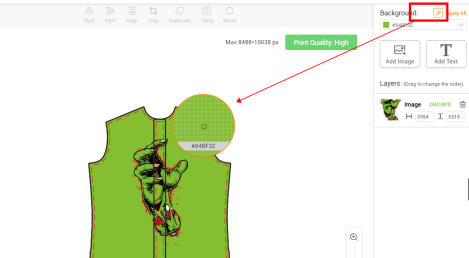
Background setting is over ‘Add Image’ button on designing page. See the following pic.
Click ‘Color picker’ button, pick background color from the material. Background setting in bulk is also supported.
|
|
|
|
|
|
|
-
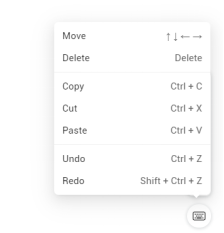
Shortcut keys
Putting mouse on the keyboard icon, it will suggest feasible shortcut keys, including move, delete, copy, cut, paste, undo and redo.
|
|
|
|
|
|
|
|
|
|
|
Smart Design
- Automated Design Generation
Effortlessly generate designs automatically, with the ability to create multiple variations to perfect your vision.
- User-Friendly Style Filtering
Easily filter patterns by style, ensuring a straightforward and convenient design experience for users of all skill levels.
|
|
|











 2026 All rights reserved.