

Batch Design
1 User Scenarios
-
There are many materials, and each product only requires a small number of elements (images or text), so a large number of designs can be generated simply by direct replacement


-
There are many seamless repeating image materials, and a large number of designs are generated by batch replacing images

-
C-end customization

2.Functional Perspective
Step 1: Design a template first.
First, select a product and create a design that includes images and text
|
 |
|
 |
Step2:Download design templates
|
Find the entrance
|
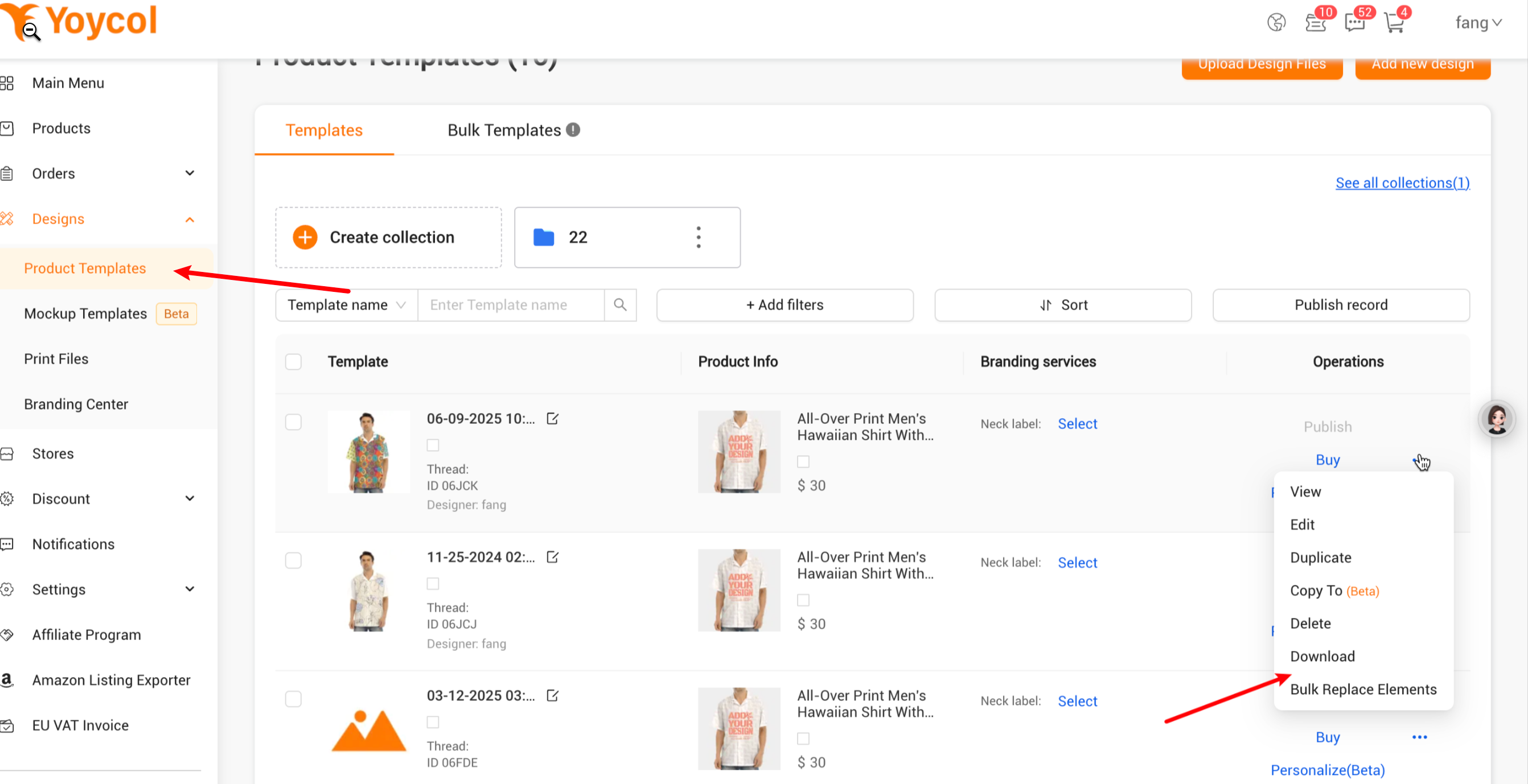 |
|
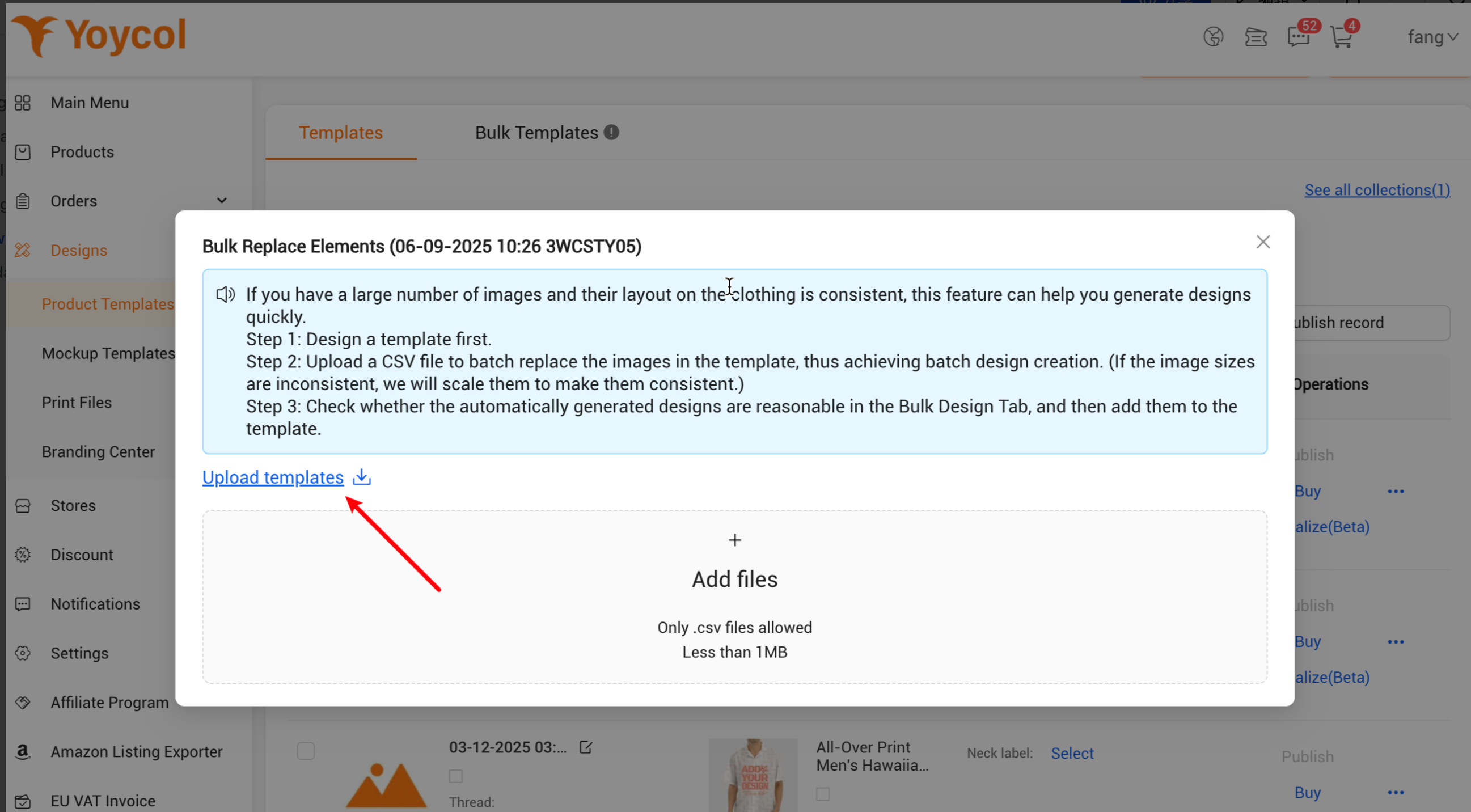
Download Template
Downloaded Rules
Case
The correspondence of the exported Excel is as follows
|
 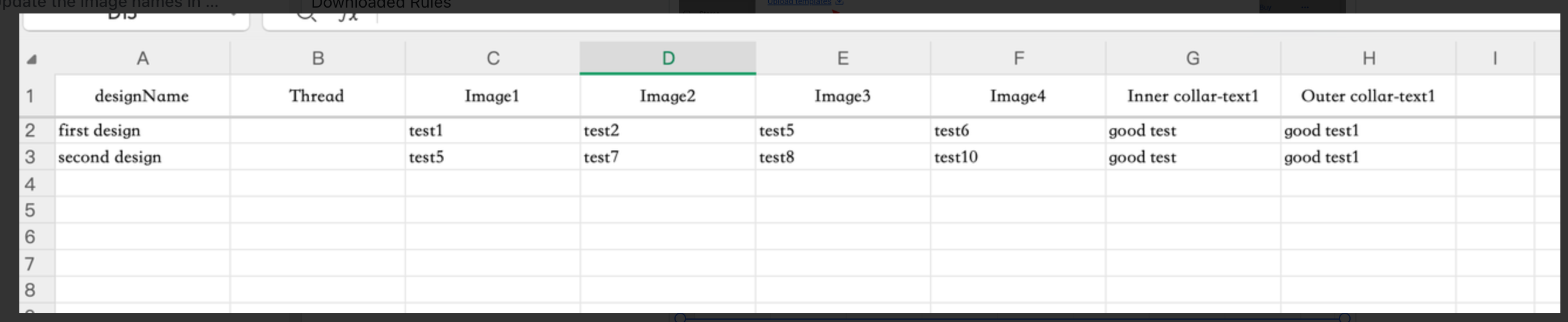  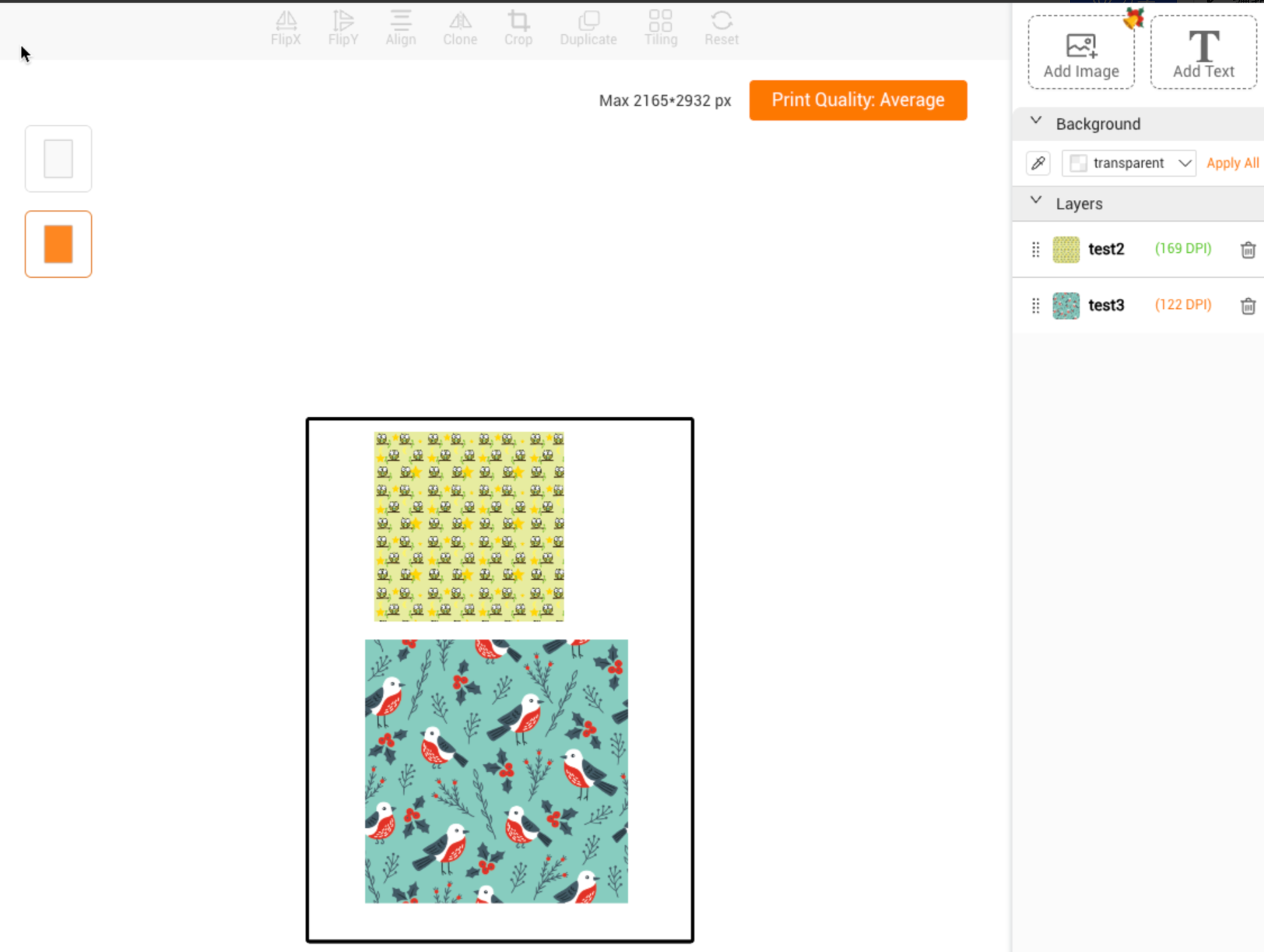 |
|
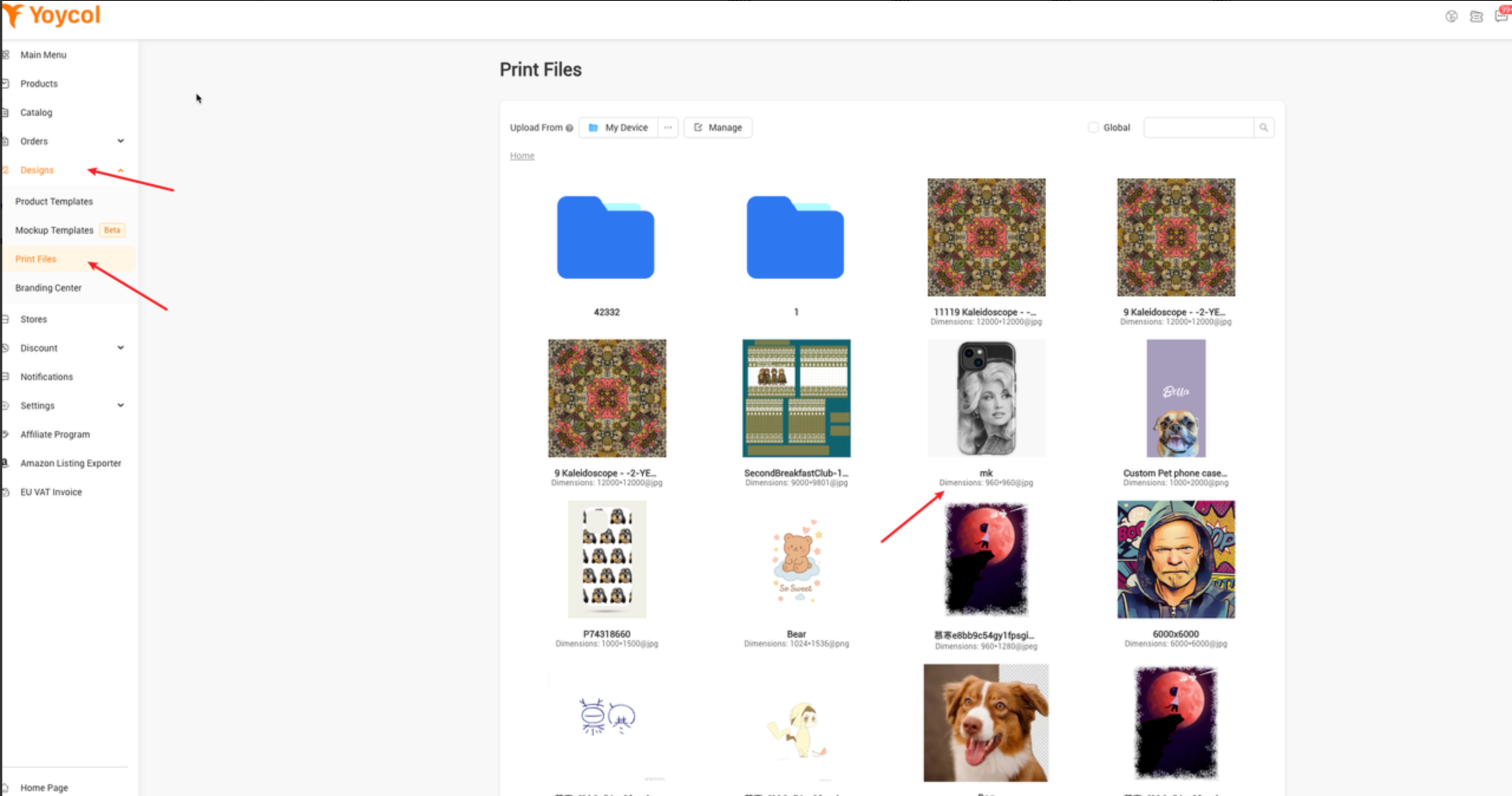
Upload an image and obtain the image name
Attention
|
  |
|
Generate the imported Excel file
|
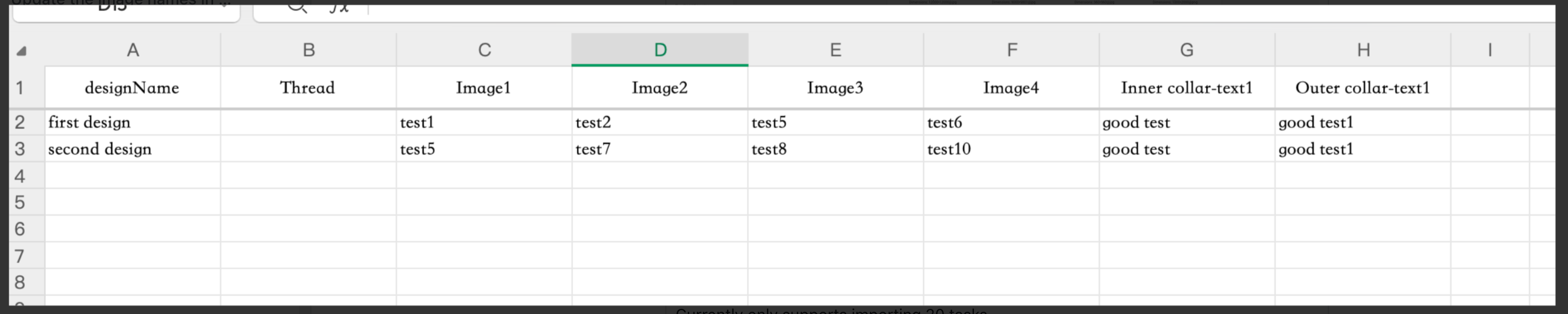 Currently only supports importing 20 tasks
|
Step3:Update the image names in the CSV
Select a template, import Excel, and generate a design
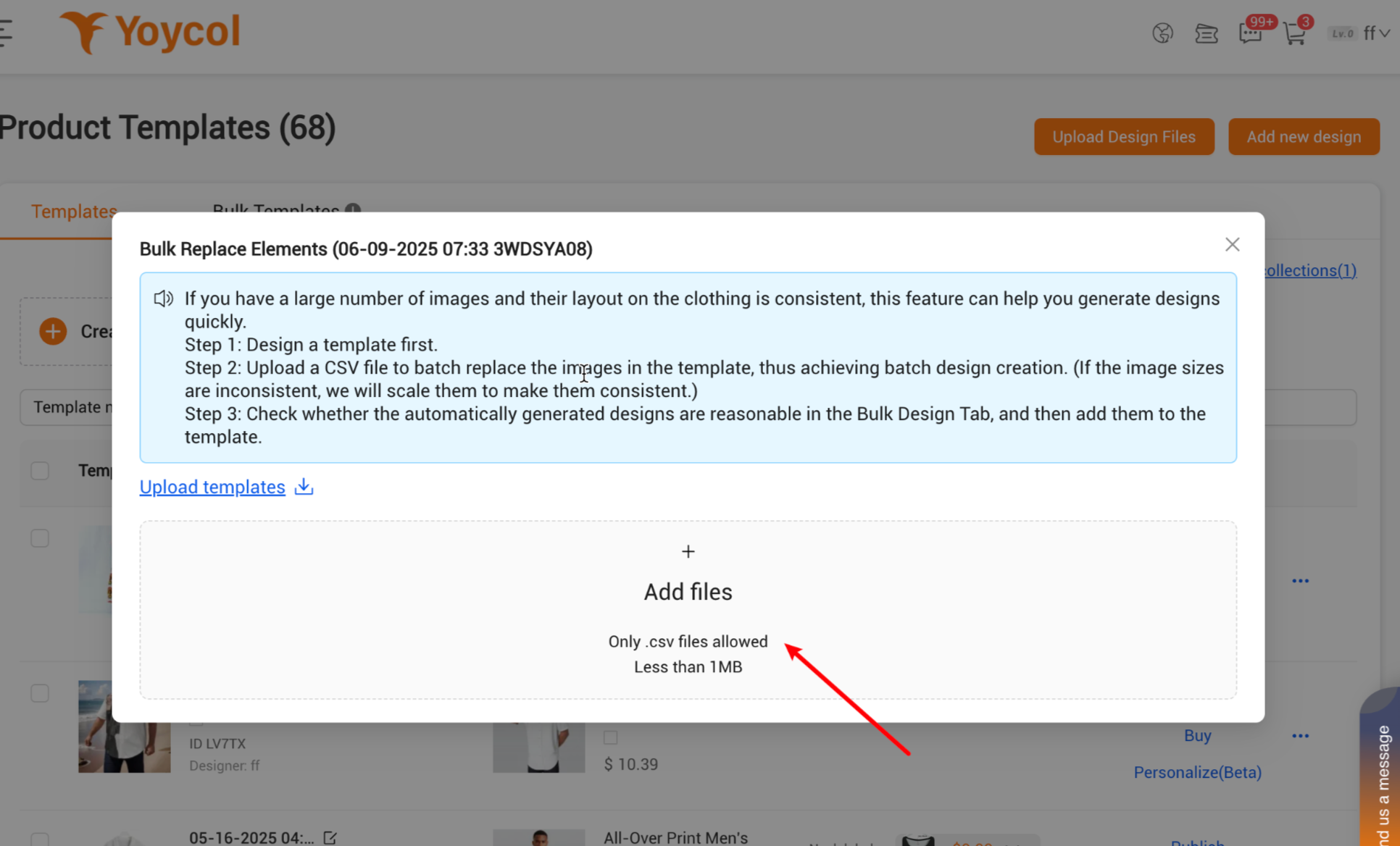
After generation, view the task, confirm that the designer has approved, and then add to template
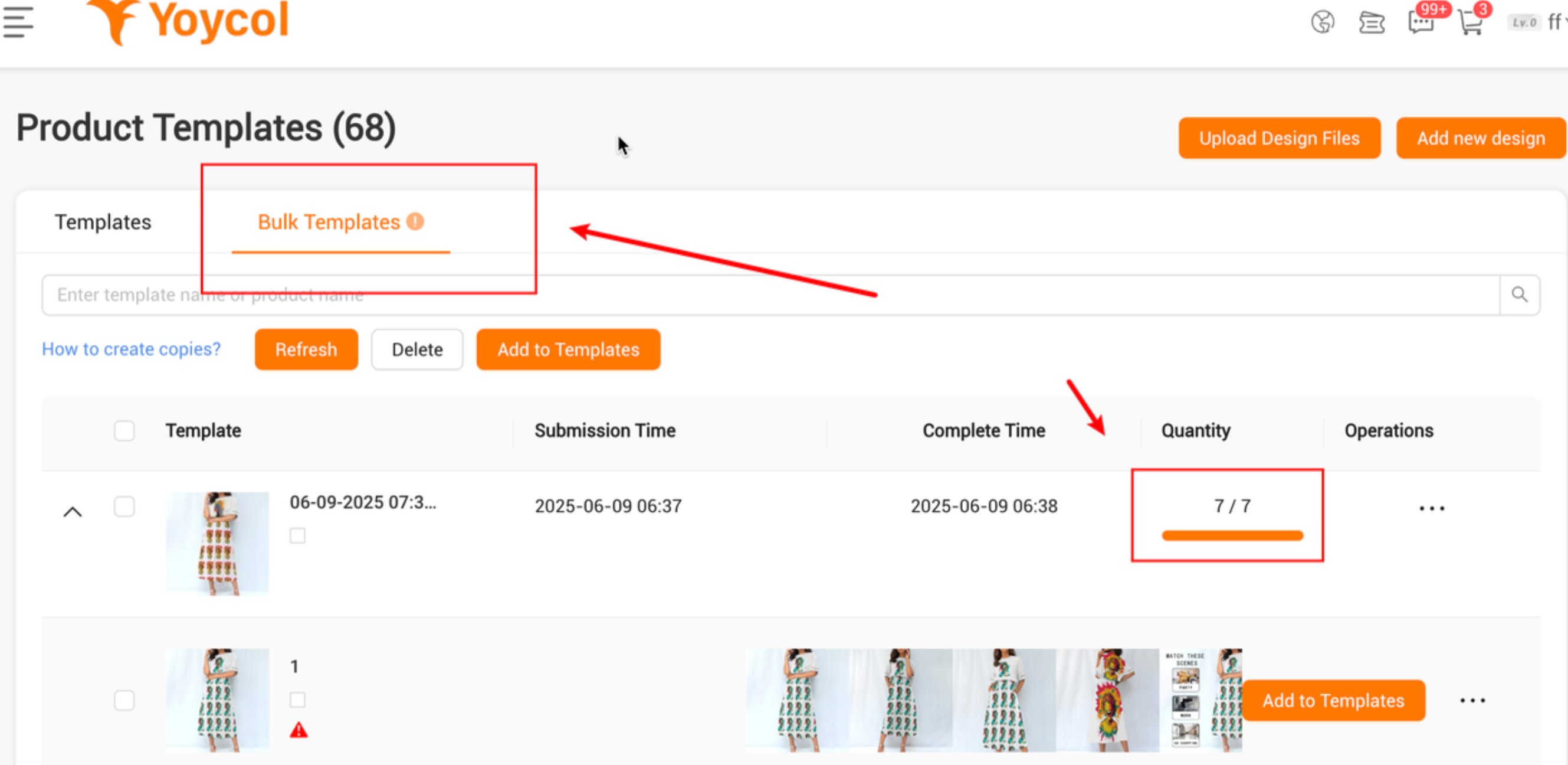
3 Q&A
-
What are the requirements for the images in the material library?
-
Image names cannot be duplicated; otherwise, the system will be unable to determine which image to use
-
-
Is the upload method limited to only CSV?
-
Yes
-
-
For other issues or requirements, please contact us