

How to add personalization options to published products
If you want to add or update personalization options for an already published product, this article will guide you through the process.
1. Open the “Product Templates” menu, go to the “Published” tab, and select your store.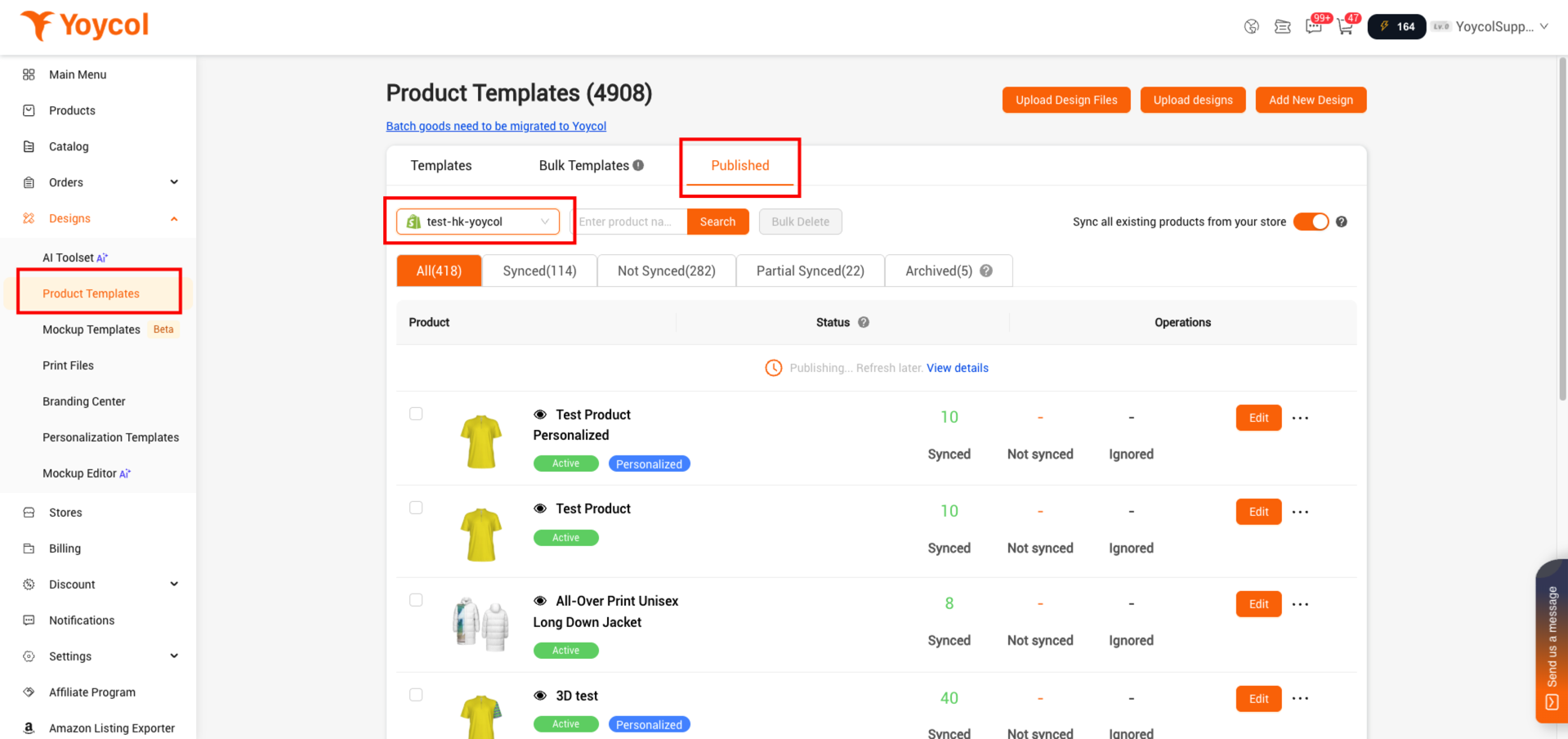
2. Find the product that you want to update variants. Click ‘edit’.
If the product is going to be achived, you could find it in 'Archived'.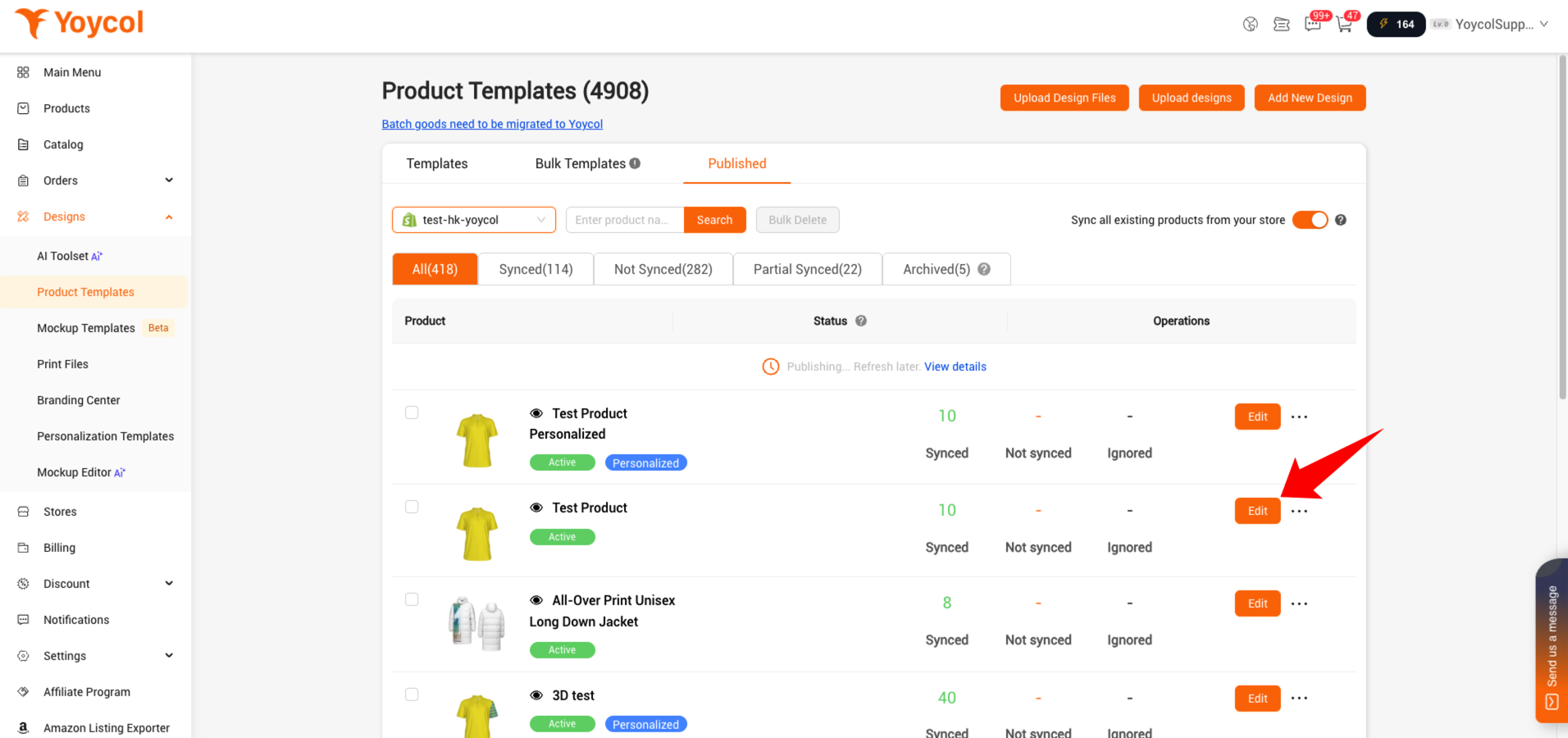
3. Add personalization options
If the product is non-personalized, you can add personalizaiton options.
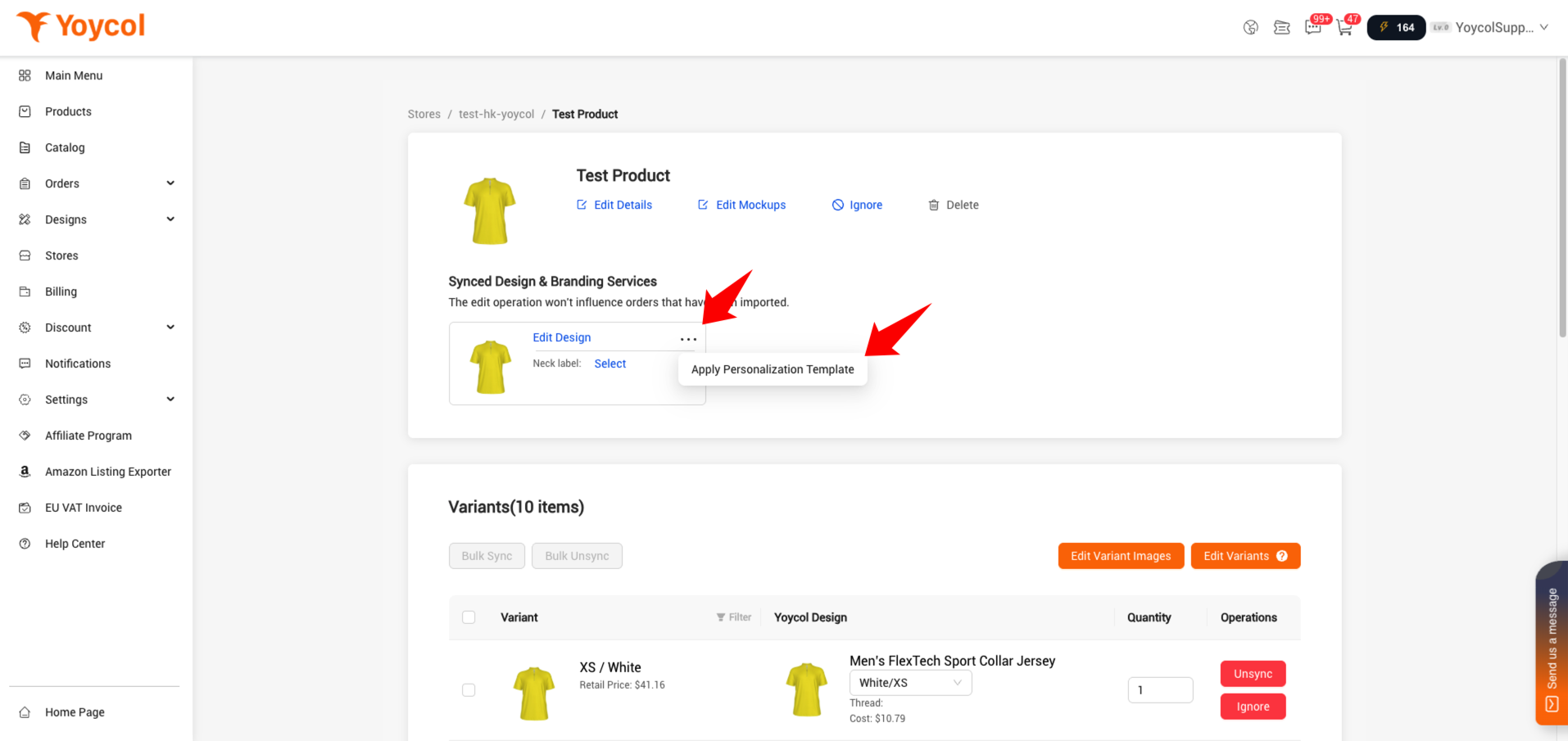
3.1 Click the menu in the upper-right corner of “Synced designs” and select “Apply Personalization Template”.
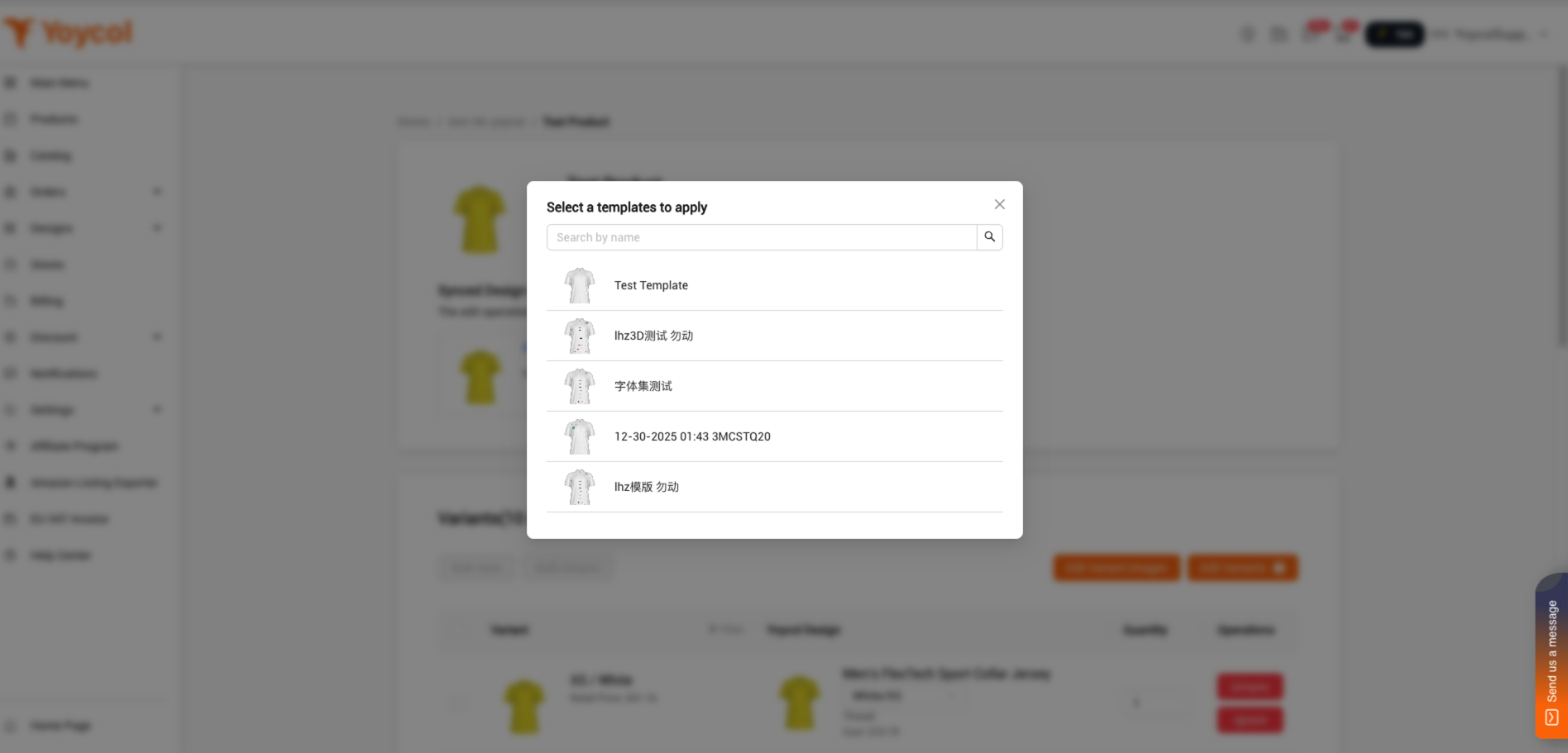
3.2 Select a template and apply it.
4. Update personalization options
If the product is already personalized, you can update the personalization options. There are two ways:
· Update based on the current personalization options
· Update personalization options using a template
4.1 Update based on the current personalization options
1) Click "Edit Designs", and update your design. If you don't want to update your design, you can skip this step.
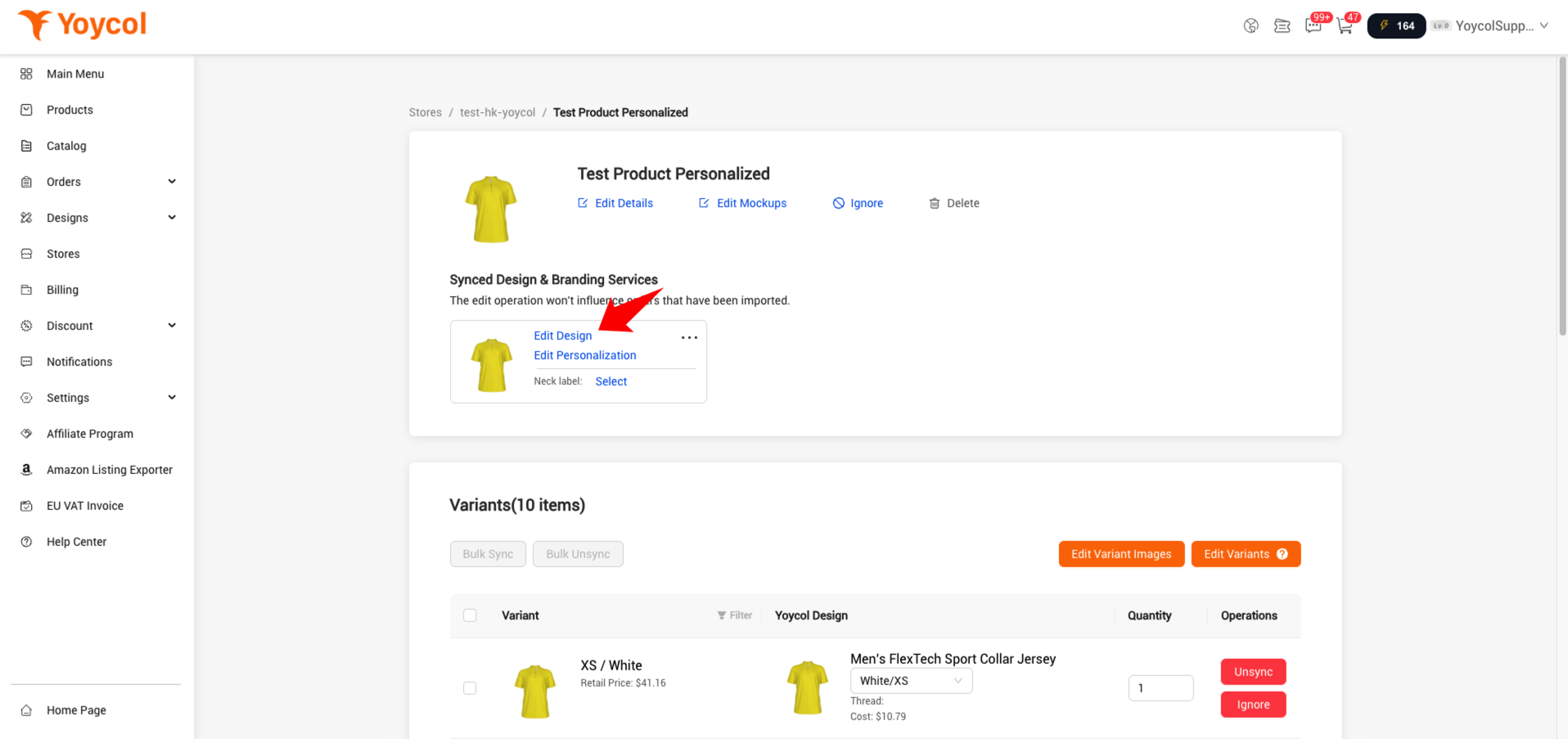
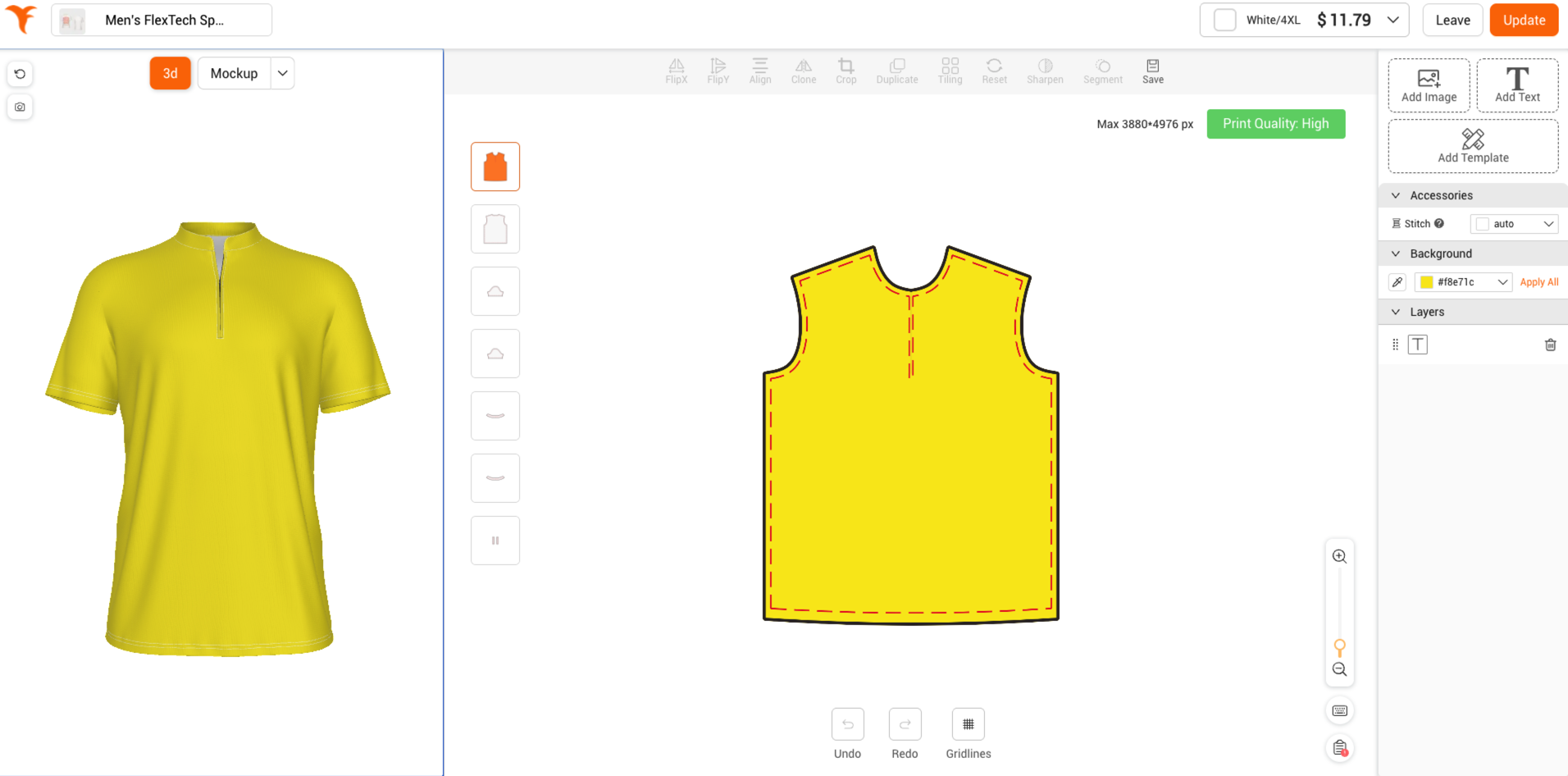
2) Click "Edit Personalizaiton", and update your personalization options.
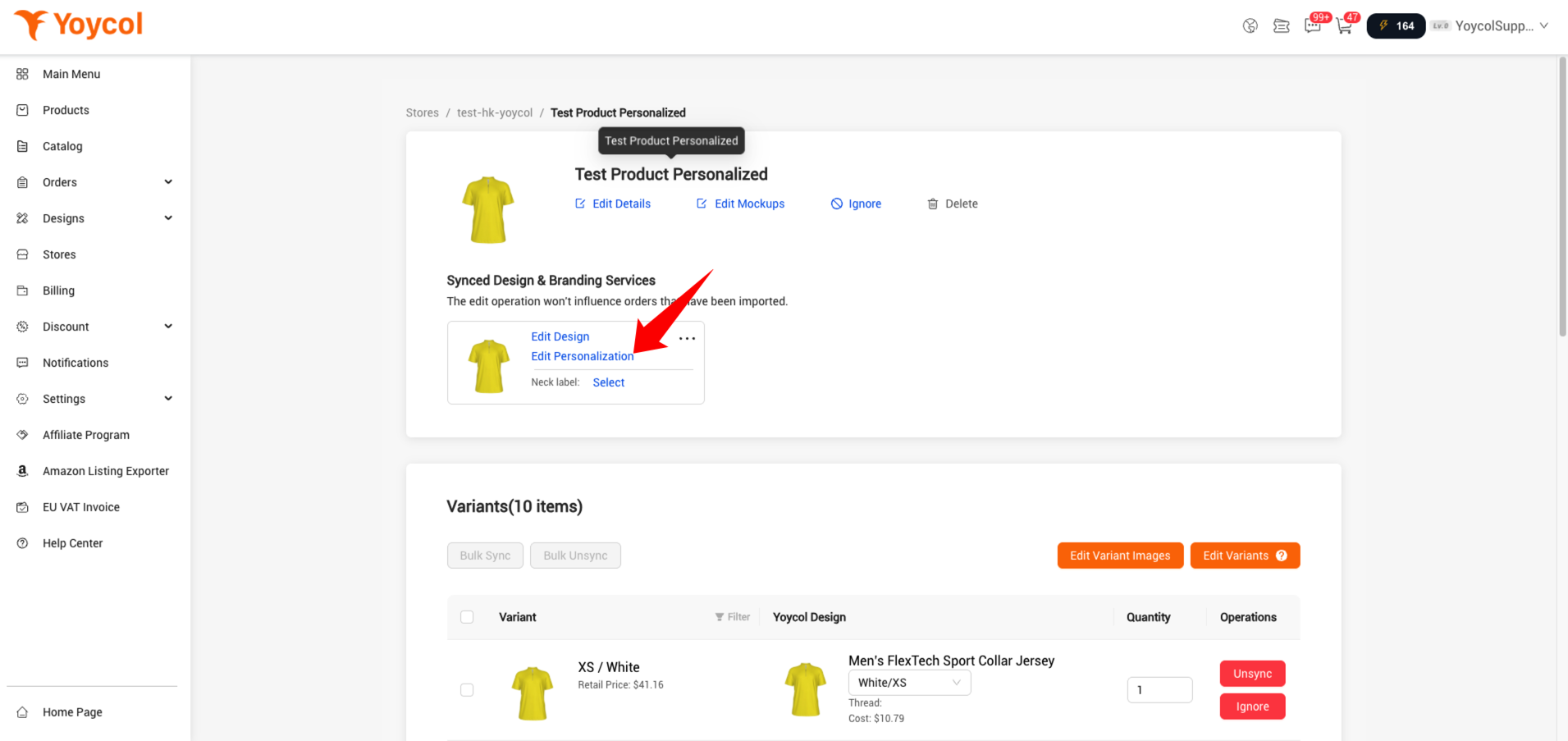
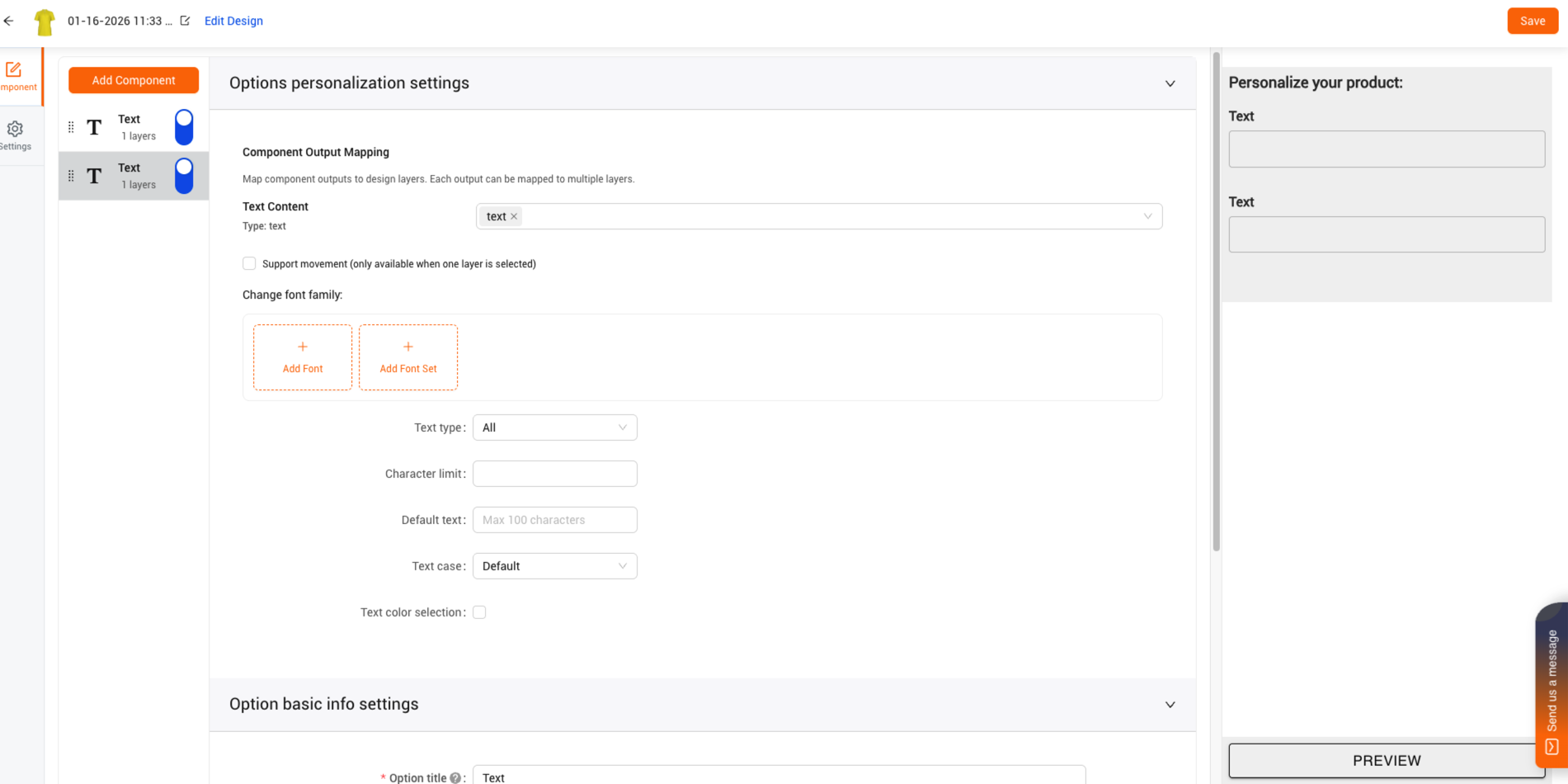
4.2 Update personalization options using a template.
1) Click "Edit Designs", and delete unnecessary layers.
2)Click the menu in the upper-right corner of “Synced designs” and select “Apply Personalization Template”.
3) Select a template and apply it.
4) Check your design and personalizaiton options to ensure they are correct.
If you have other questions, welcome to contact us.