

What to do if WebGL is not supported?
Having trouble with product previews or 3D mockups not loading properly? You may need to enable WebGL in your browser. Here's how to check, enable, and verify that WebGL is running correctly in your browser.
Step 1: Check if WebGL is Enabled
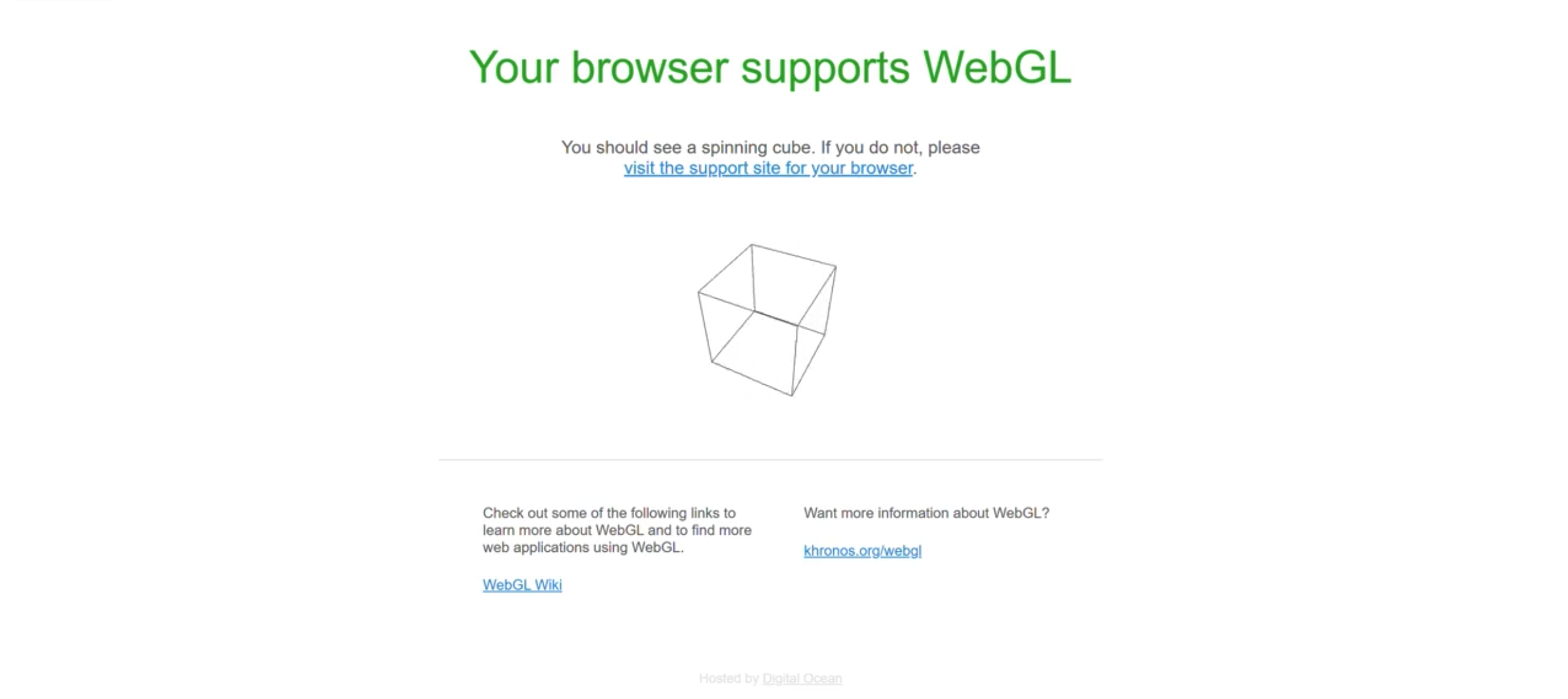
Visit get.webgl.org
-
If you see a spinning cube, WebGL is working as expected.
-
If not, follow the steps below to fix it.
Step 2: If WebGL Isn't Working
1. Update Your Browser
Make sure you're using the latest version of Chrome. Updates often fix compatibility issues with graphics rendering and 3D previews.
2. Try Another Browser or Device
Still not working? Try switching to another supported browser (such as Firefox, Edge, or Safari) or use a different device.
3. Enable Hardware Acceleration in Chrome
WebGL depends on hardware acceleration to function. Here's how to turn it on:
-
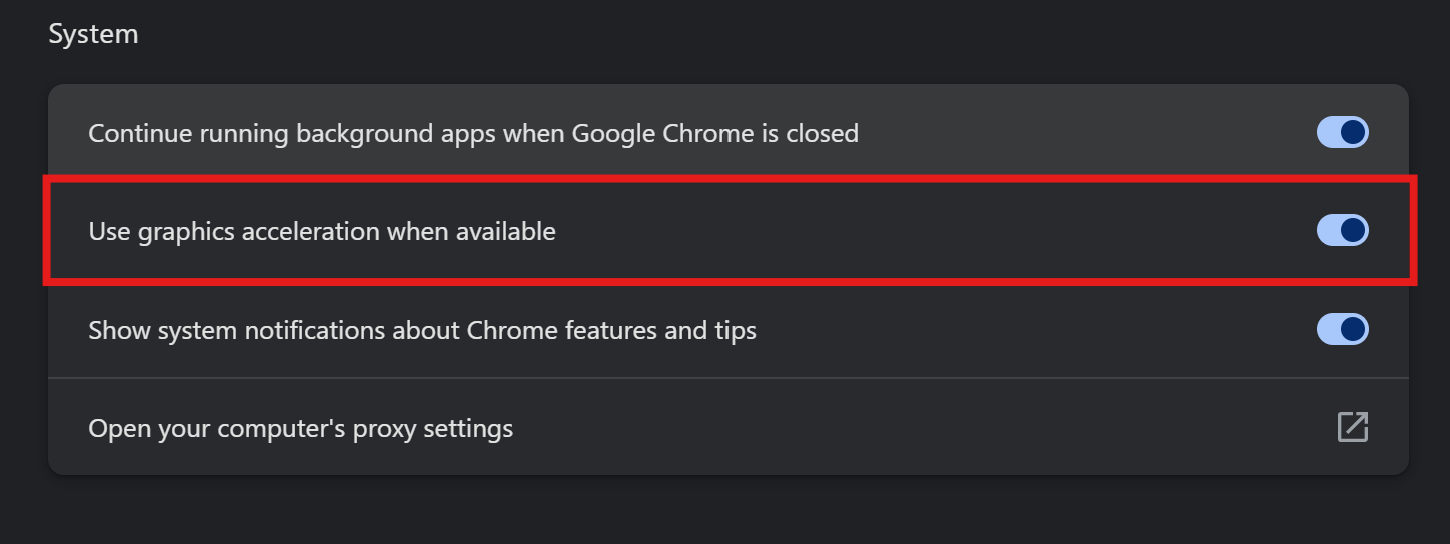
Open Chrome and paste this into the address bar:
chrome://settings/system -
Make sure "Use graphics acceleration when available" is turned ON.
-
If it's already checked, you're good to go!
-
If you changed the setting, click "Relaunch" to restart Chrome.
-
Step 3: Verify WebGL is Running
Once Chrome has restarted:
-
Open a new browser tab and type:
chrome://gpu -
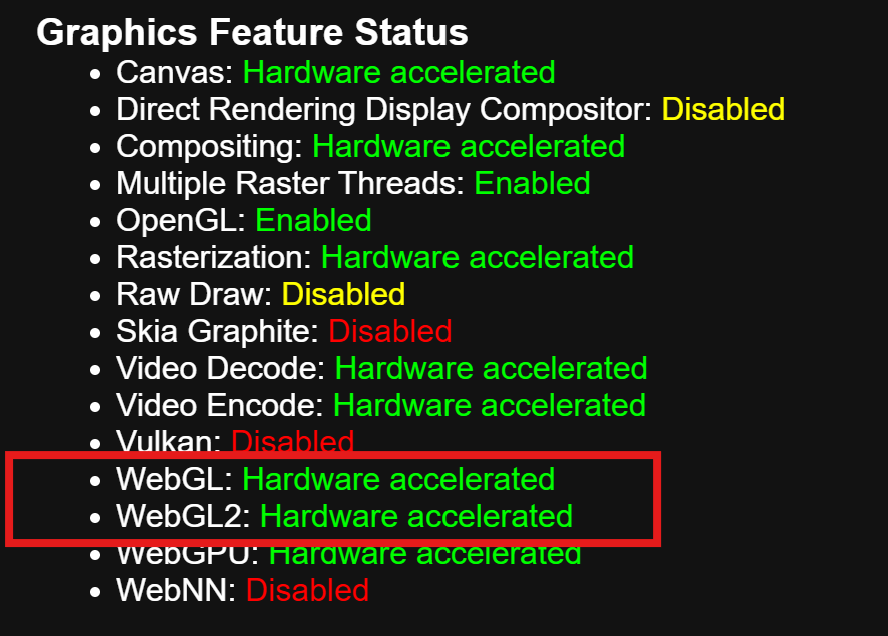
Scroll to the Graphics Feature Status section.
-
Look for these lines:
-
WebGL: Hardware accelerated
-
WebGL2: Hardware accelerated
-
-
If you see "Hardware accelerated" next to both, WebGL is working correctly.
-
If it says "Software only, hardware acceleration unavailable," Chrome has disabled WebGL — usually because of a graphics driver or stability issue.
Need Assistance?
Email us at: support@yoycol.com