

Model Library & Scene Library User Guide
Overview
Model Library and Scene Library are asset management pages for AI Mockup.
- Model Library manages model references used as AI generation inputs.
- Scene Library manages background scene references used as AI generation inputs.
Both pages include My Library assets and Public Library assets.
Entry
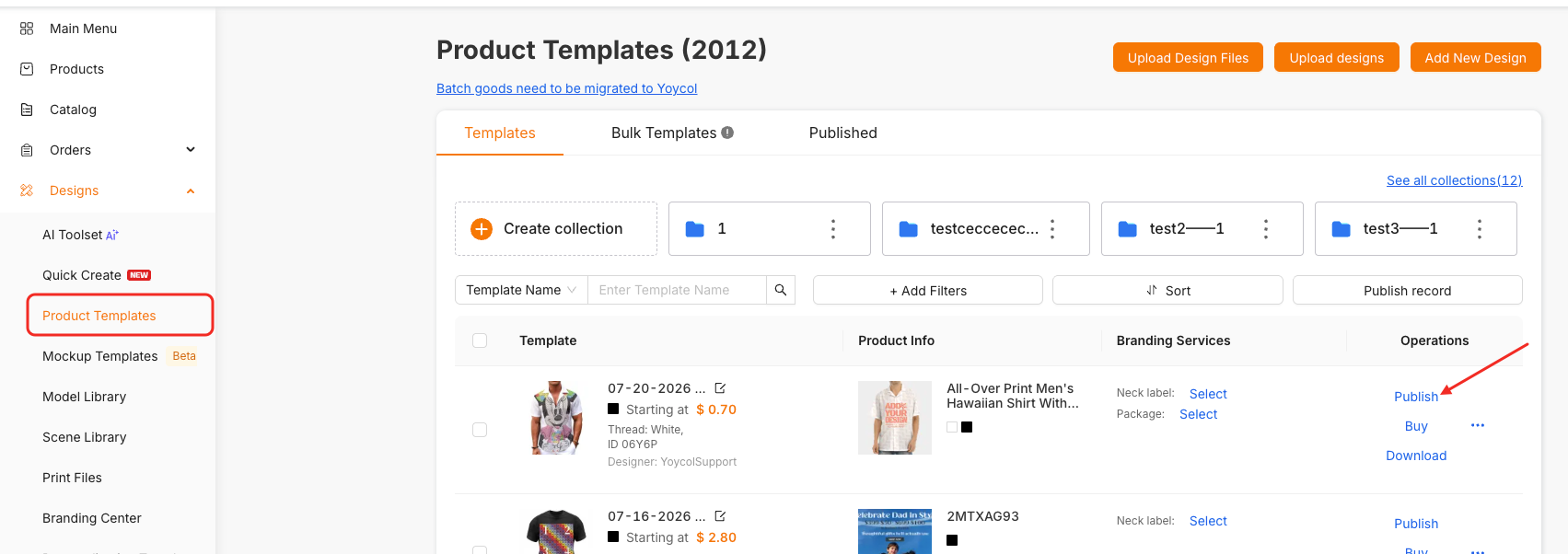
Go to Personal Center > Designs.
Open:
Model Libraryto manage models.Scene Libraryto manage scenes.
Model Library
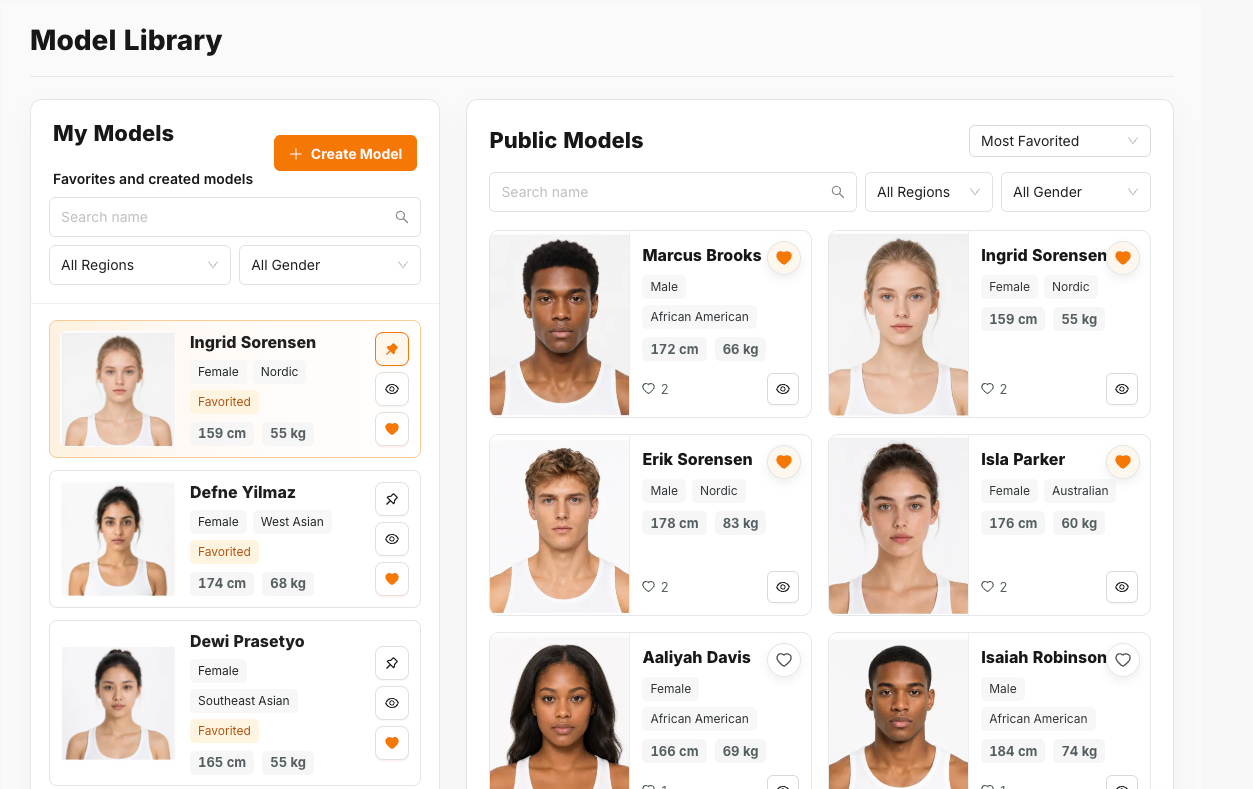
Page Structure
Model Library has two panels:
My Models: models you created or favorited.Public Models: platform public models available to all users.
Search and Filter
Use Search name to search by model name. Press Enter or click the search icon to search.
Use filters to narrow results:
- Region
- Gender
Changing a filter refreshes the list automatically.
Create a Model
Click Create Model.
Fill in the required fields:
- Model name
- Visibility: Private Model or Public Model
- Region
- Gender
- Height
- Weight
Optional fields:
- Face Shape
- Emotion
- Hair Style
- Hair Color
Click Create to submit. If the model is private, a generating placeholder appears in My Models while the AI task runs.
Manage My Models
In My Models, you can:
- Pin important models.
- Preview model detail images.
- Delete created private models when deletion is available.
- Keep favorited public models for faster reuse.
Pinned models appear at the top of the list.
Public Models
In Public Models, you can:
- Search by name.
- Filter by region and gender.
- Sort by
Most FavoritedorNewest. - Favorite models to add them to
My Models. - Preview model detail images.
Public model cards show basic model information, including gender, region, height, weight, and favorite count.
Scene Library
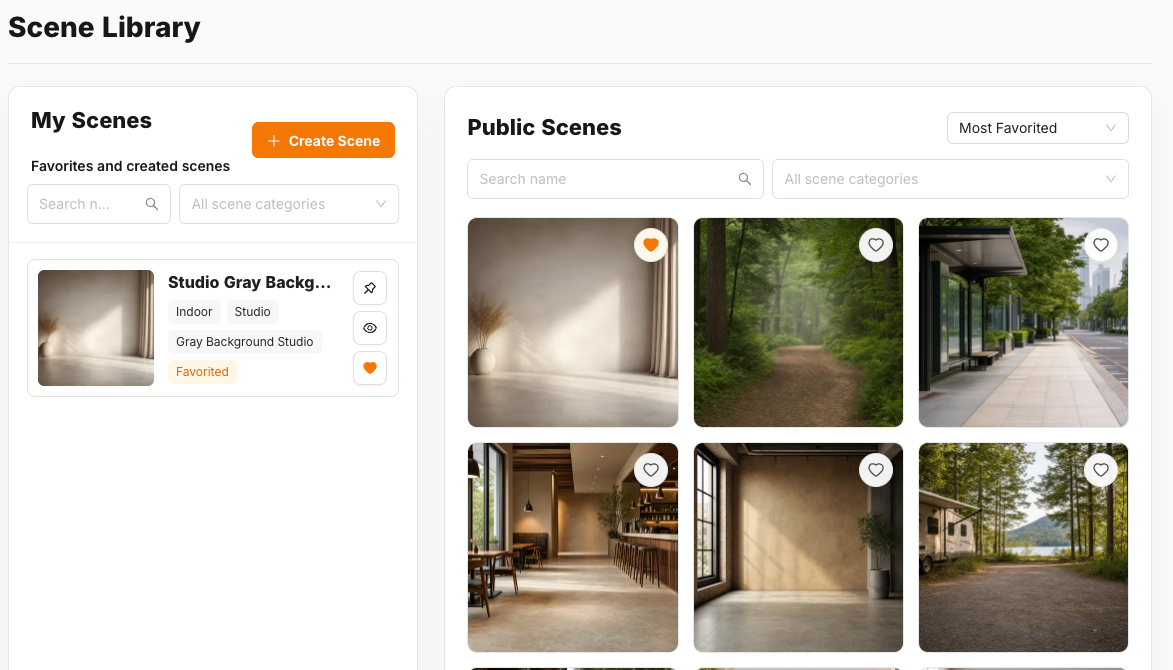
Page Structure
Scene Library has two panels:
My Scenes: scenes you created or favorited.Public Scenes: platform public scenes available to all users.
Search and Filter
Use Search name to search by scene name. Press Enter or click the search icon to search.
Use All scene categories to filter by scene category. The category selector uses a three-level scene tree:
- Scene type
- Scene category
- Scene value
Clearing the category filter refreshes the list without the previous category parameters.
Create a Scene
Click Create Scene.
Fill in the required fields:
- Scene name
- Visibility: Private Scene or Public Scene
- Scene category
Prompt is optional. Use it to describe lighting, materials, space, product placement, or atmosphere.
Click Create to submit. If the scene is private, a generating placeholder appears in My Scenes while the AI task runs.
Manage My Scenes
In My Scenes, you can:
- Pin important scenes.
- Preview scene images.
- Delete created private scenes when deletion is available.
- Keep favorited public scenes for faster reuse.
Pinned scenes appear at the top of the list.
Public Scenes
In Public Scenes, you can:
- Search by name.
- Filter by scene category.
- Sort by
Most FavoritedorNewest. - Favorite scenes to add them to
My Scenes. - Preview scene images.
Scene cards use square images. Extra scene information appears on hover so the visual resource remains easy to scan.
Using Libraries in AI Mockup
When generating an AI Mockup:
- Click
Replaceunder Model Image or Scene Image. - Choose
Public LibraryorMy Library. - Search or filter the asset list.
- Click a model or scene card to select it.
If My Library has no assets, use the link button in the empty state to open Model Library or Scene Library in a new page. Create or favorite an asset there, then return to AI Mockup and choose it.
Page Entry One:
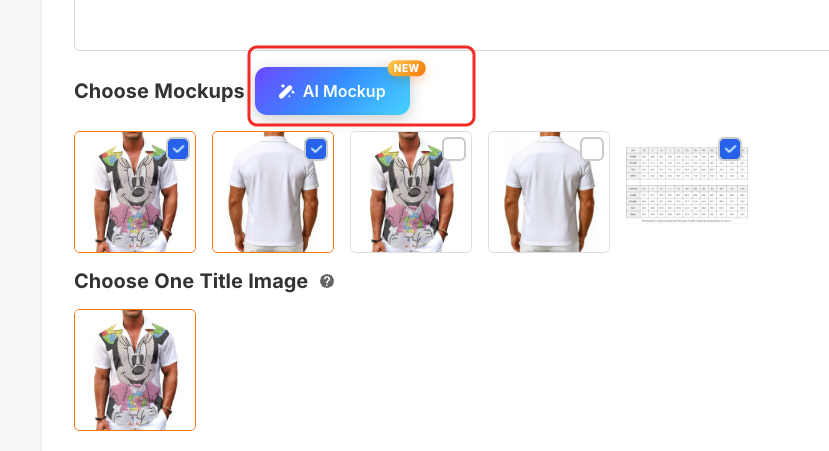
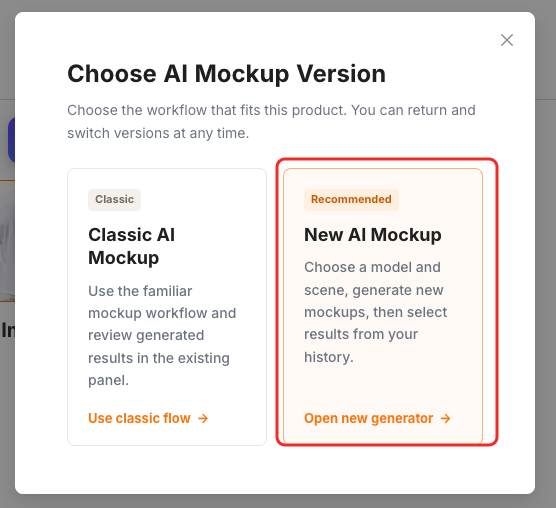
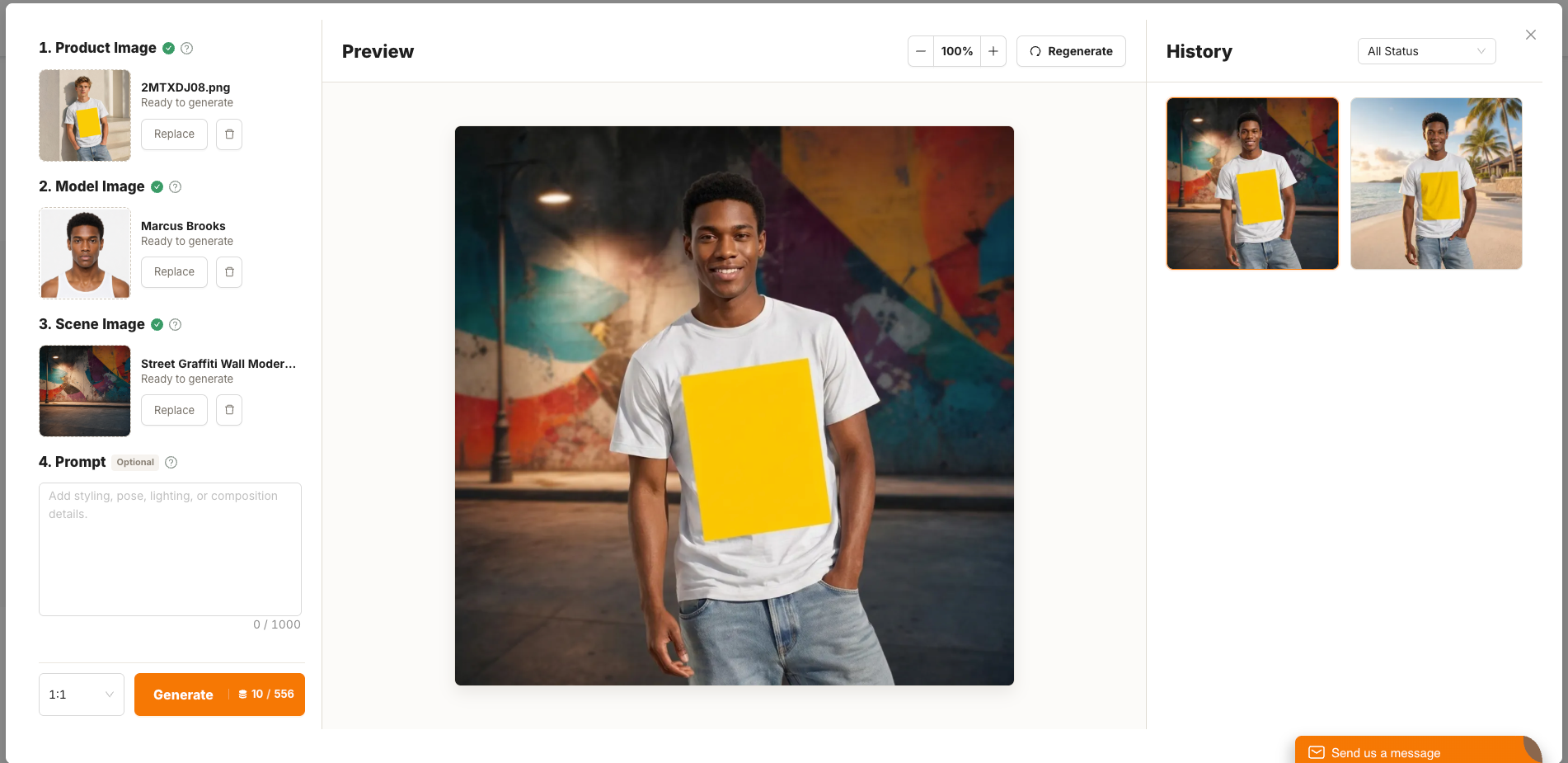
Page Entry Two:
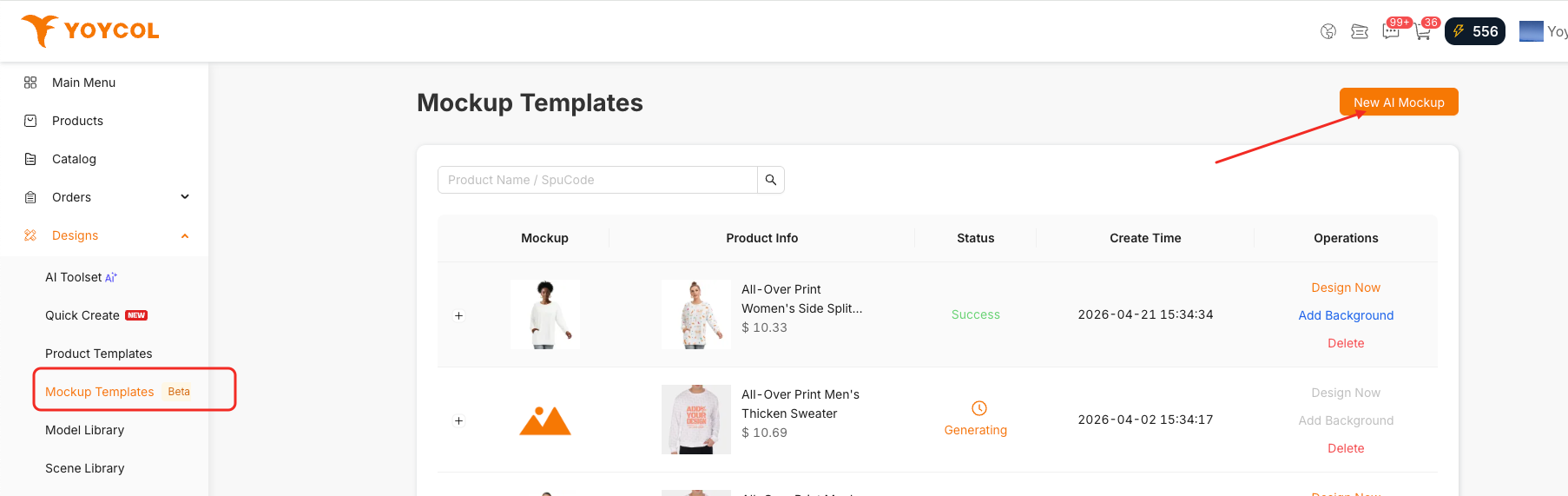
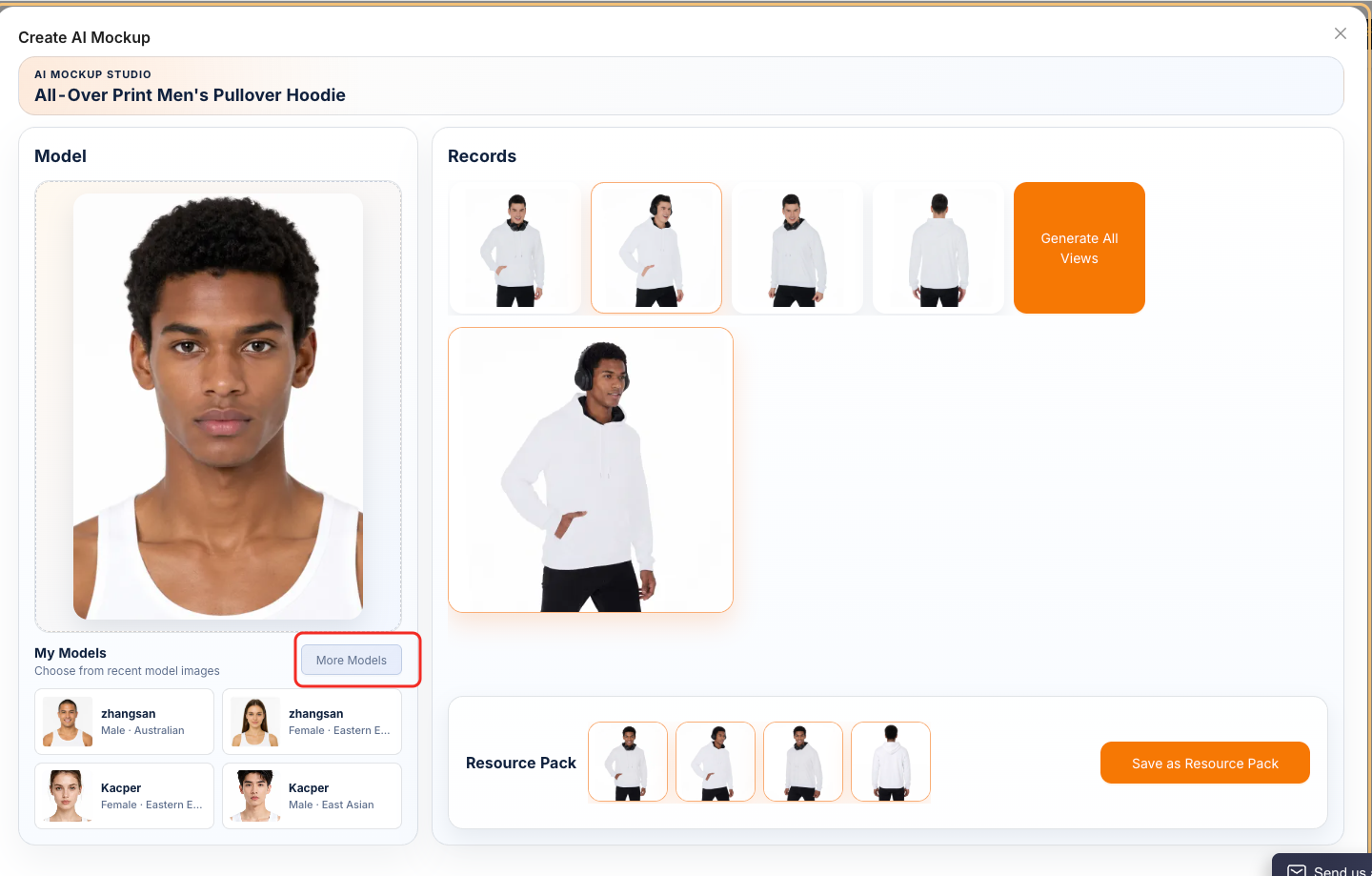
Tips
- Favorite frequently used public assets to keep them in My Library.
- Use clear, descriptive names for custom models and scenes.
- Keep model height and weight realistic for the selected region and gender.
- Use scene categories consistently so assets are easier to find later.
- Use Public Library for quick generation and My Library for brand-specific reusable assets.