

AI Mockup Suite
Overview
AI Mockup Suite helps you create a coordinated set of nine product images from four visual inputs:
- Product Images: the front and back views of your product.
- Model Image: the model reference for lifestyle and worn-product images.
- Scene Image: the background and environment reference.
- Suite Template: the visual direction and content structure for the image set.
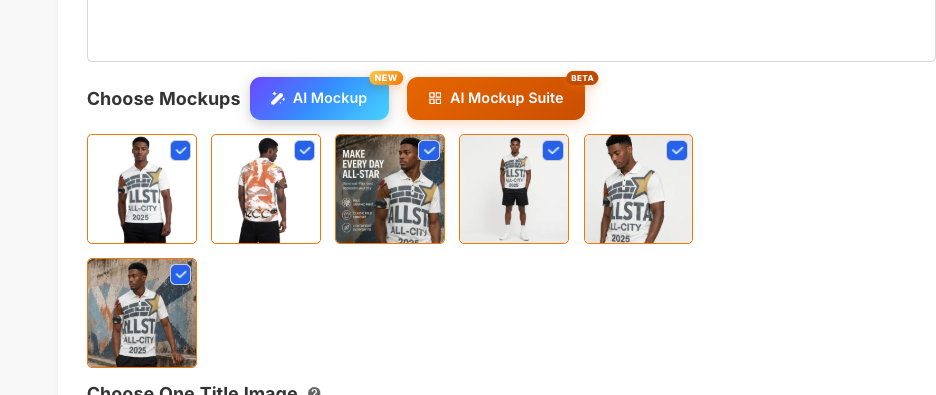
After the suite is generated, you can correct the image grid, select individual images, improve their quality, make localized edits, and add the final images to Choose Mockups.
Entry
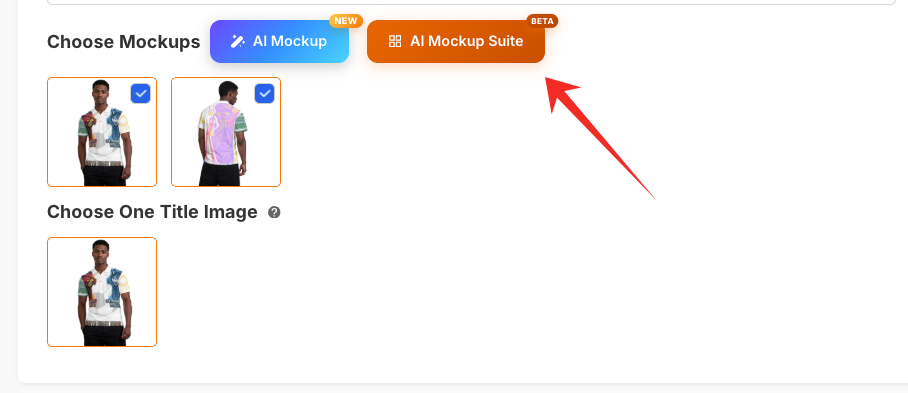
Open the product publishing or editing page, then click AI Mockup Suite.
AI Mockup Suite and New AI Mockup have separate generated-image histories. Use AI Mockup Suite when you want a coordinated nine-image set that can be split and edited as individual images.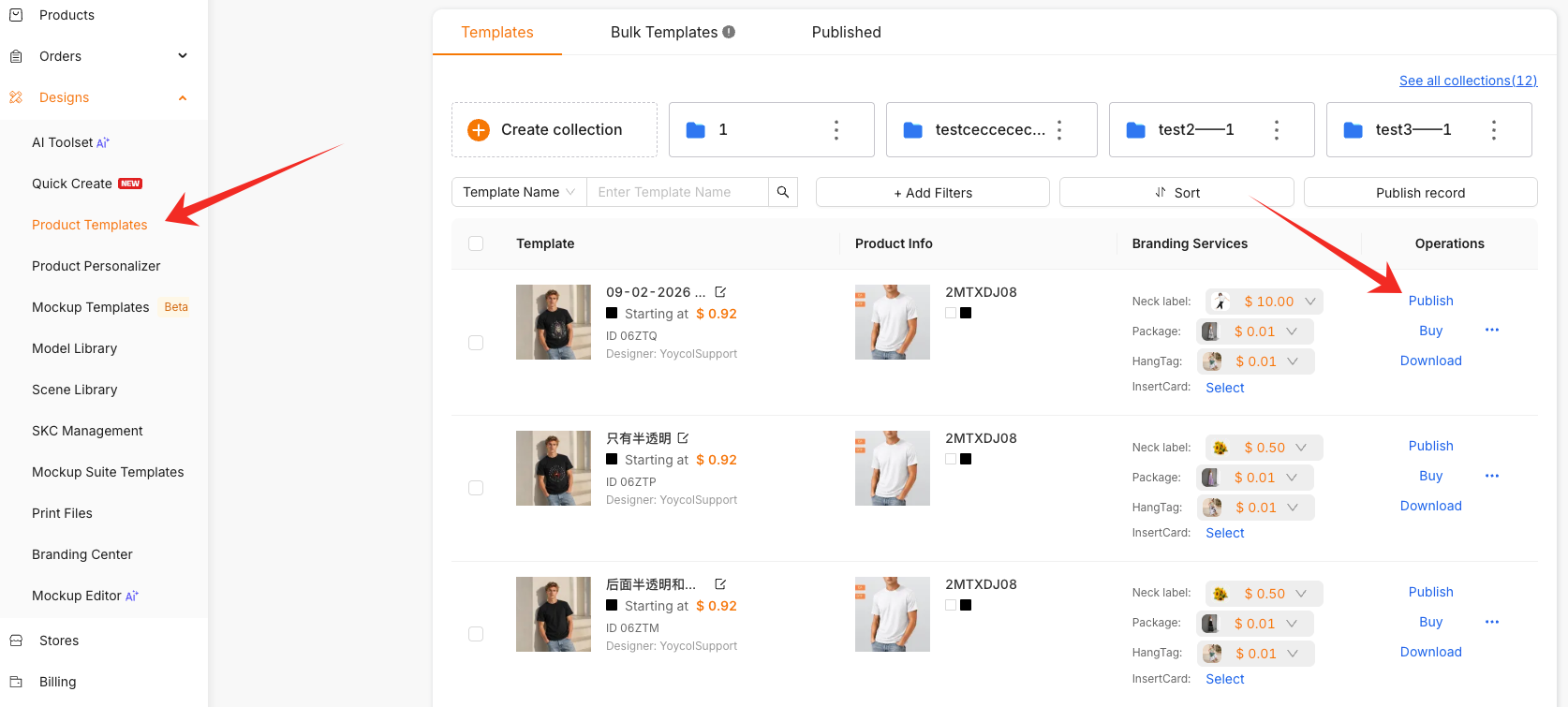
Prepare Inputs
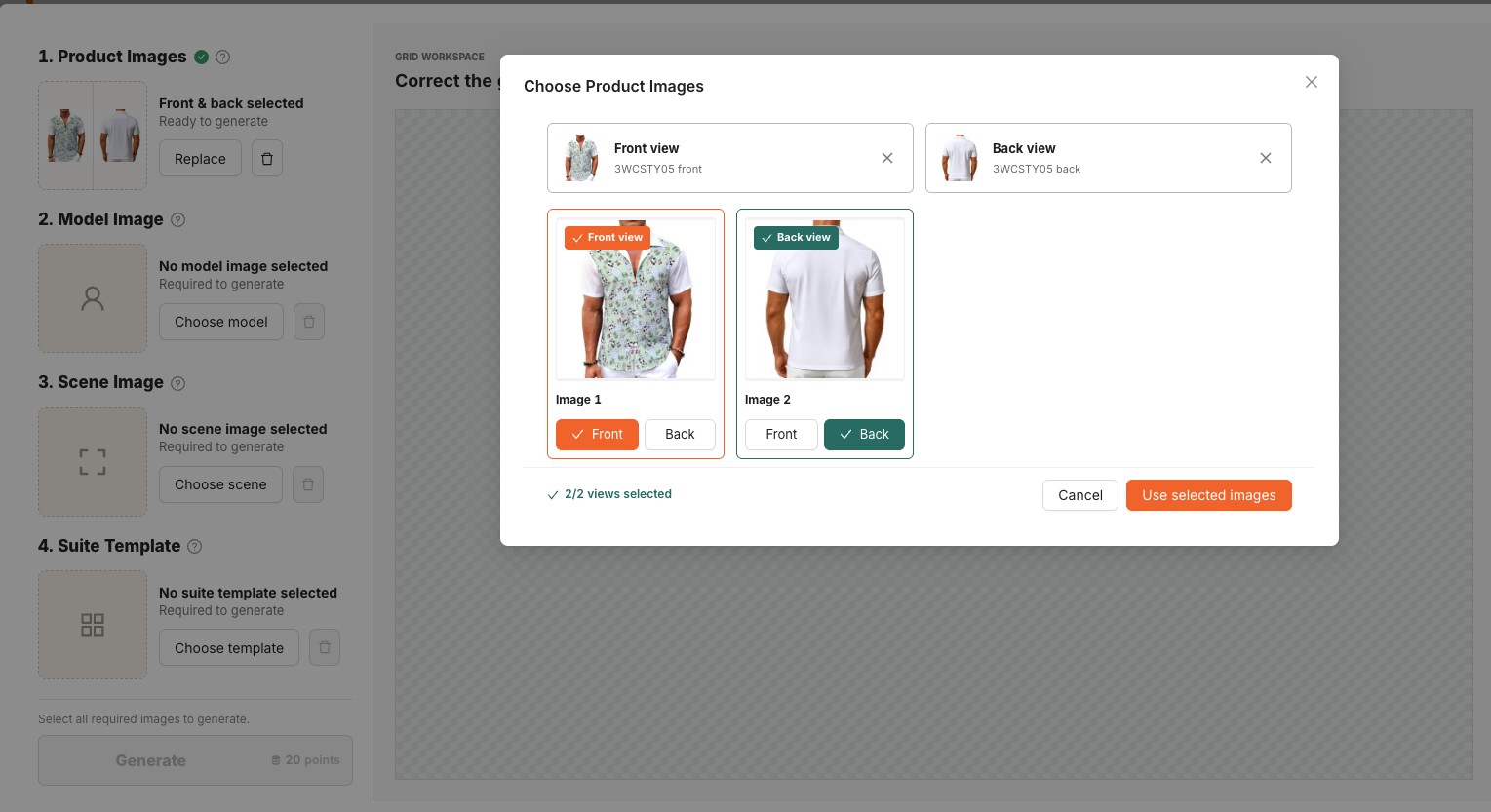
Product Images
Select two product images: one front view and one back view. Click Choose product or Replace to update the selection.
- Use clear images with the complete product visible.
- Make sure the front and back views are assigned correctly.
- Avoid images with heavy obstruction or unclear product details.
Model Image
Click Choose model to open the model selector. You can switch between:
Public Library: models provided for general use.My Library: models you created or favorited.
Choose a model whose age, appearance, and style are appropriate for the product and its intended audience.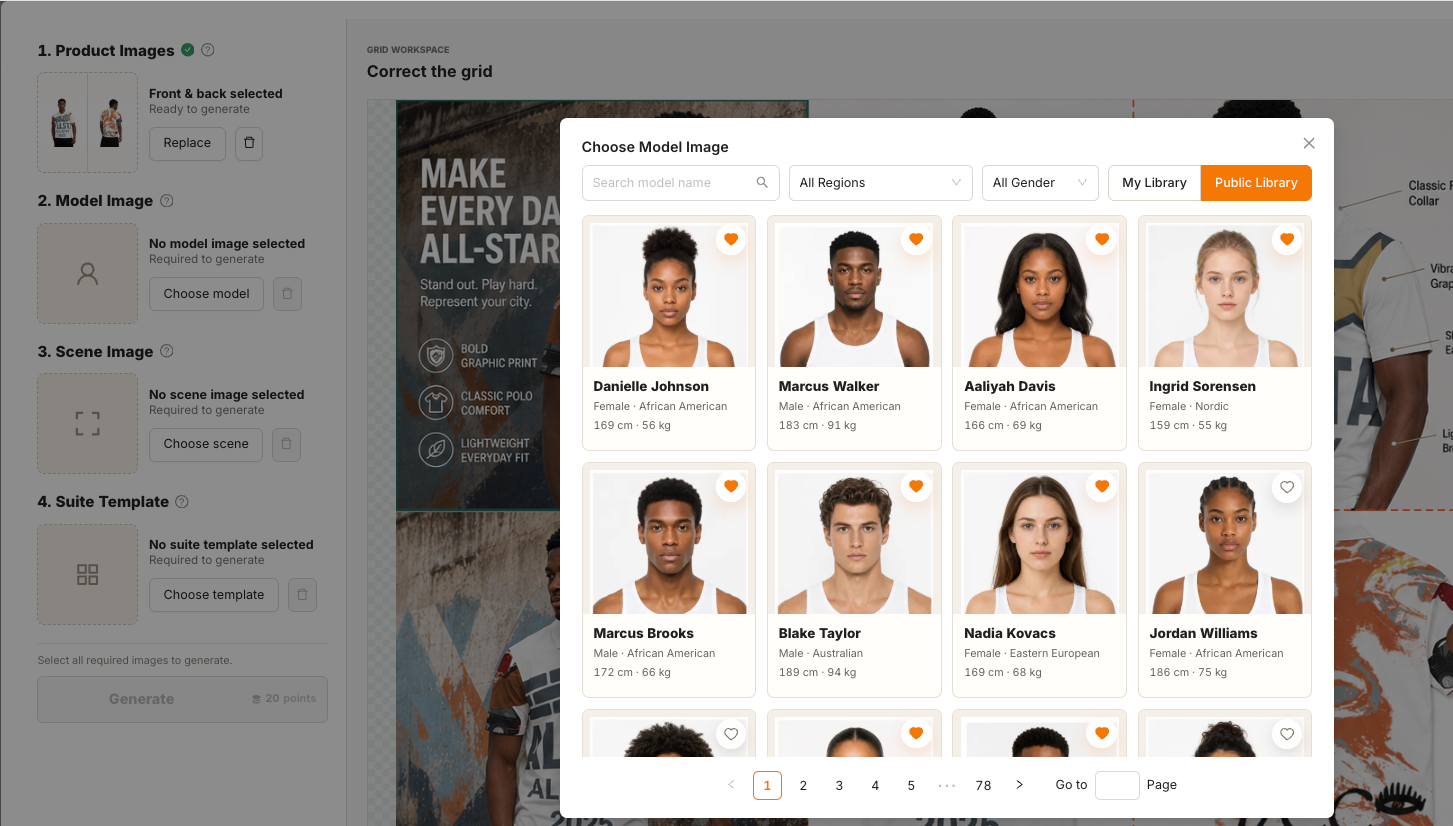
Scene Image
Click Choose scene to open the scene selector. You can choose from Public Library or My Library.
Select a scene that matches the product category, season, audience, and marketing style. For example, sportswear is best paired with an active or outdoor setting, while home products should use an appropriate living environment.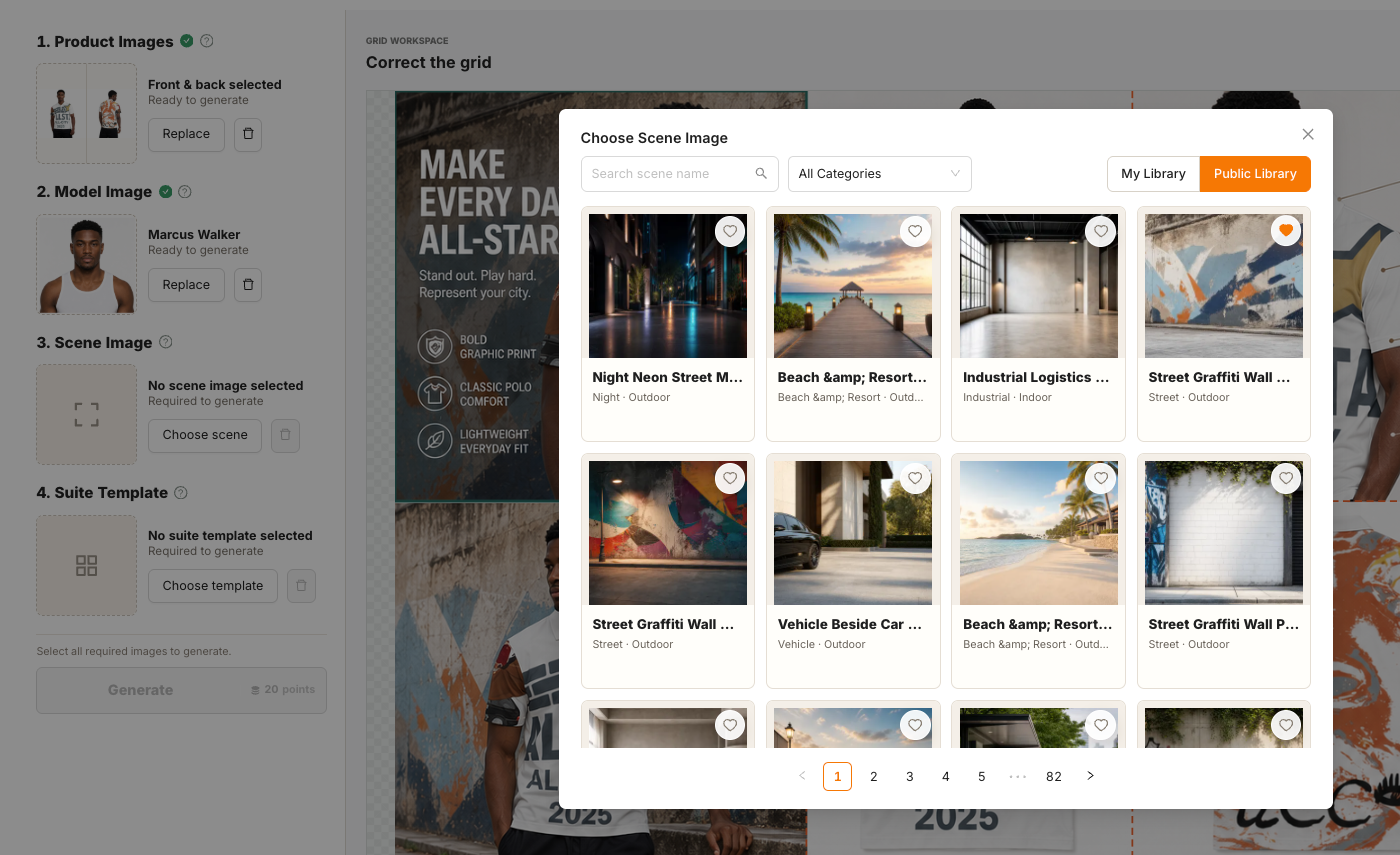
Suite Template
Click Choose template to open Choose Suite Template.
- Use
Public Libraryto browse available public templates. - Use
My Libraryto find templates you created or favorited. - Click the heart icon on a public template to add or remove it from your favorites.
Click a template card to use it for the current suite.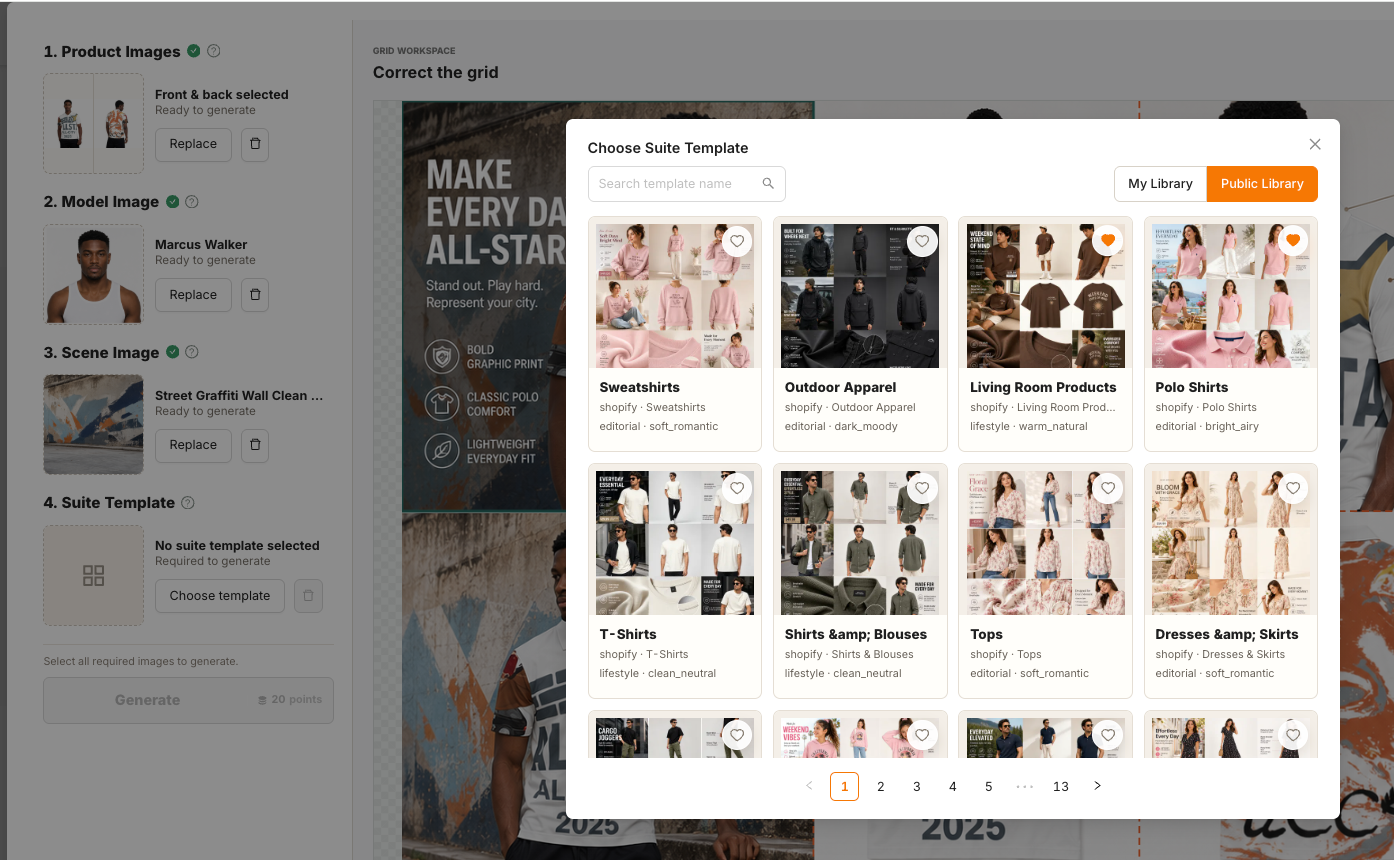
Generate a Mockup Suite
- Confirm that both product views, the model, the scene, and the suite template are ready.
- Check the points shown inside the
Generatebutton. - Click
Generate. - Wait for the generated suite to appear in Correct the grid.
Generating a suite uses 20 AI points. The process may take several minutes. The progress message will update while your images are being prepared.
When demand is high, processing may take longer than usual. Keep the page open and wait for the current task to finish instead of submitting the same request again.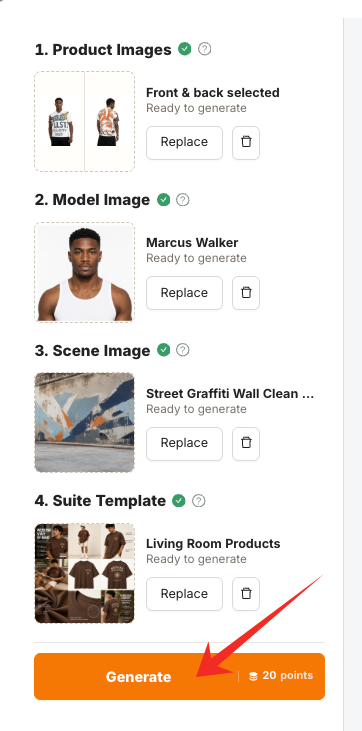
Generated Suites
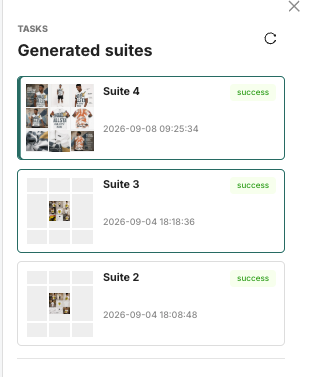
Generated suites are listed in Generated suites.
- Click a suite card to open its full grid and split images.
- Scroll the list to view additional suite records.
- Use the refresh button to check for the latest result.
Correct the Grid
After generation succeeds, review the orange grid lines in Correct the grid.
- Check whether each orange line follows the true boundary between two images.
- Drag a horizontal or vertical line when a boundary needs adjustment.
- Review the nine images in Split images after making an adjustment.
Accurate grid lines help ensure each selected image contains the intended content without parts of a neighboring image.
Select Split Images
Use Split images to choose the images you want to improve or edit.
- Click an image to select it.
- Selected images display a numbered badge showing their selection order.
- Click a selected image again to remove it from the selection.
- You can select images from more than one generated suite.
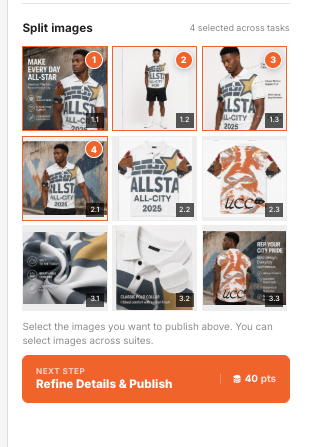
Refine Details & Publish
After selecting one or more split images, click Refine Details & Publish.
This step improves image clarity and repairs incomplete or uneven edges before opening the image editor. It uses 10 AI points per selected image. The total points shown on the button update automatically with your selection.
Wait until all selected images are ready and the editor opens.
Edit Images by Area
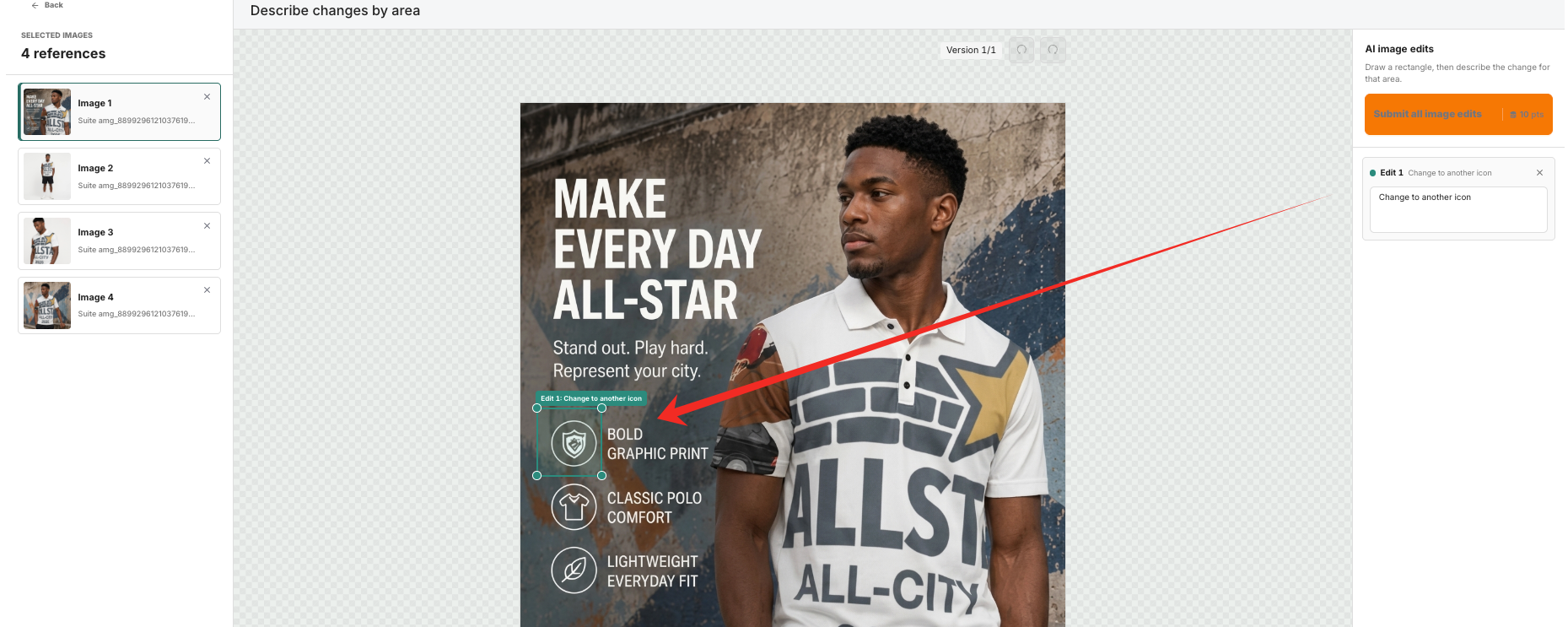
The editor lets you request precise changes to selected areas while keeping the rest of the image as consistent as possible.
Select an Image
Use the image list on the left to switch between selected images. The currently active image appears in the center workspace.
Create an Edit Area
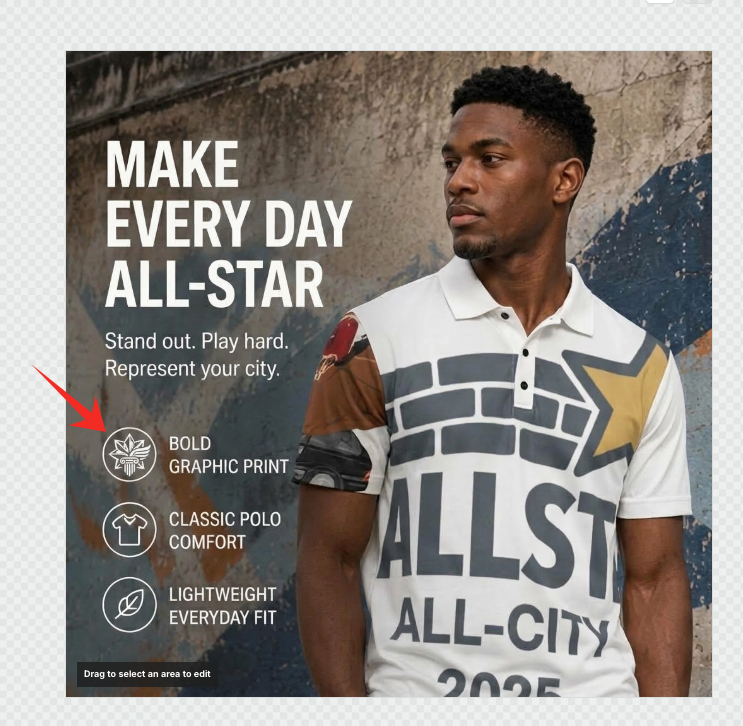
- Drag on the image to draw a box around the area you want to change.
- Drag the box to reposition it.
- Drag a corner of the box to resize it.
- Enter the requested change in the matching description field.
Each edit box is numbered so you can match the marked area on the image with its description. You may add more than one edit area to an image when needed.
Write Clear Edit Instructions
Keep each instruction focused on the selected area. For example:
- Change the shirt color to navy blue while keeping the print unchanged.
- Remove the small object from the table and restore the background naturally.
- Replace the plant with a white ceramic vase in the same position.
Avoid broad instructions that redesign the entire image, and do not combine conflicting requests in the same edit description.
Submit Image Edits
- Review all edit boxes and descriptions.
- Check the points displayed in
Submit all image edits. - Click
Submit all image edits. - The newest result is displayed automatically when the edit finishes.
Editing uses 10 AI points for each image that contains at least one completed edit instruction. The total updates automatically based on the number of images being edited.
Undo and Redo
Use the controls beside Version to move backward or forward through the available versions of the current image. Version controls apply only to the image currently selected on the left.
Submit to Choose Mockups
Before submitting, review every selected image and confirm that:
- The product color, shape, print, and important details are correct.
- The model, background, lighting, and composition look natural.
- There are no unwanted borders, seams, incomplete edges, or unexpected objects.
- The preferred version of each image is currently displayed.
Click Submit at the bottom of the left panel. The images will be added to Choose Mockups, where you can review them with your other product mockup images.
Mockup Suite Templates
Mockup Suite Templates is available on desktop and helps you manage reusable visual directions for AI Mockup Suite.
My Templates
My Templates contains templates you created and public templates you favorited. Enter a template name, then click Search or press Enter.
Official Templates
Official Templates contains public templates provided for different product categories and visual styles. You can:
- Search by template name.
- Filter by product type.
- Sort by Most Favorited or Newest.
- Click the heart icon to add or remove a favorite.
- Click the preview icon to view the full template image.
Create a Suite Template
- Click
Create Template. - Enter a clear template name.
- Choose the product type, target audience, style, setting, theme, visual tone, and copy style.
- Make sure the selections work well together for the intended product.
- Click
Create Suite Template.
Once the template is ready, it will appear in My Templates and can be selected in AI Mockup Suite.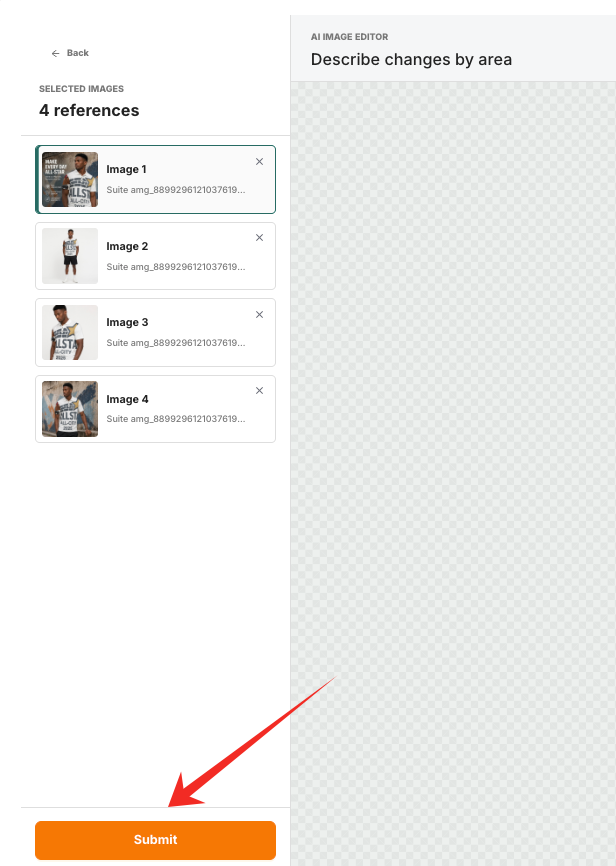
AI Points
- Generate one nine-image mockup suite: 20 AI points.
- Upscale and restore selected images: 10 AI points per image.
- Generate localized edits: 10 AI points per image with completed edit instructions.
Always check the point total shown on the action button before submitting. Avoid submitting the same action again while it is still in progress.
Tips
- Use clear, complete product images for the best results.
- Match the model and scene to the product category and target customer.
- Choose a suite template designed for a similar product type.
- Correct the grid before selecting individual images.
- Keep localized edit instructions short, specific, and limited to the selected area.
- Review every final image carefully before adding it to Choose Mockups.
- For the best experience, use AI Mockup Suite on a desktop browser.
Troubleshooting
The Generate Button Is Unavailable
Confirm that two product views, one model image, one scene image, and one suite template have all been selected.
Generation Is Taking Longer Than Expected
Processing time may increase during periods of high demand. Keep the page open and wait for the current task, or use the refresh button in Generated suites to check its latest status.
A Split Image Contains Part of Another Image
Return to Correct the grid and move the orange grid lines so they align with the actual image boundaries.
The Bottom Action Button Is Not Visible
Scroll inside the left or right panel of the dialog. Maximizing the browser window can also provide more workspace.
A Favorite Template Does Not Appear in My Library
Switch to My Library after favoriting the template. If necessary, close and reopen the selector to refresh the list.