

Shopify Sold Out Troubleshooting Guide
When to Use This Guide
Use this guide if products published from Yoycol to Shopify show as Sold out or cannot be added to cart, especially after you added a new Shopify location and set it as the default location.
In Shopify, a product can be purchased only when both of the following are correct:
- The product inventory location is included in the shipping profile used by the product.
- The product inventory settings allow the product to be sold.
For Yoycol products:
- The product uses Shopify's General profile.
- The product inventory item is assigned to the store's default location at the time the product is published.
By default, products published by Yoycol meet the requirements above and can be purchased normally.
If you changed the default location, follow Step 1 to Step 3 to check the location and General profile settings.
If you changed the inventory settings, follow Step 4 to check the inventory configuration.
Goal
Make sure:
- The default location used by your Yoycol product inventory is added to Shopify's General profile.
- The General profile has valid shipping zones and shipping rates.
- The inventory settings allow the product to be sold.
Step 1: Check Your Default Location
- Go to Shopify Dashboard.
- Go to Settings.
- Click Locations.
- Check which location is currently set as the default location.
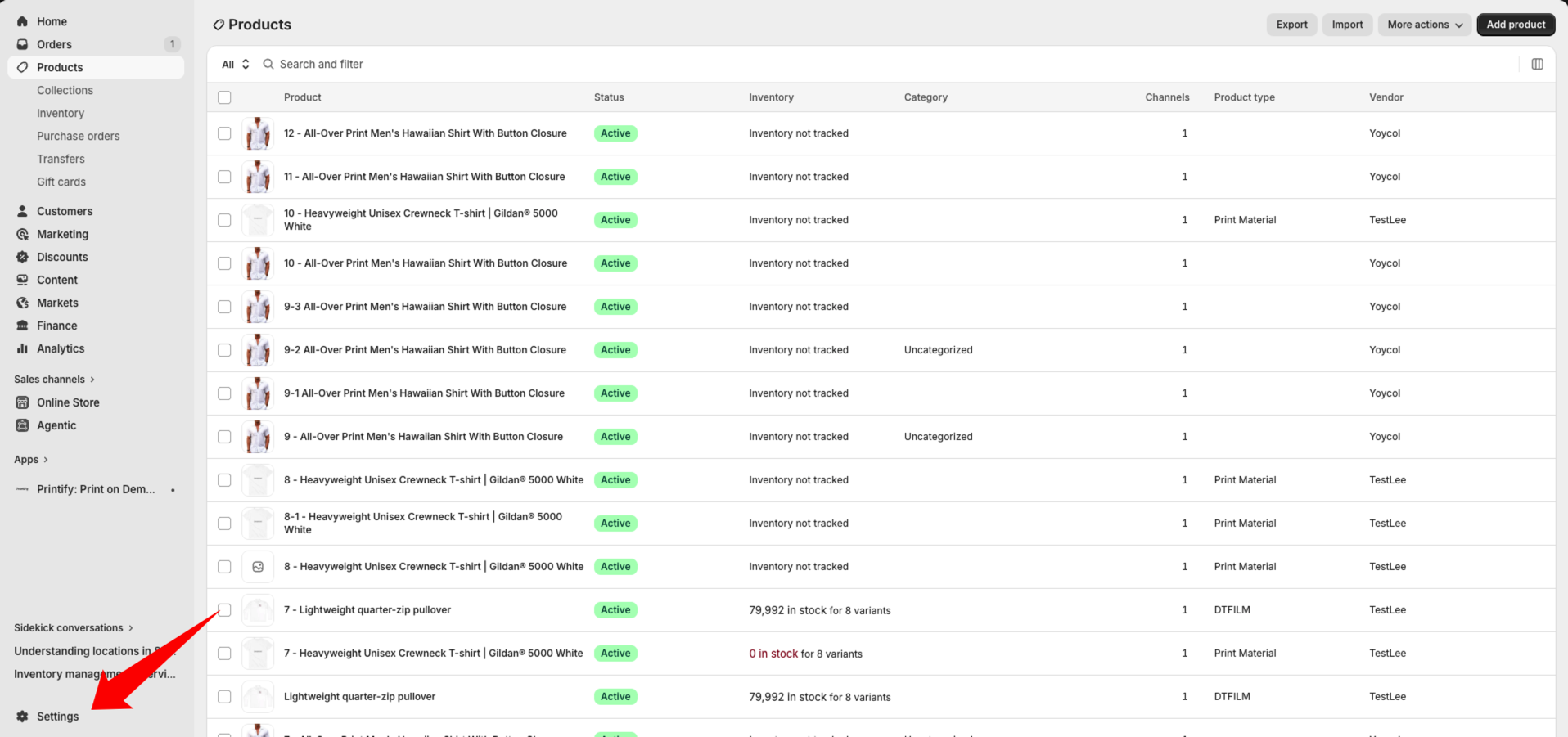
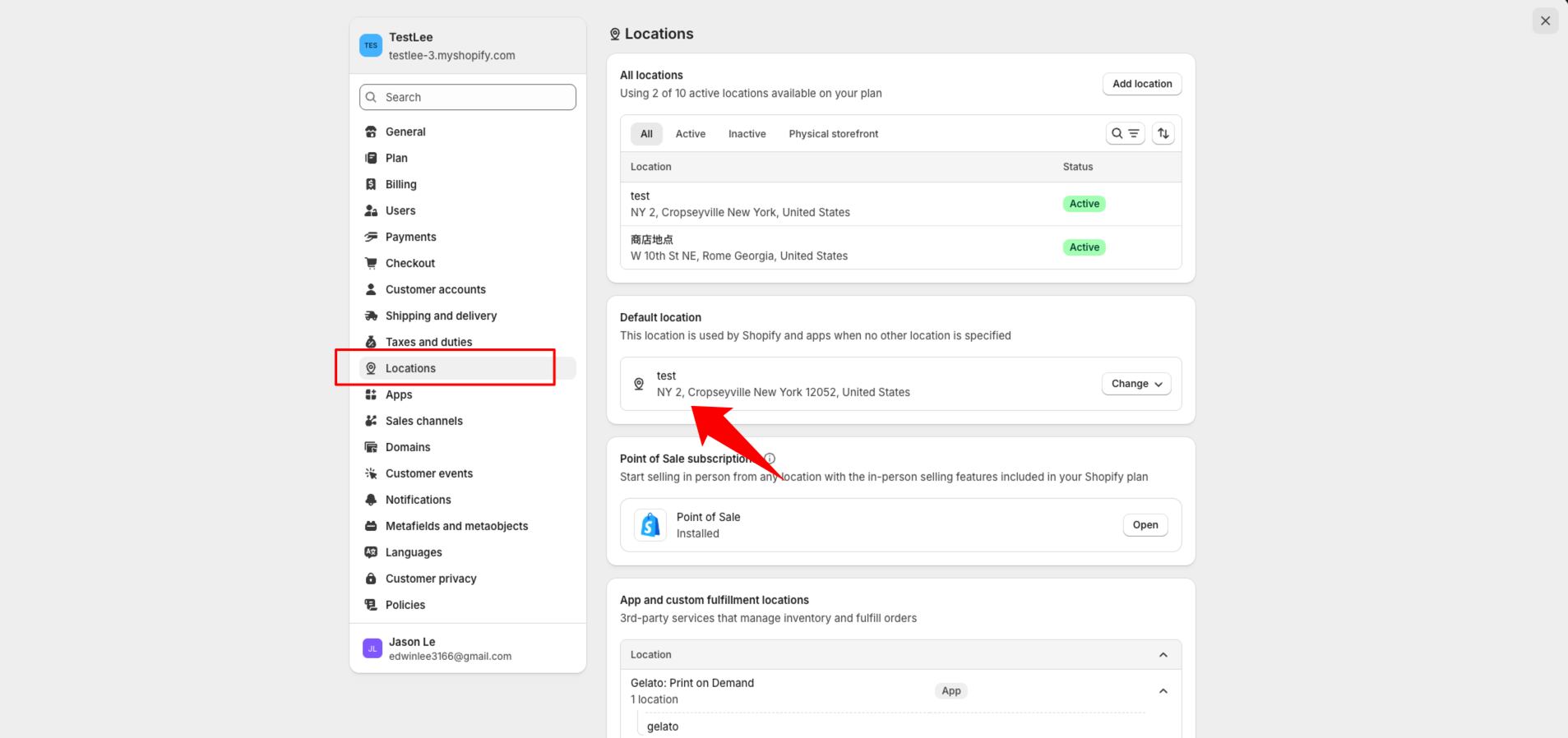
If you only have one active location, that location is usually the default location.
Please remember this location name. You will need to confirm it in the General profile.
Step 2: Check the General Profile
- Go to Shopify Dashboard.
- Go to Settings.
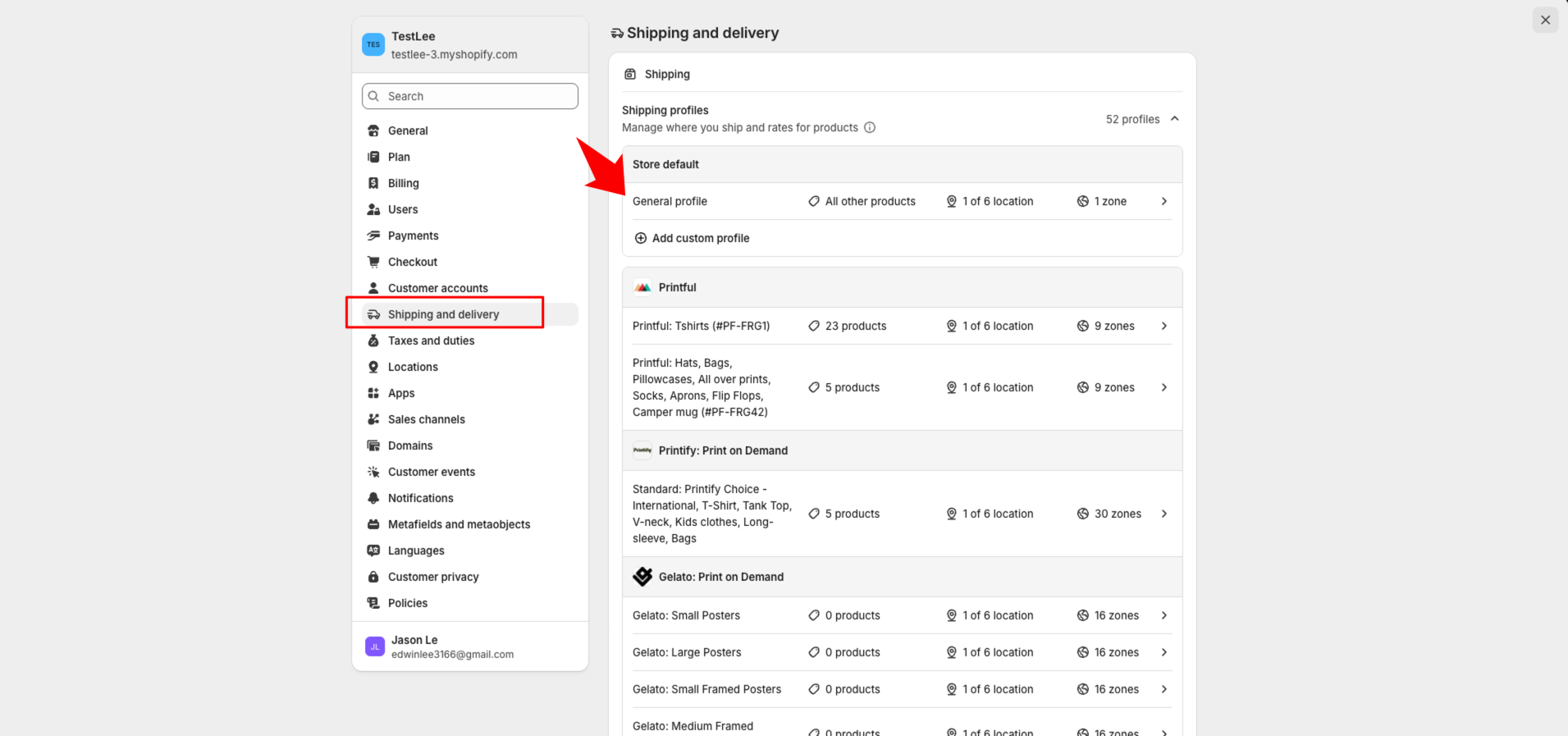
- Click Shipping and delivery.
- Find General profile.
- Click the General profile to open the profile details page.
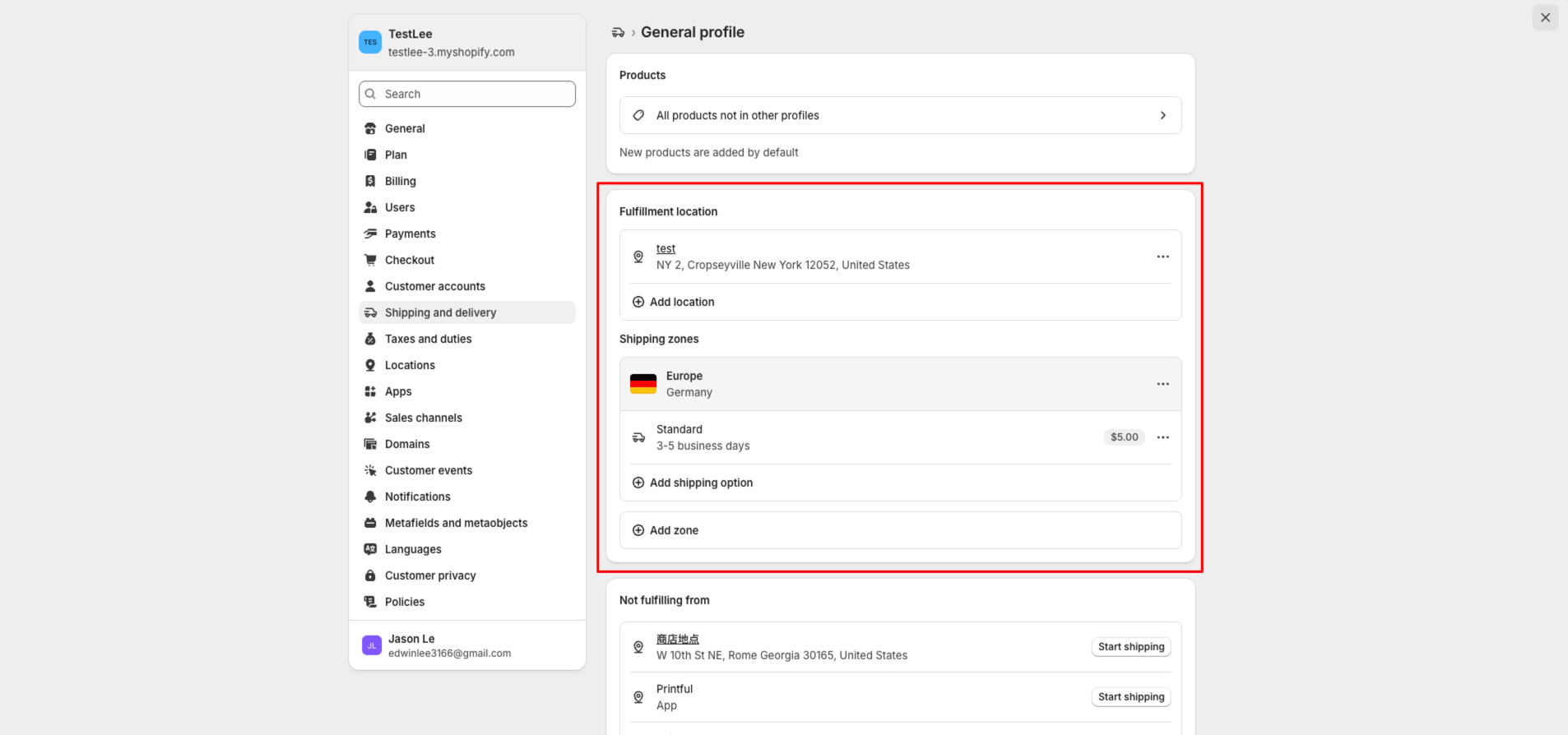
On the General profile details page, check the following:
2.1 Fulfillment Locations
Find the Fulfillment locations section.
Make sure the default location from Step 1 is added to this section.
If the default location is not listed here, add it to the General profile.
2.2 Shipping Zones and Shipping Options
Make sure the General profile also has:
- Shipping zones
- Shipping options
If the General profile has the correct fulfillment location but no shipping zone or no shipping rate, customers may still be unable to purchase the product.
The shipping options configured here will be displayed as Shipping methods on the Shopify checkout page.
Step 3: If You Need to Change the Default Location
Changing the default location only affects products published after the change.
Products that were already published before the change will still use the old default location.
To make sure both old and new products can be purchased on your Shopify storefront, add both locations to the General profile:
- The old default location used by previously published products
- The new default location used by newly published products
Special case: if you deactivate or delete the old default location, Shopify will ask you to select an available location to replace it for the inventory items that were connected to the old default location.
In this case, make sure the replacement location you select is also added to the General profile.
How to Check Which Location a Product Inventory Item Uses
You can check the location connected to a product inventory item in two ways.
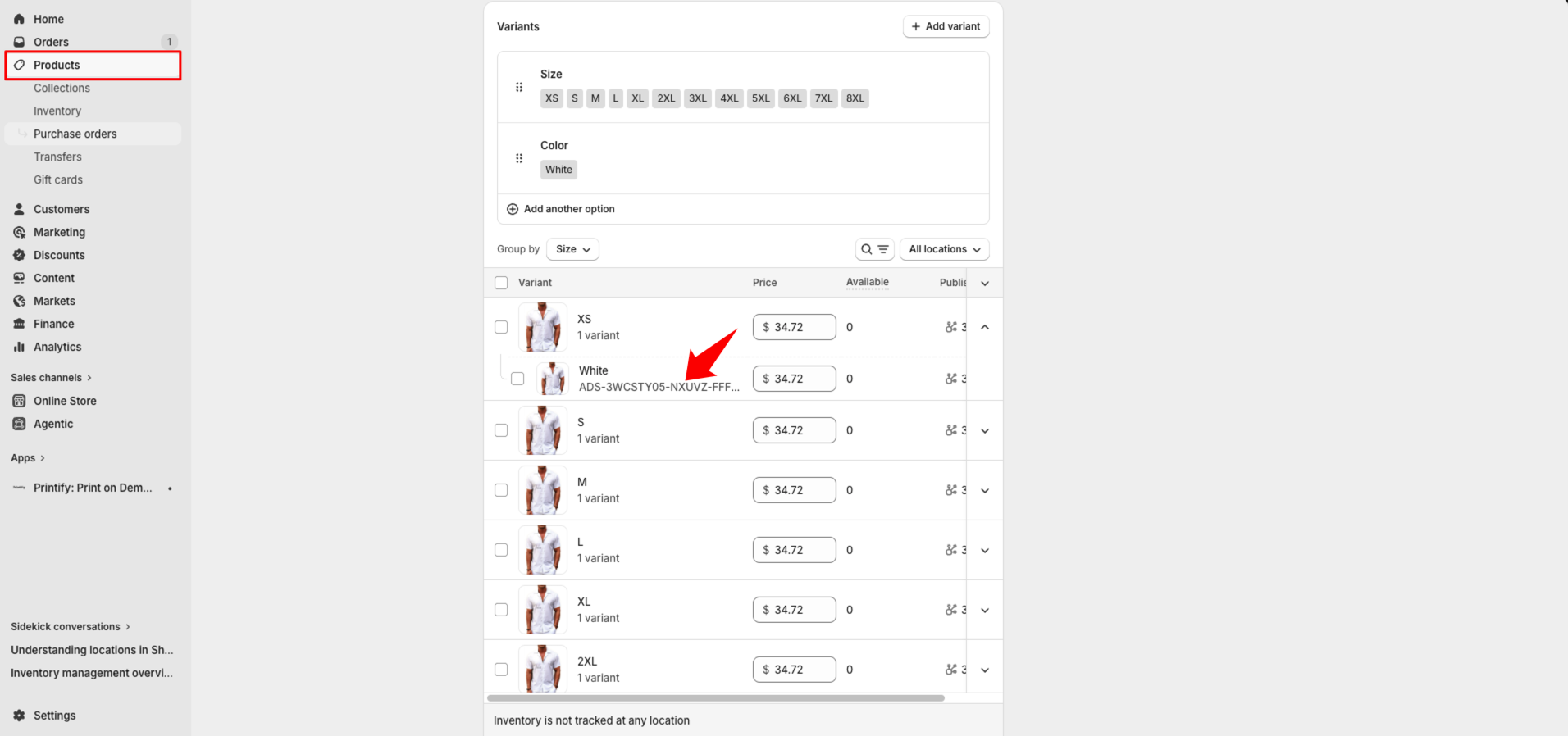
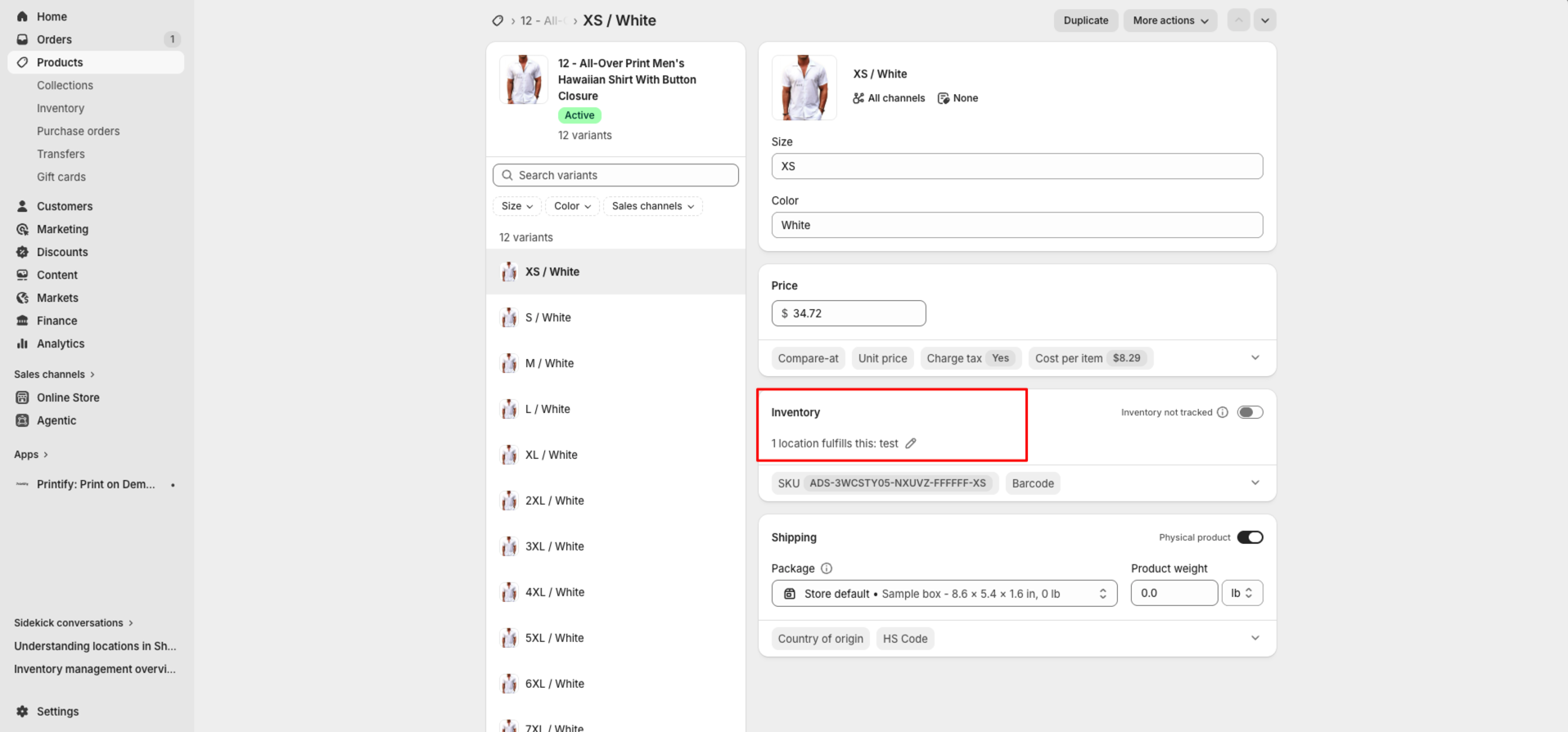
Option A: Check One Inventory Item
- Go to Shopify Dashboard.
- Go to Products.
- Open the product details page.
- Click the specific inventory item or variant you want to check.
- Open the inventory item details page.
- Check the Inventory section.
The location shown in the Inventory section is the location connected to that inventory item.
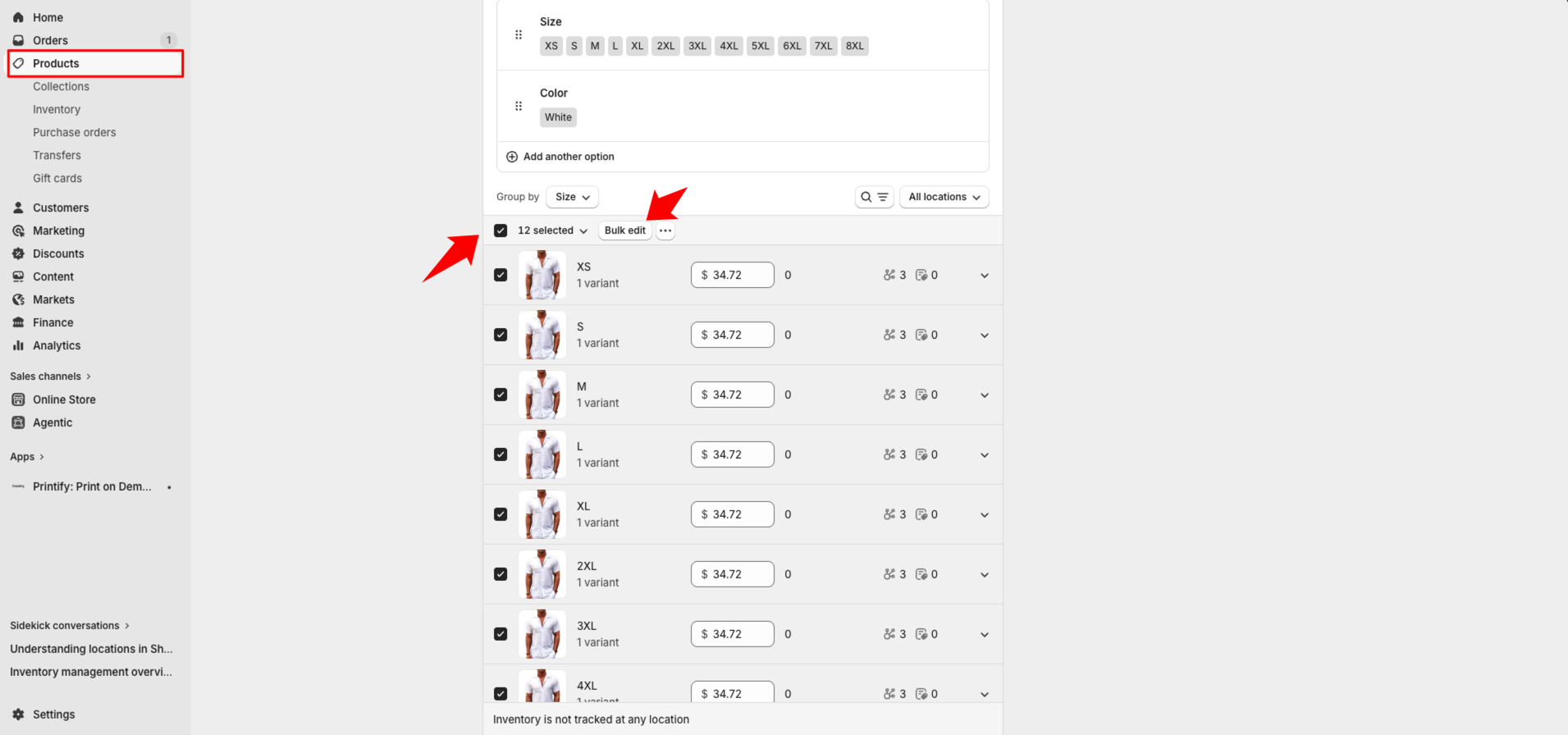
Option B: Check Multiple Inventory Items in Bulk
- Go to Shopify Dashboard.
- Go to Products.
- Open the product details page.
- Select the inventory items or variants you want to check.
- Click Bulk edit.
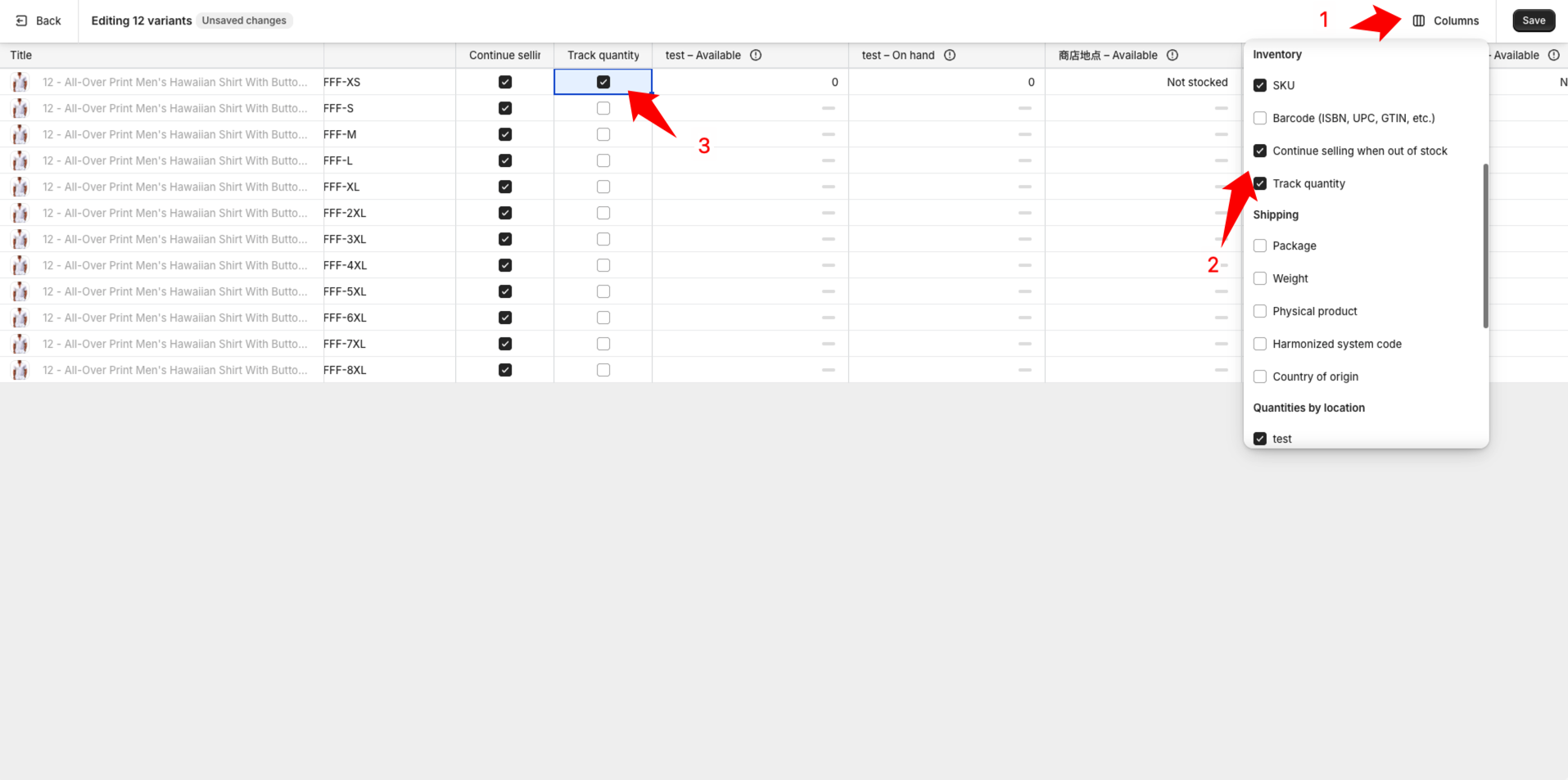
- On the inventory edit page, click Columns in the upper-right corner.
- Select Track quantity.
- In the table, check the Track quantity columns for each location. This is for viewing only; do not save any changes.
If a location is not marked as Not stocked, that means the inventory item is connected to that location.
Step 4: Check Inventory Settings
After the location settings are correct, also check the inventory settings for all inventory items.
In Shopify, a product can be sold when either of the following is true:
- Track quantity is not enabled.
- Track quantity is enabled, and the inventory quantity is greater than 0, or Continue sale after out of stock is enabled.
Yoycol provides POD products, so we recommend using the first option: do not enable Track quantity.
How to Check Inventory Settings in Bulk
- Go to Shopify Dashboard.
- Go to Products.
- Open the product details page.
- Select all inventory items or variants.
- Click Bulk edit.
- On the inventory edit page, click Columns in the upper-right corner.
- Select Track quantity.
- Select Continue sale after out of stock.
- In the table, check every inventory item.
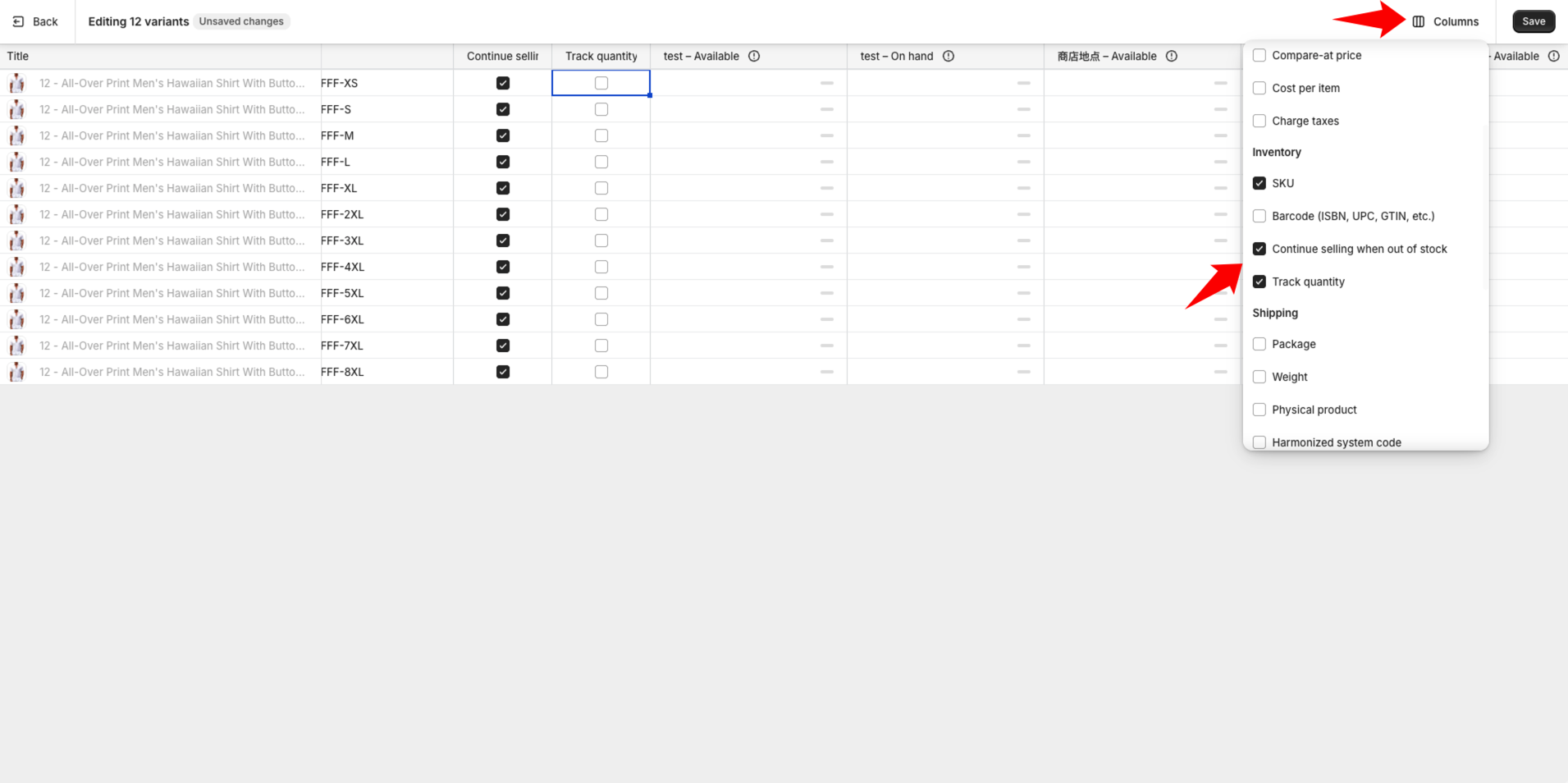
Make sure each inventory item matches one of these valid settings:
- Track quantity is not enabled.
- Track quantity is enabled, and the inventory quantity is greater than 0.
- Track quantity is enabled, and Continue sale after out of stock is enabled.
Expected Result
After the correct inventory location is added to the General profile, the General profile has valid shipping zones and shipping rates, and the inventory settings allow selling, the affected products should become purchasable on the Shopify storefront.