
How to publish Yoycol products in Shopify?
How to publish Yoycol products in Shopify
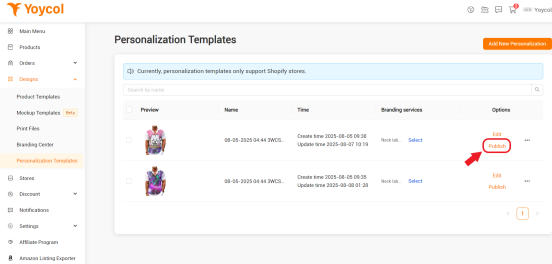
1. Go to the Personalization Templates page, select any template, and click "Publish".
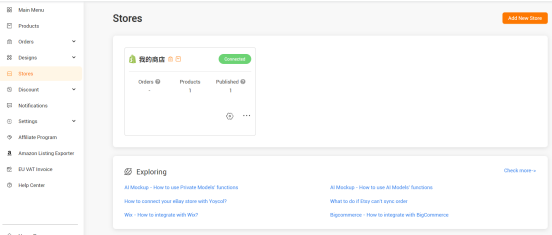
Select an already created Shopify personal store
2. Select color and size
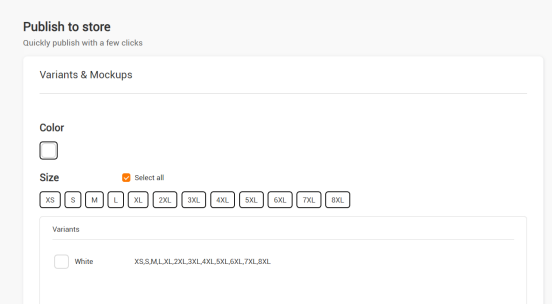
Select a color. Here it is only white
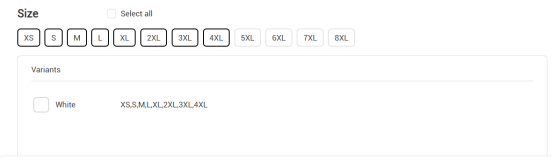
Select the size. You can check "Select all" to select all sizes, or manually choose the sizes supported by the product. Finally, the colors and sizes supported by the product will be reflected in "Variants".
3. Select mockups

3.1 Click the "AI Mockup" button
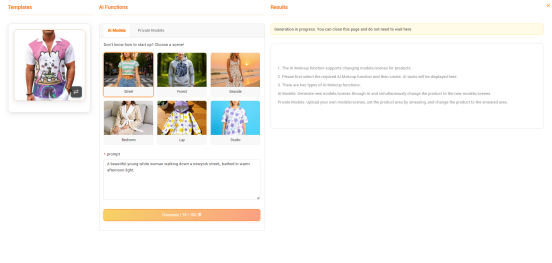
Click "Generate" to generate. Each generation will consume 10 points, and obtaining the generated result will take 1-2 minutes to wait for.
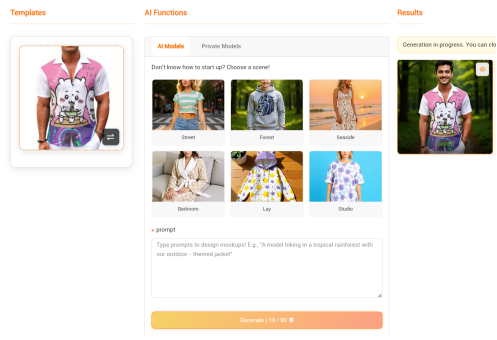
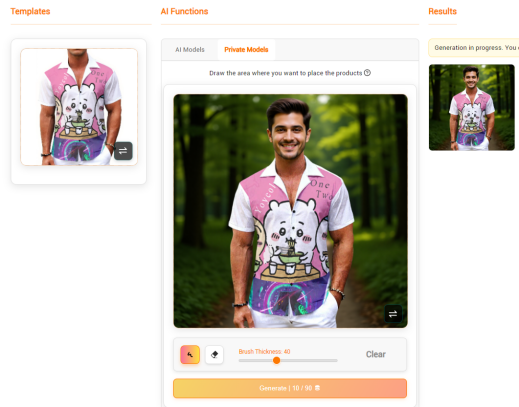
You can save the generated model to create your own private model. Then, click on "Private Models" to view your private models.
4. Select the prices for each size of the product
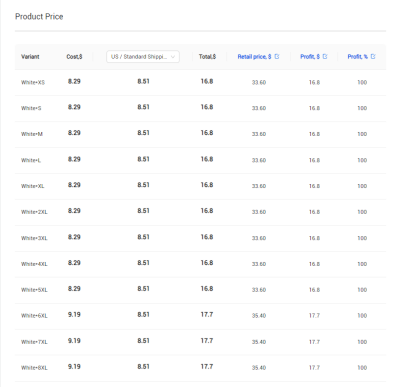
This is automatically generated by the system, and of course you can manually modify it
4. Details Page
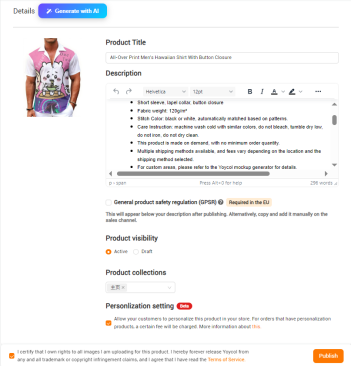
Here you can:
1. Fill in your product title and product description
2. Select whether to check "GPSR"
3. Select product visibility
4. Select product series
5. Whether to check the personalized settings
5. Click "Publish" to publish
5.1 View published products in Shopify
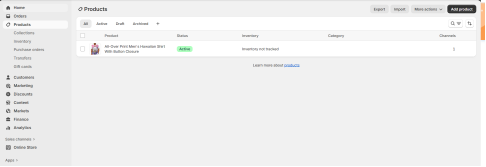
5.2 View published products in Yoycol