

How to update Shopify store product design or link?
Update product design
Sometimes, you may want to update the product design without changing any products information in your store.
Update product link
Sometimes, you may face the condition that certain product in Yoycol will be archived while will be re-released on a new link . And you want to keep that product in your store.
There are only some differences in the third step between updating the design and updating the link, and others are basically the same.
- Open the “Product Templates” menu, go to the “Published” tab, and select your store.
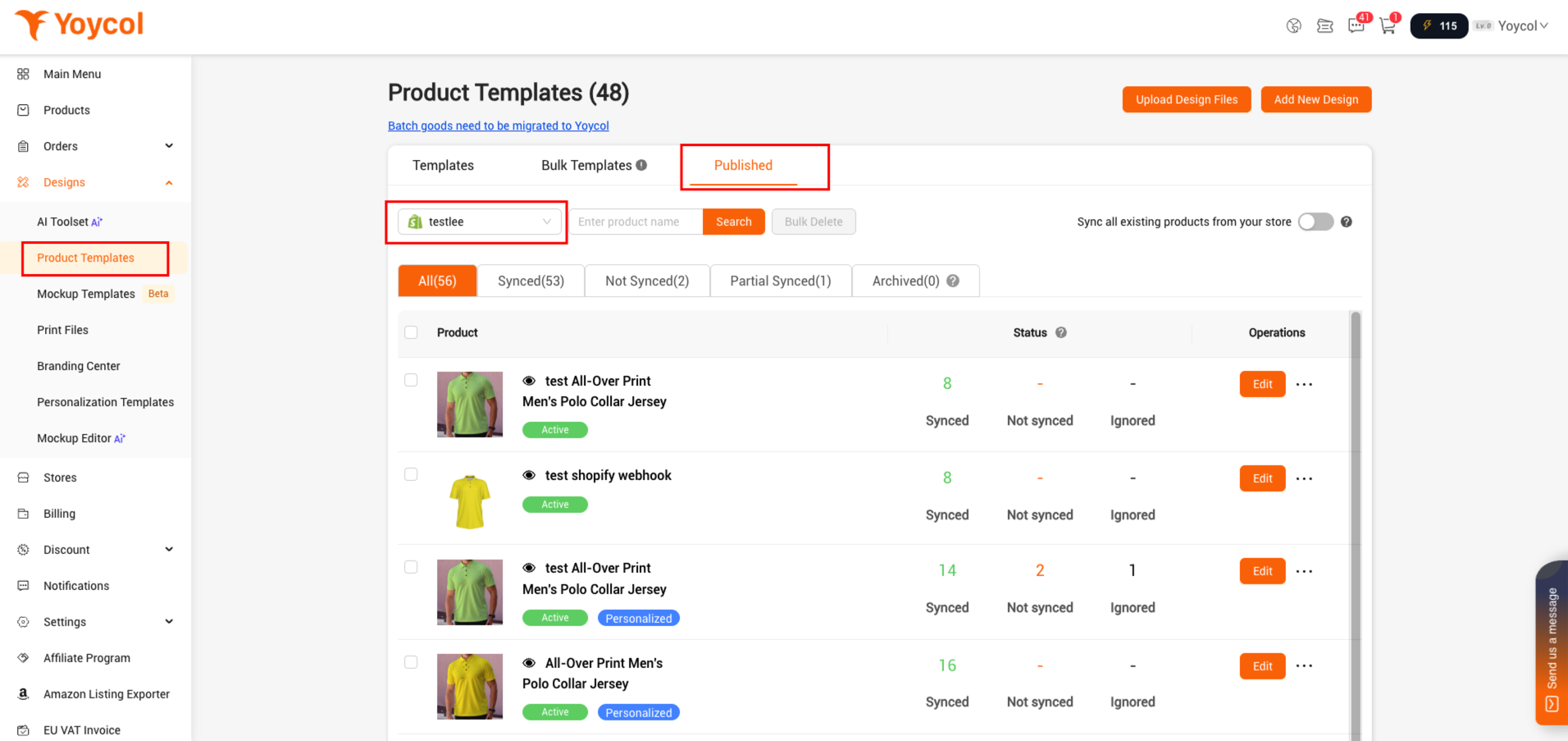
- Find the product that you want to update the design or link. Click ‘edit’.
If the product is going to be achived, you could find it in 'Archived'.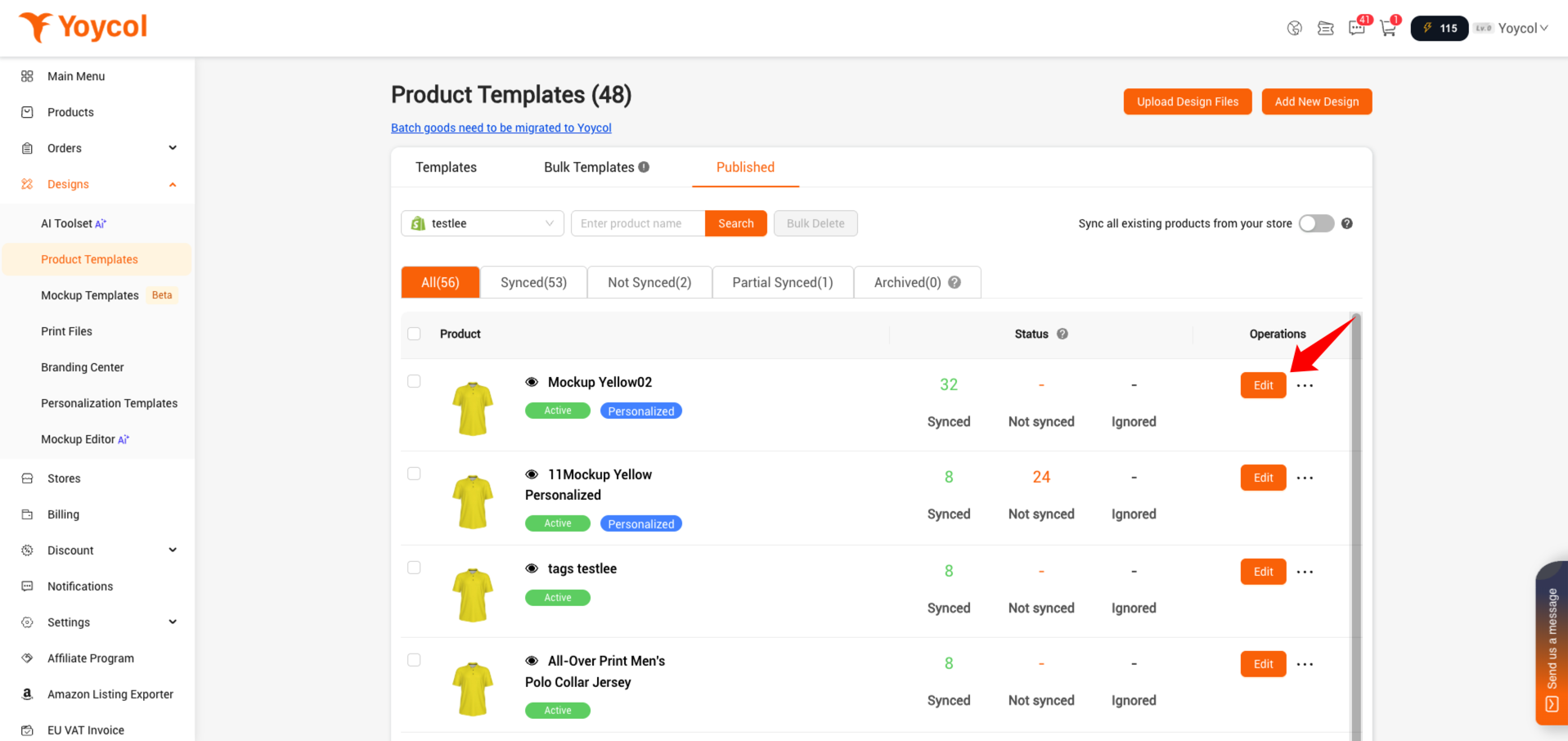
- Update designs or links
1)Update product designs
a. Click 'Edit Design'
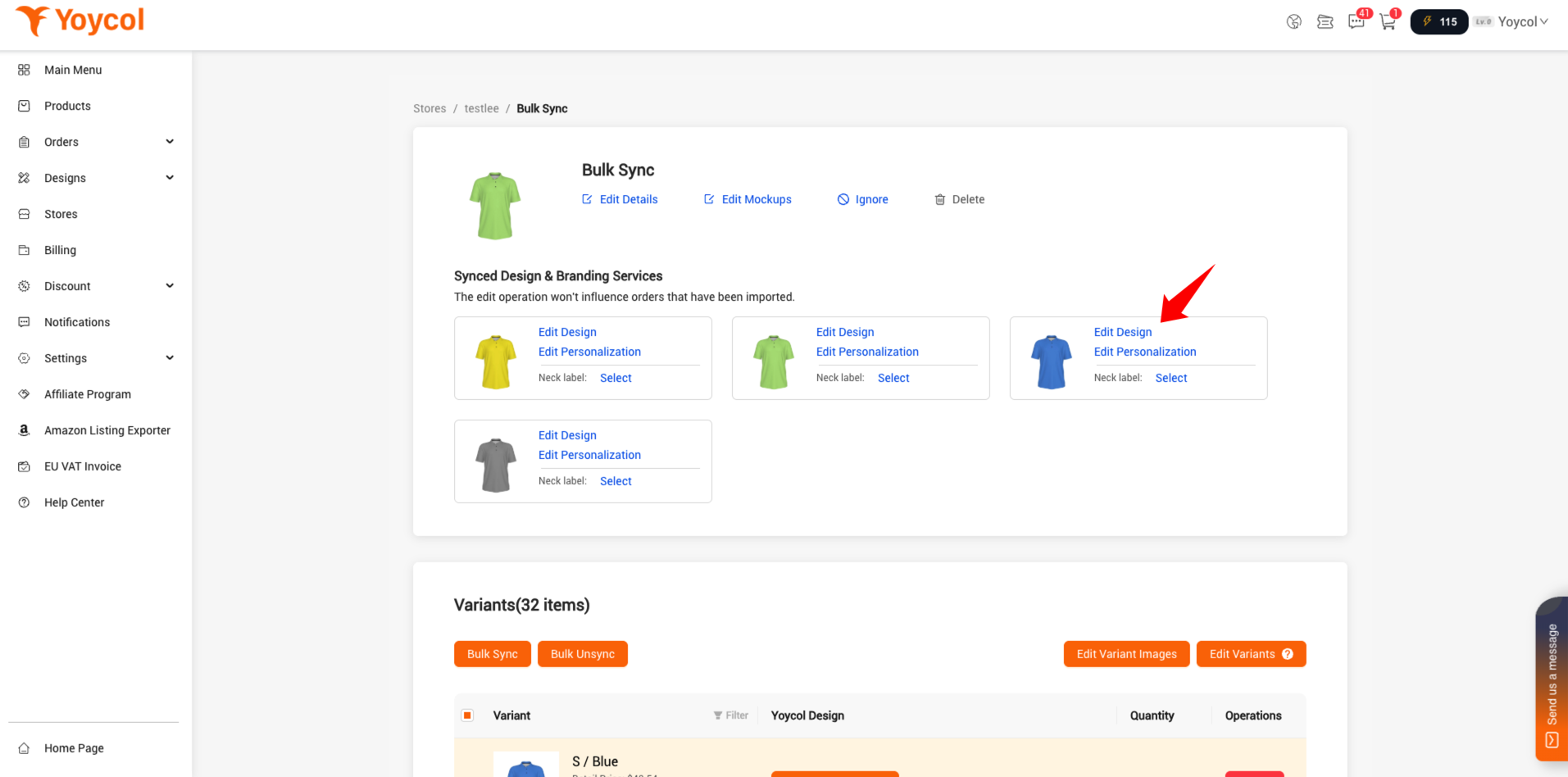
b. Edit your design,change your mockup style (If needed) and Click 'Update'
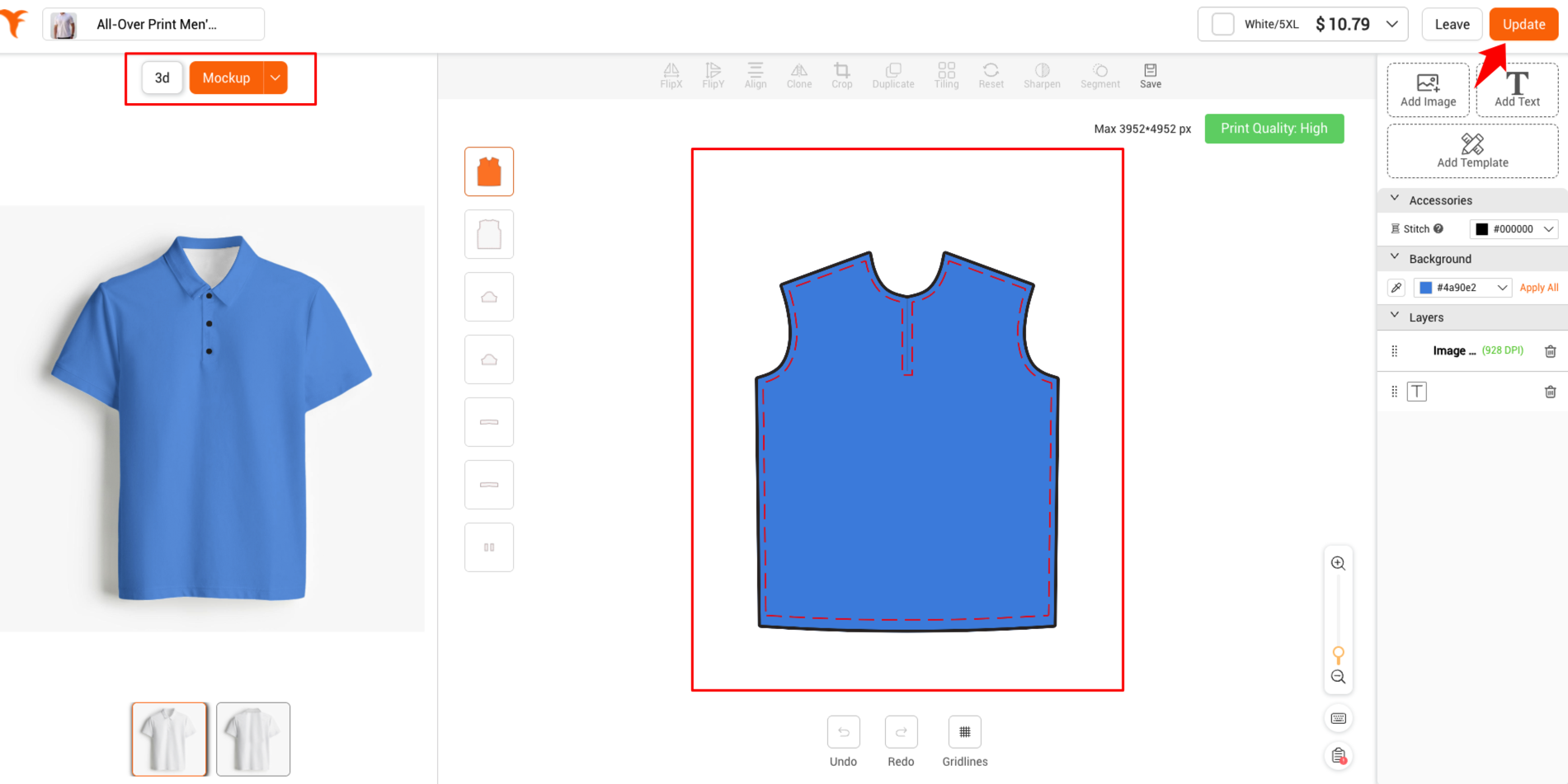
c. If it’s a personalized product, you’ll also need to edit the personalization settings and click 'Save'.
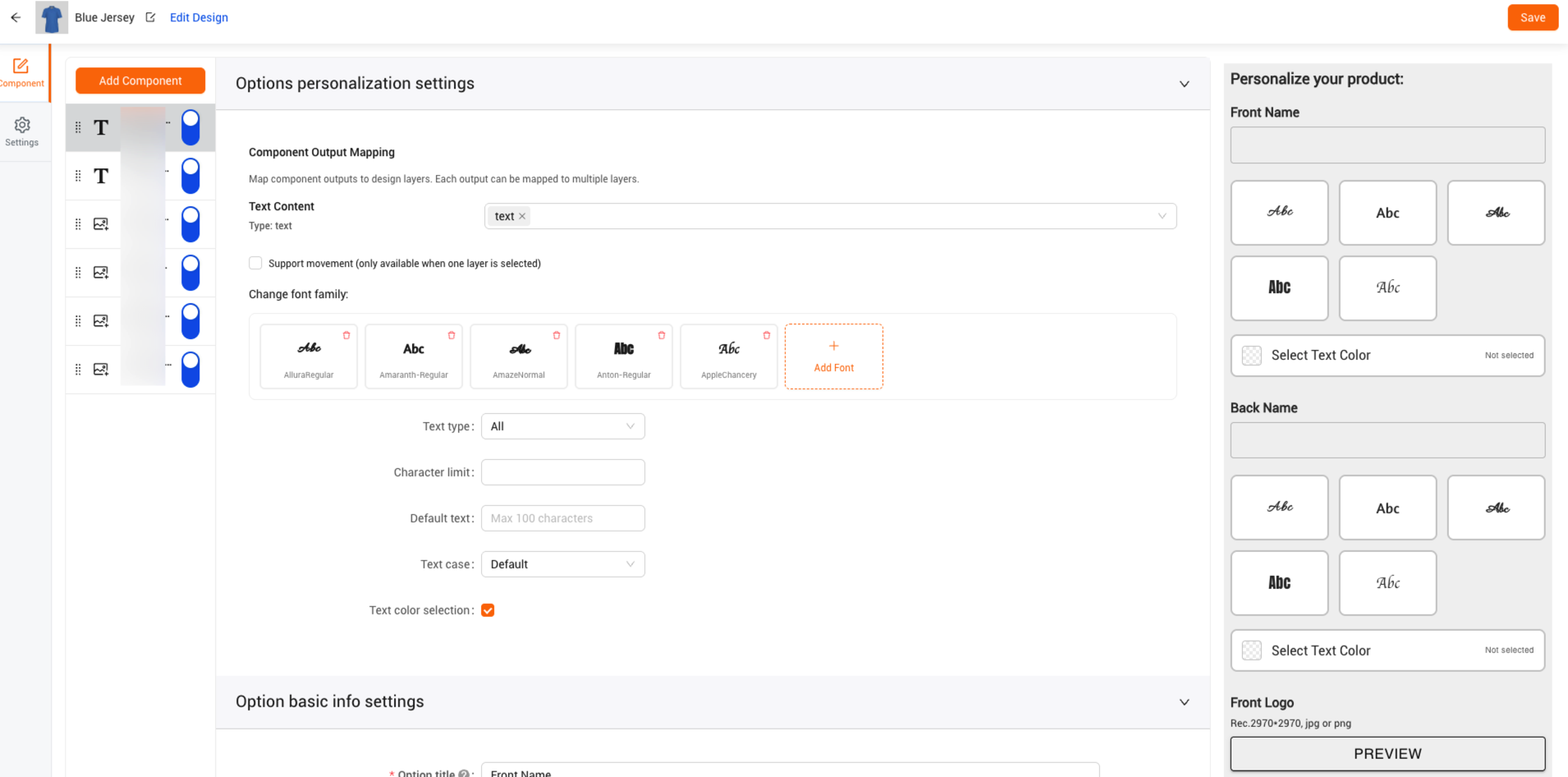
2) Update product links
a. Find the variant that you want to change design. Click ‘Unsync’ and then click 'Sync Yoycol Design'.
You could also use filter, ‘Bulk Unsync’ and ‘Bulk Sync’ to quickly update designs for multiple variants.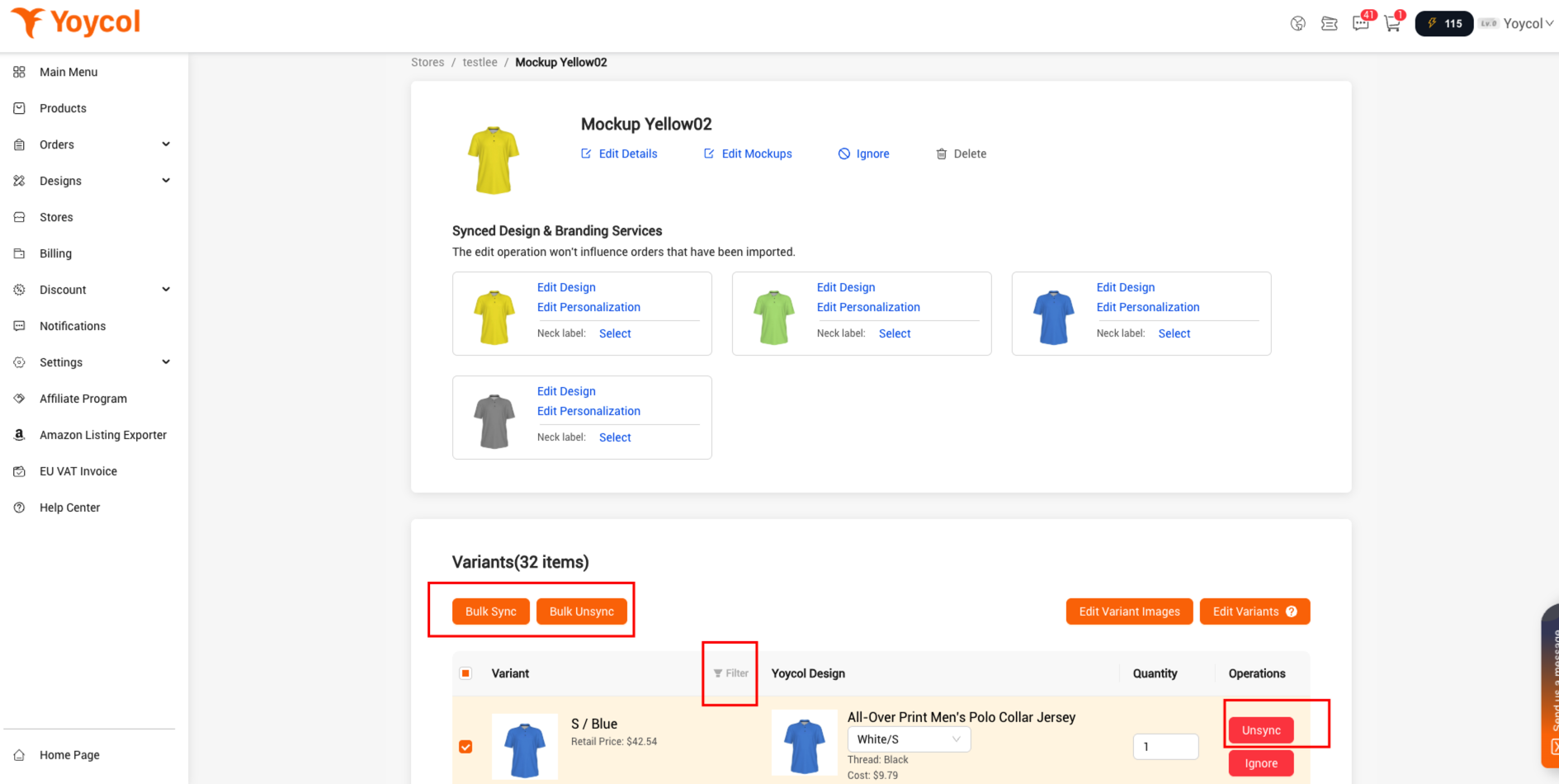
b. Click ‘Product Templates’ or ‘Personalization Templates’ And find your new design.
Before this step, you need to make same design with the new link and save to templates. Or you can use 'copy to' function, copy the old design to the new link. If you do not know how to use 'copy to' function, please click here.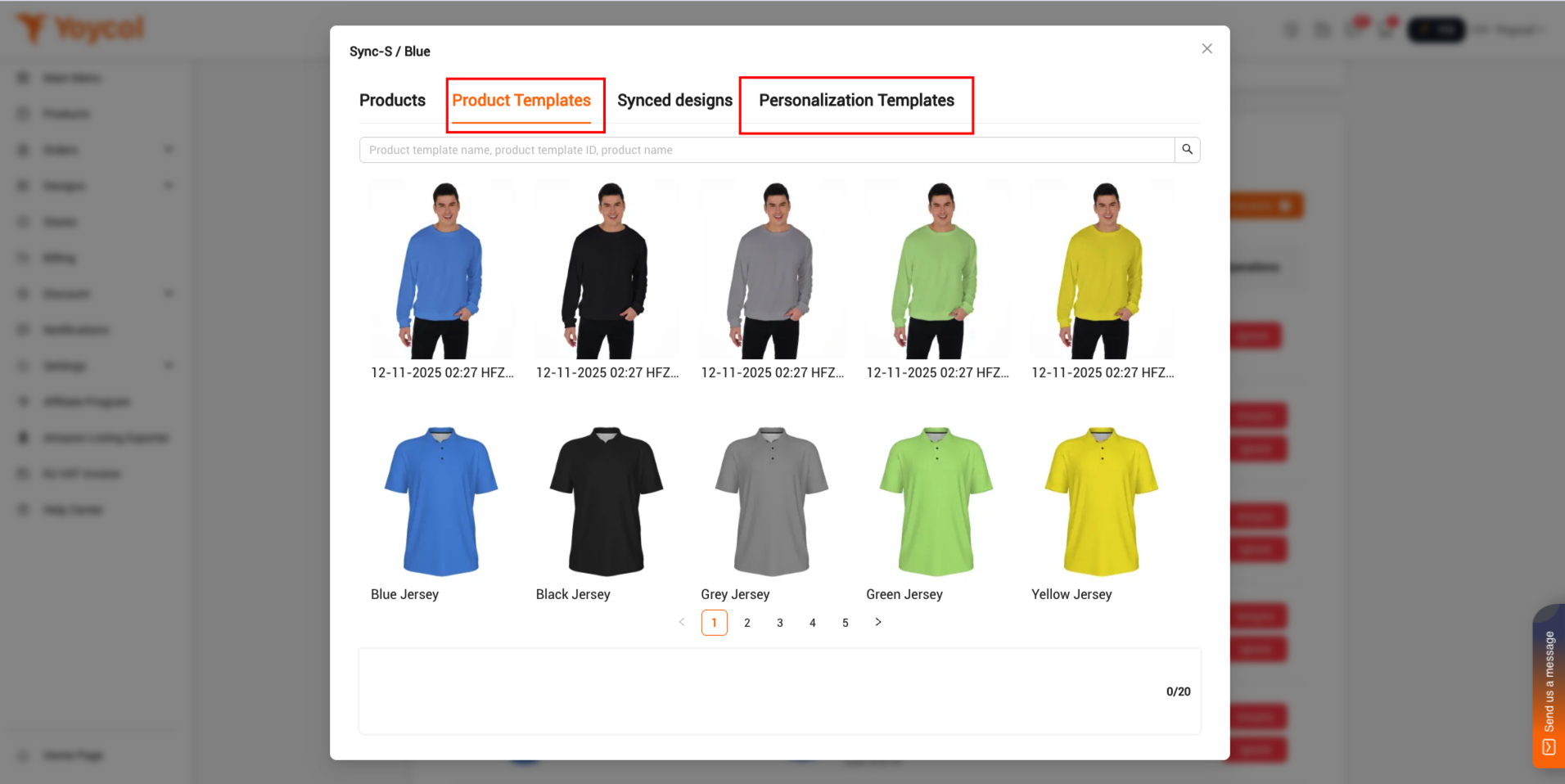
c. Choose the variants. And click ’save’.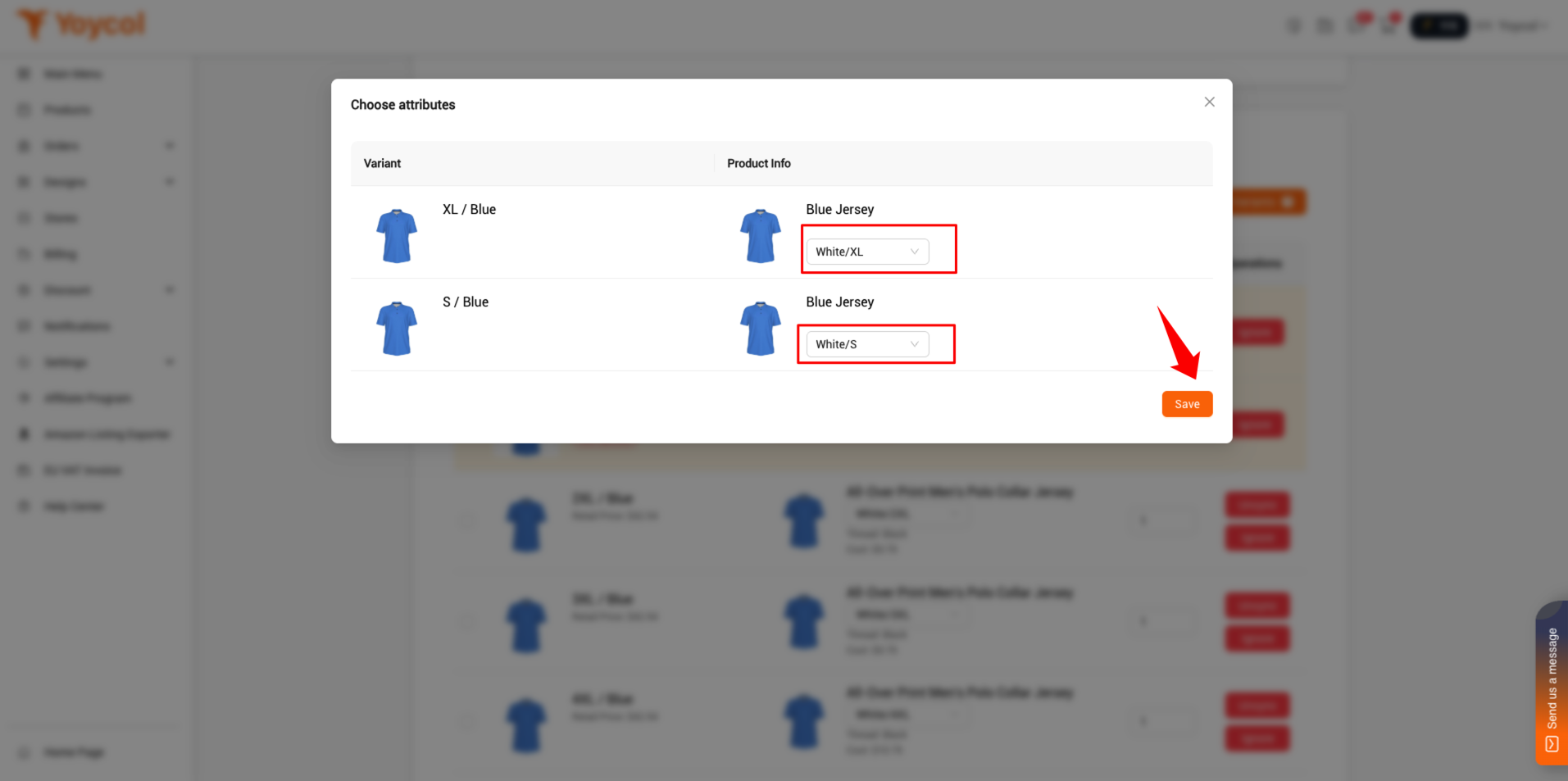
5. Update your mockups
a. Click 'Edit Mockups'
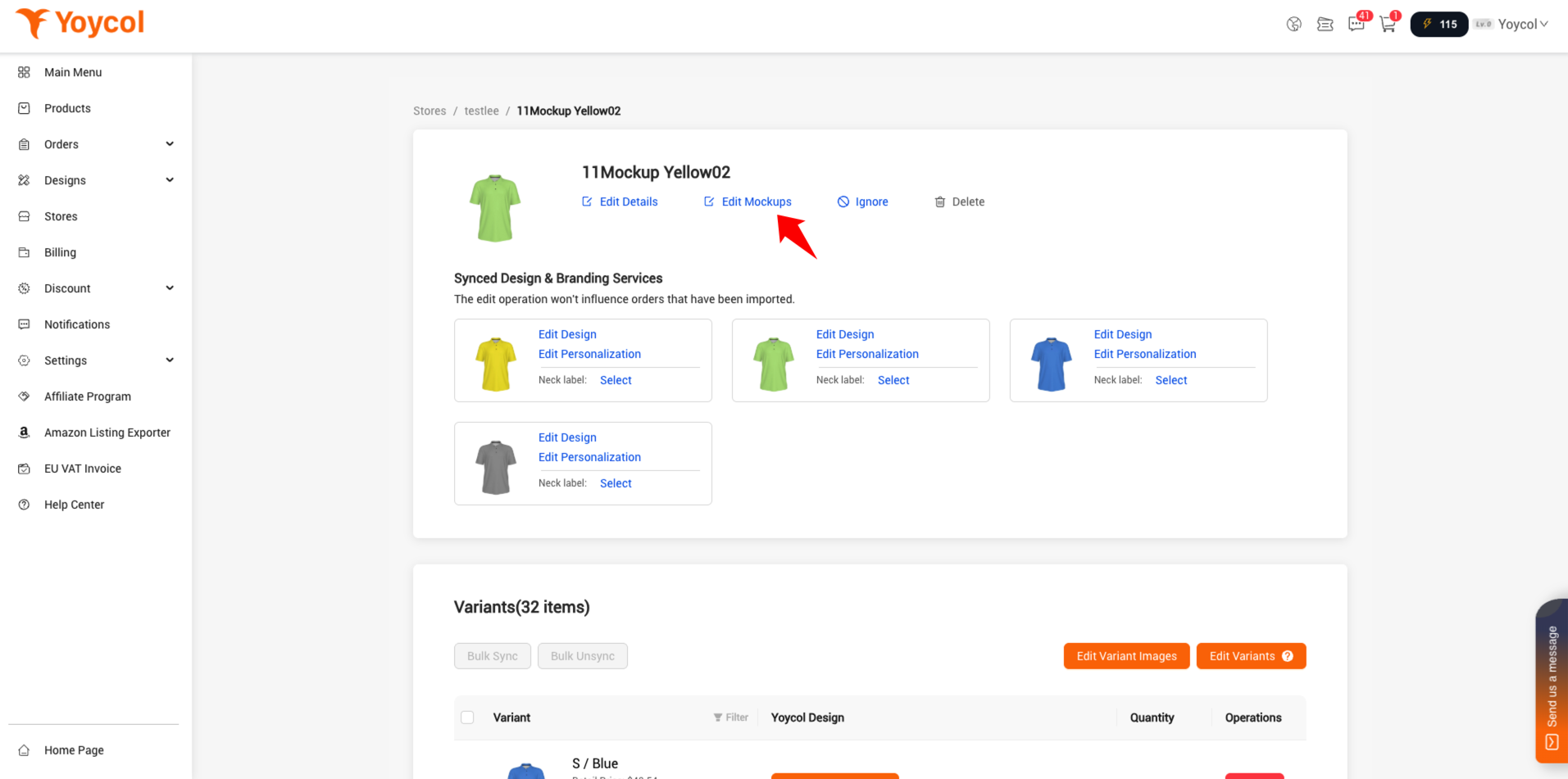
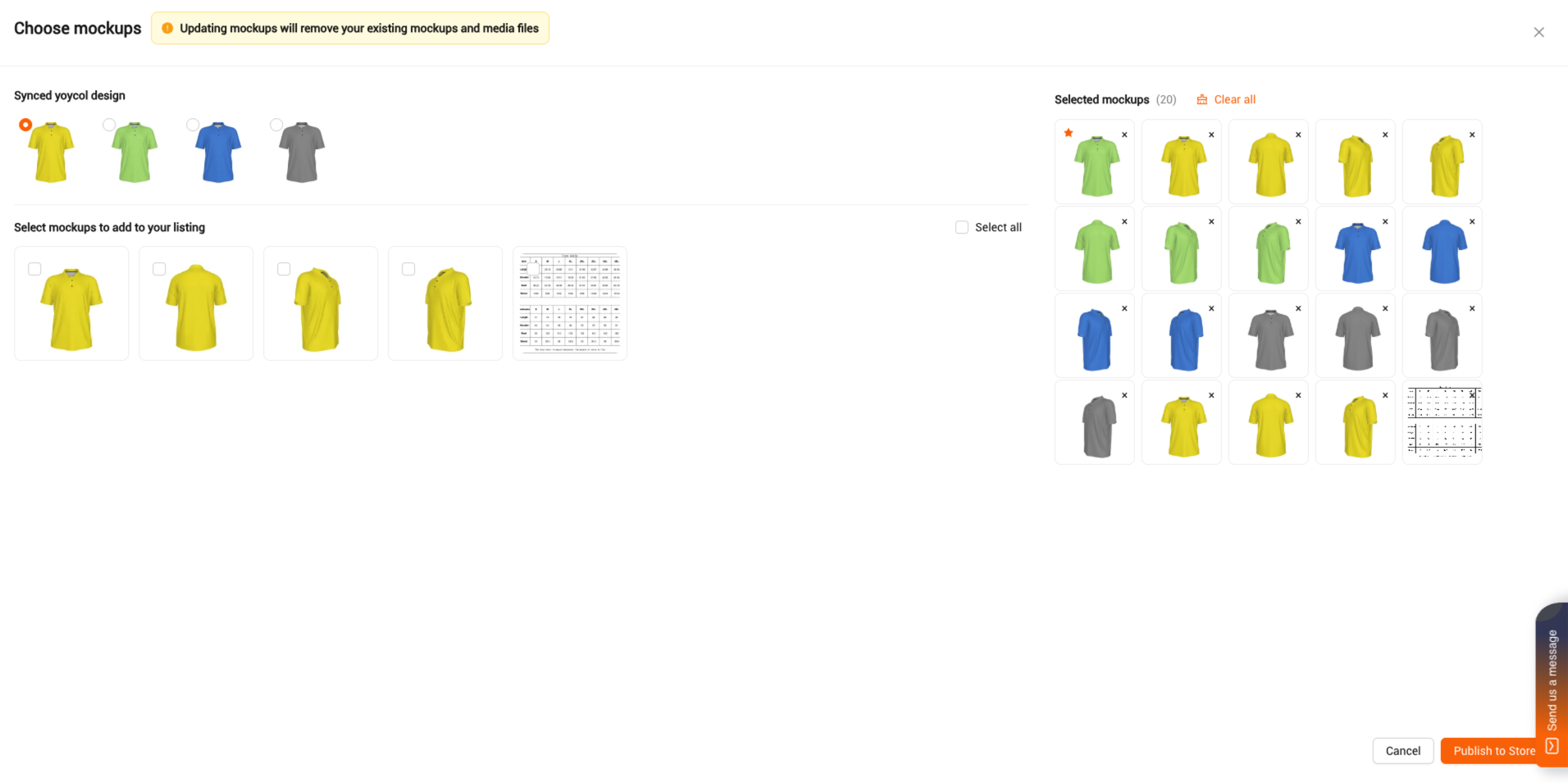
b. On the right , under 'Selected mockups', you can see the mockups that have already been added to Shopify.
On the left, you can also see all synced designs. Choose a design, then select the mockups to add them to the 'Selected Mockups' section on the right. Click ‘Publish to Store'.
6. Update variant image
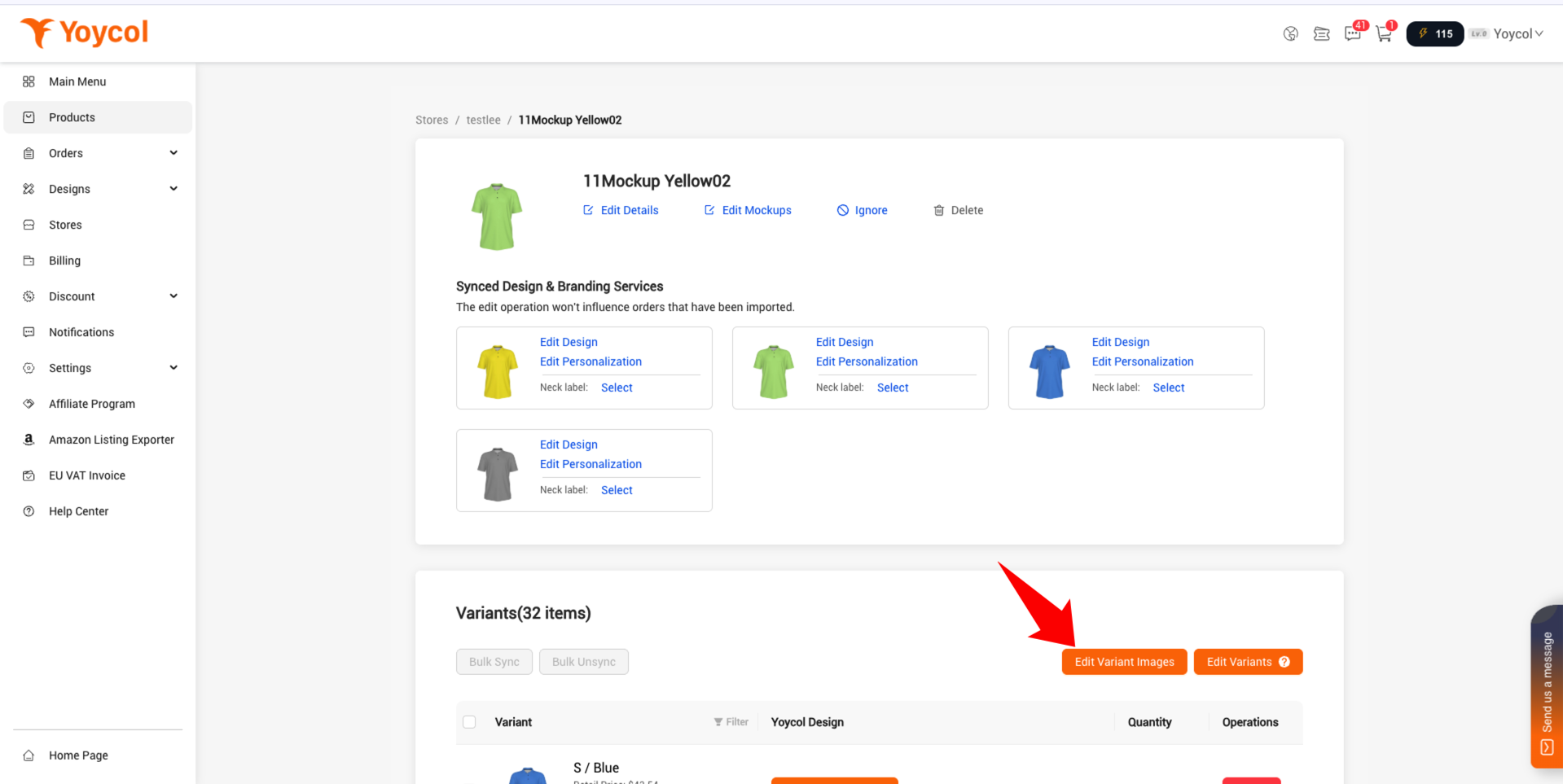
a. Click 'Edit Variant Images'
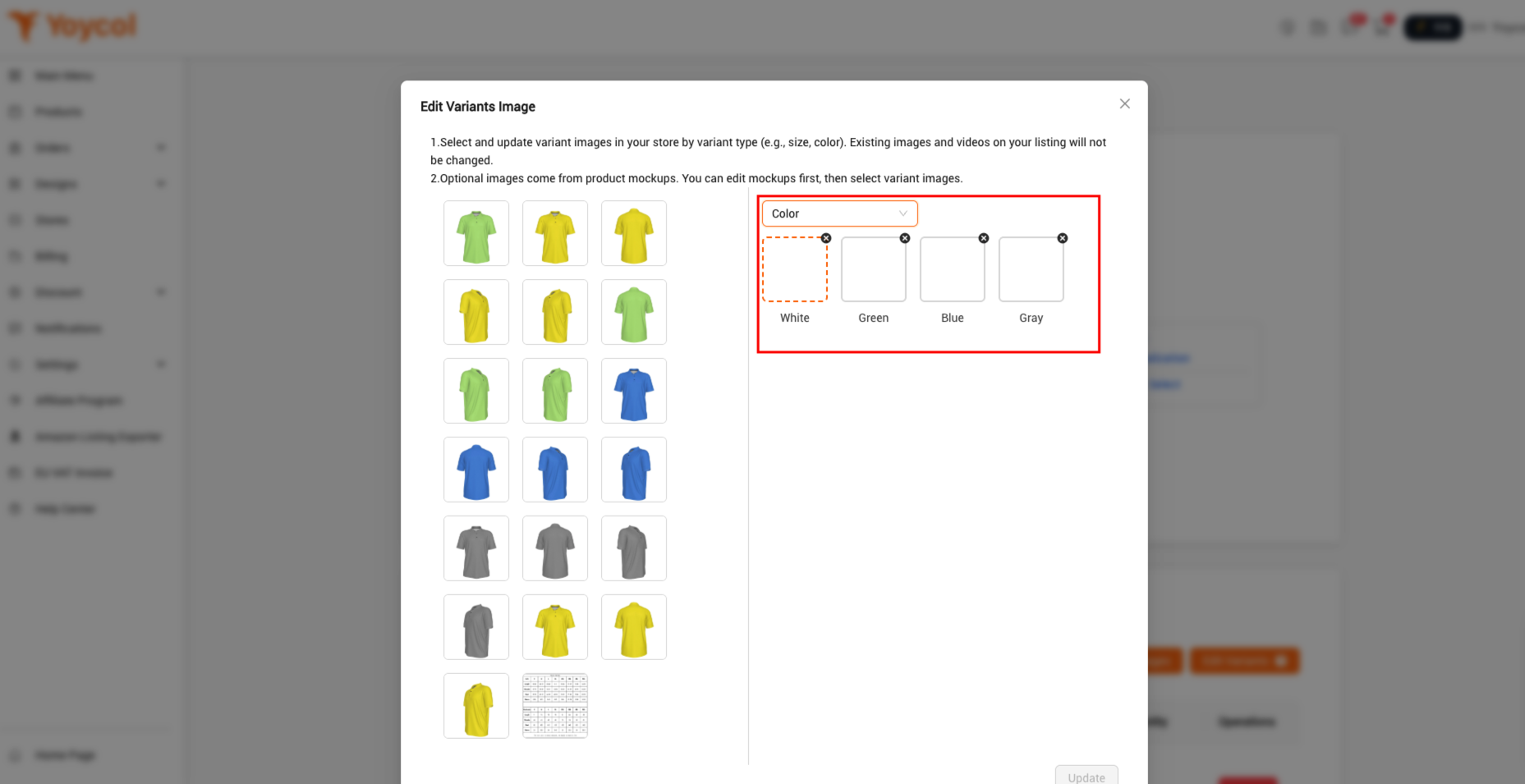
b. Select and update variant images to your Shopify store by variant type (e.g., size, color) and click 'Update'.
If you have other questions, welcome to contact us.