

QuickCreate User Guide
Overview
QuickCreate helps you turn a reference image into product-ready mockups and an order workflow. It can match similar products, extract print artwork, generate mockup previews, and prepare the selected results for ordering.
Entry
Go to Personal Center > Designs > Quick Create.
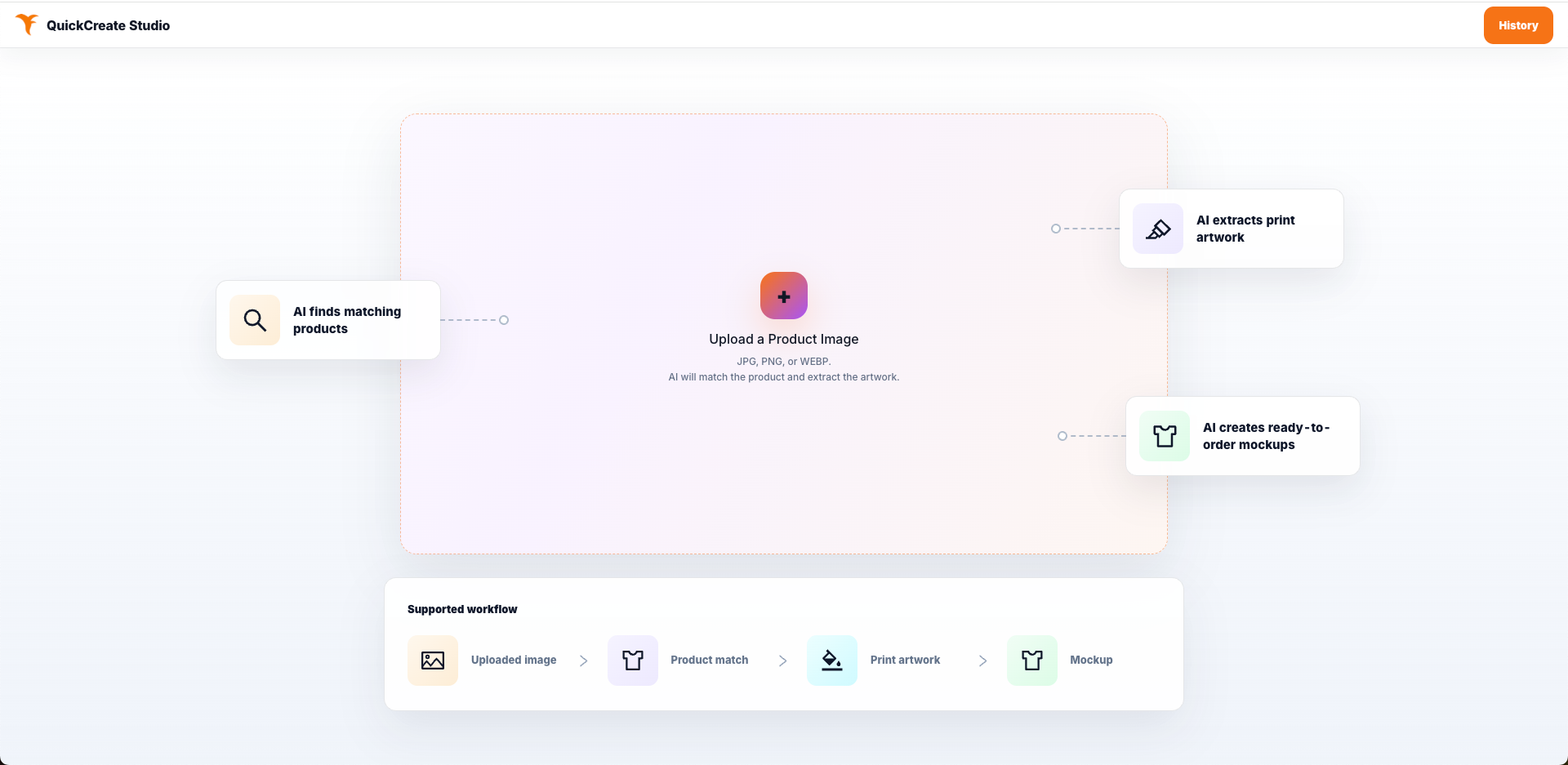
You will enter QuickCreate Studio, where the workflow starts with an uploaded reference image.
Basic Workflow
- Upload a reference image. Use a clear image that contains the artwork or design inspiration you want to reuse.
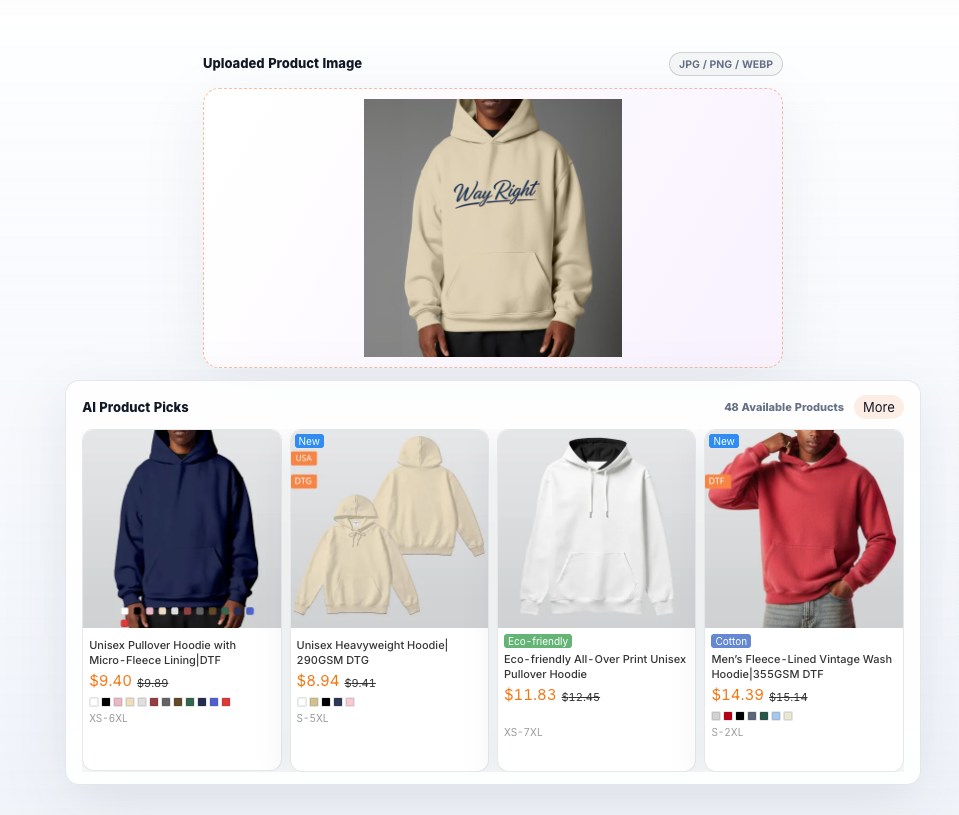
- Review AI Product Picks. QuickCreate searches for matching products and shows available product options. Select the product you want to apply the artwork to.
- Extract the print artwork. Click
Extract Artworkto let AI isolate the printable design from the uploaded image. While the task is running, the page shows extraction progress.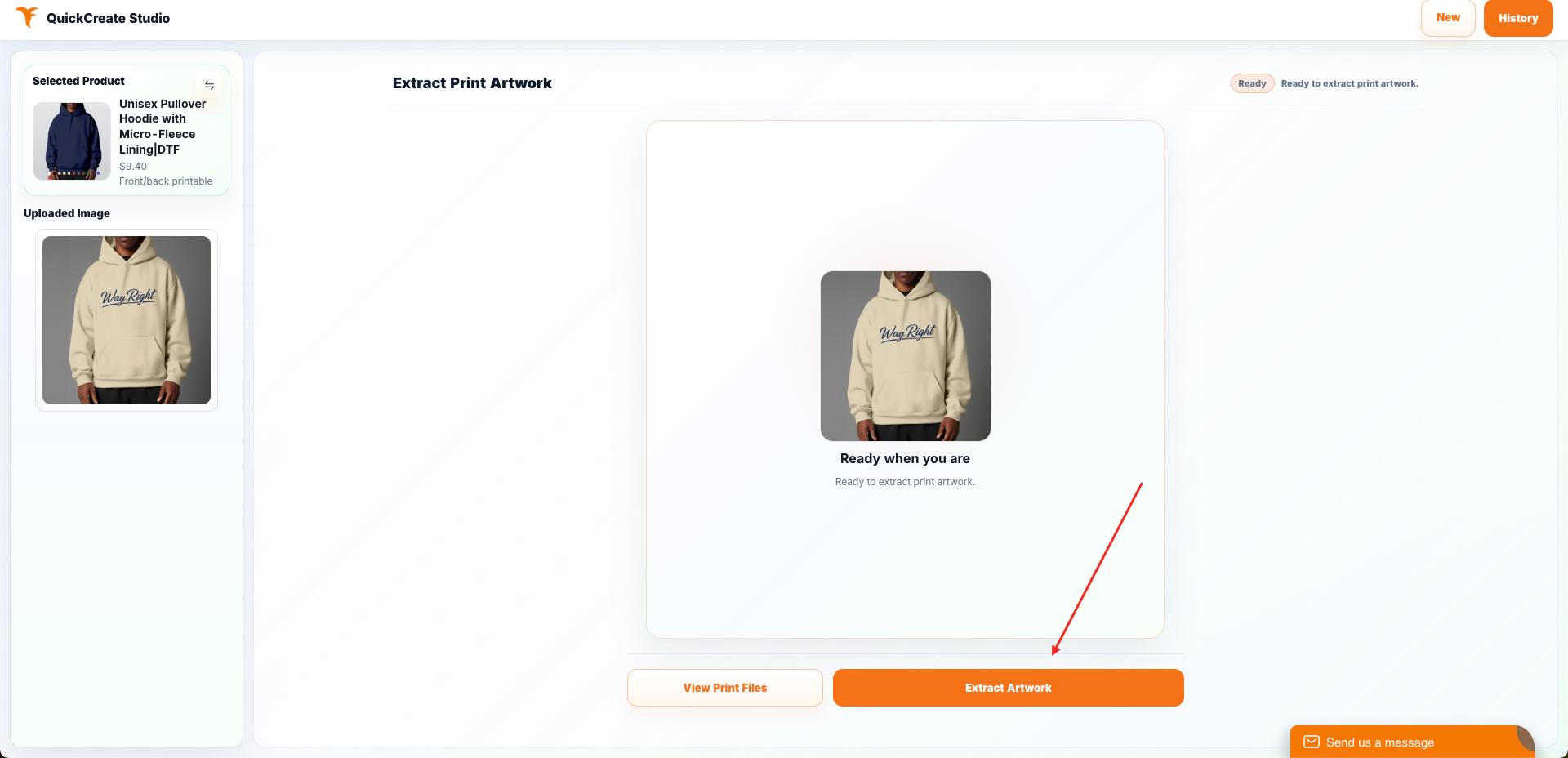
- Review the extracted artwork. After extraction is complete, check the print artwork preview. You can re-extract if the result is not suitable.
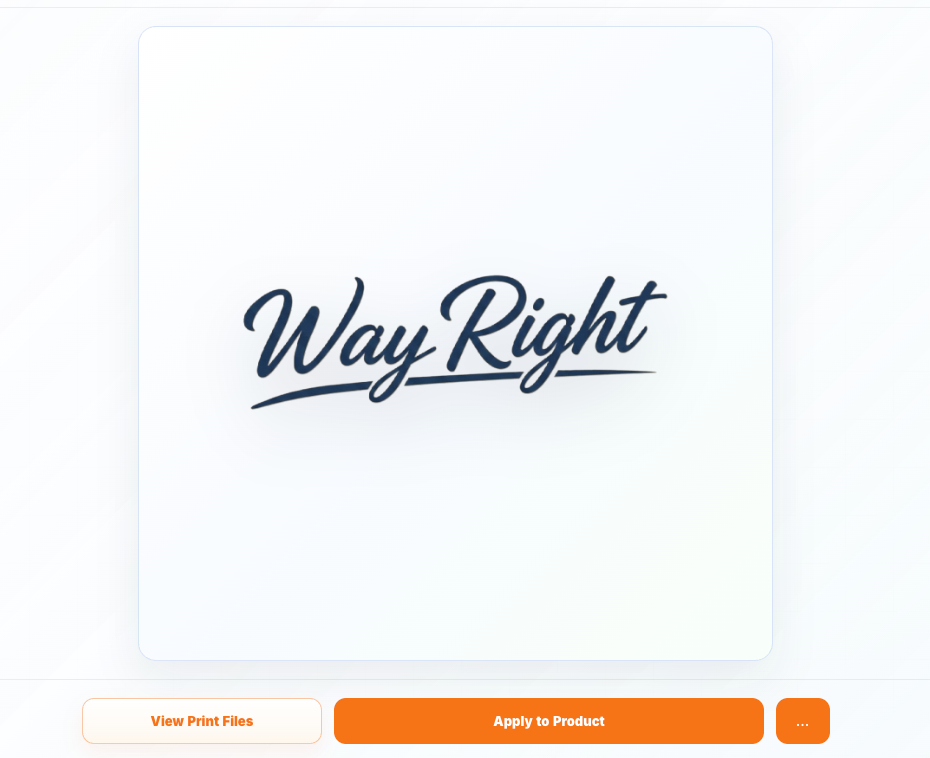
- Apply the artwork to the product. Click
Apply to Productto generate product mockups. QuickCreate creates placement tasks and preview images for the selected product. - Review Generated Mockups. Use the mockup tabs to switch between generated views. Select the view you want to inspect in the main preview area.
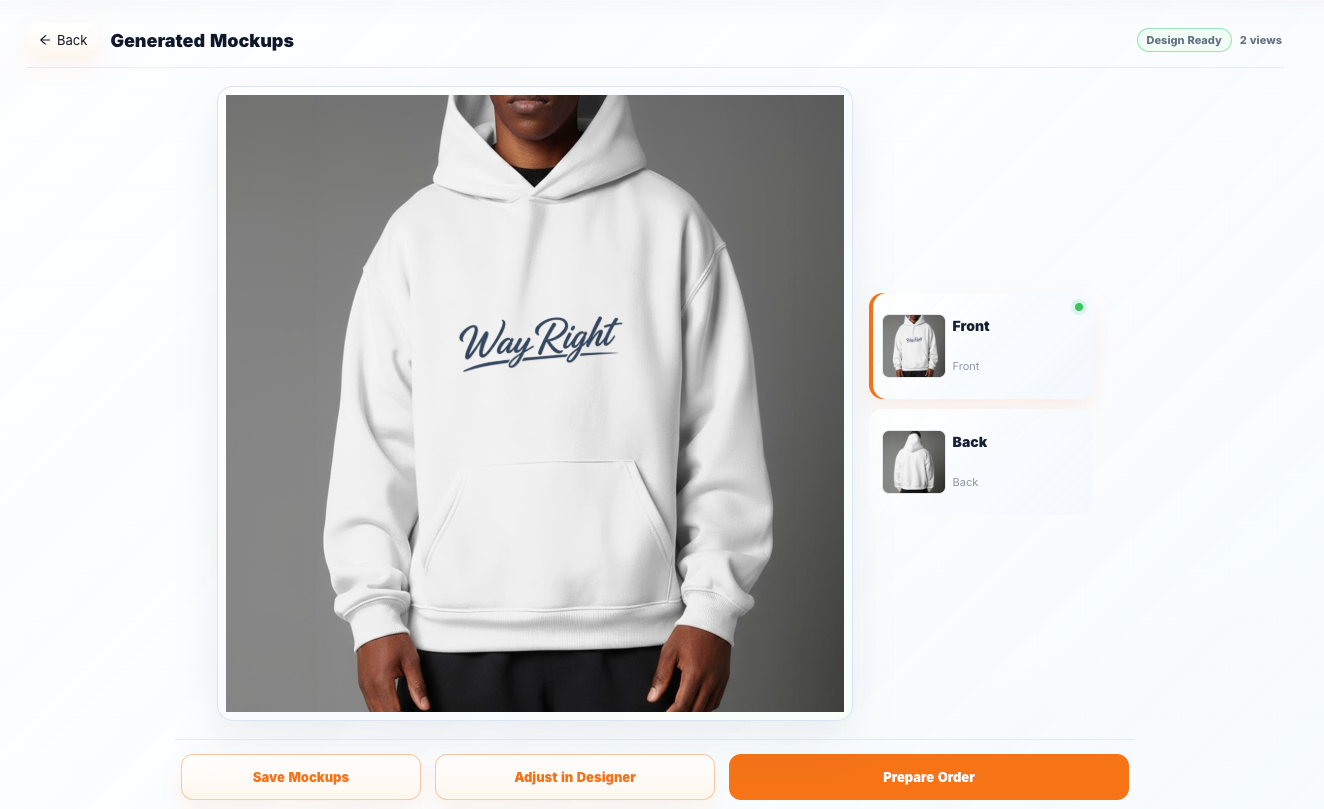
- Save or continue. You can click
Save Mockups,Adjust in Designer, orPrepare Orderdepending on your next step.
Key Actions
New: start a new QuickCreate workflow.History: open previous QuickCreate records.View Print Files: choose an existing print file instead of using the current extracted artwork.Re-extract: run artwork extraction again.Redesign: regenerate mockup placement when results are ready.Adjust in Designer: open the design editor for further changes.Prepare Order: move selected mockups into the order preparation flow.
History
Click History to view previous QuickCreate tasks. History records can help you resume previous work, review generated mockups, or continue from a saved design state.
Tips
- Use high-resolution reference images for better artwork extraction.
- Choose a product that closely matches the intended design placement.
- Review the extracted artwork before generating mockups.
- Save useful mockups before starting a new workflow.