
Color is everything in sublimation printing — and sublimation color matching is the difference between designs that look vibrant and professional versus prints that look dull, muddy, or completely wrong.
If you've ever spent hours perfecting a design on screen, only to receive a printed product where the colors look completely different, you know how frustrating color mismatch can be. It wastes time, money, and customer trust.
For POD sellers, mastering sublimation color matching is critical:
- Print accuracy — what you design is what you get
- Consistent results — same colors across different products and batches
- Fewer wasted samples — get it right the first time
- Customer satisfaction — no returns due to "colors look different"
- Professional quality — customers recognize accurate, vibrant colors
This guide covers everything you need to know about sublimation color matching: color profiles, monitor calibration, color charts, testing methods, common problems, and how to achieve consistent, accurate results every time.
If you're new to sublimation design, our how to design for sublimation guide covers the basics. And if you want to understand the technology, check our what is all-over-print guide.
Why Sublimation Color Matching Is So Challenging
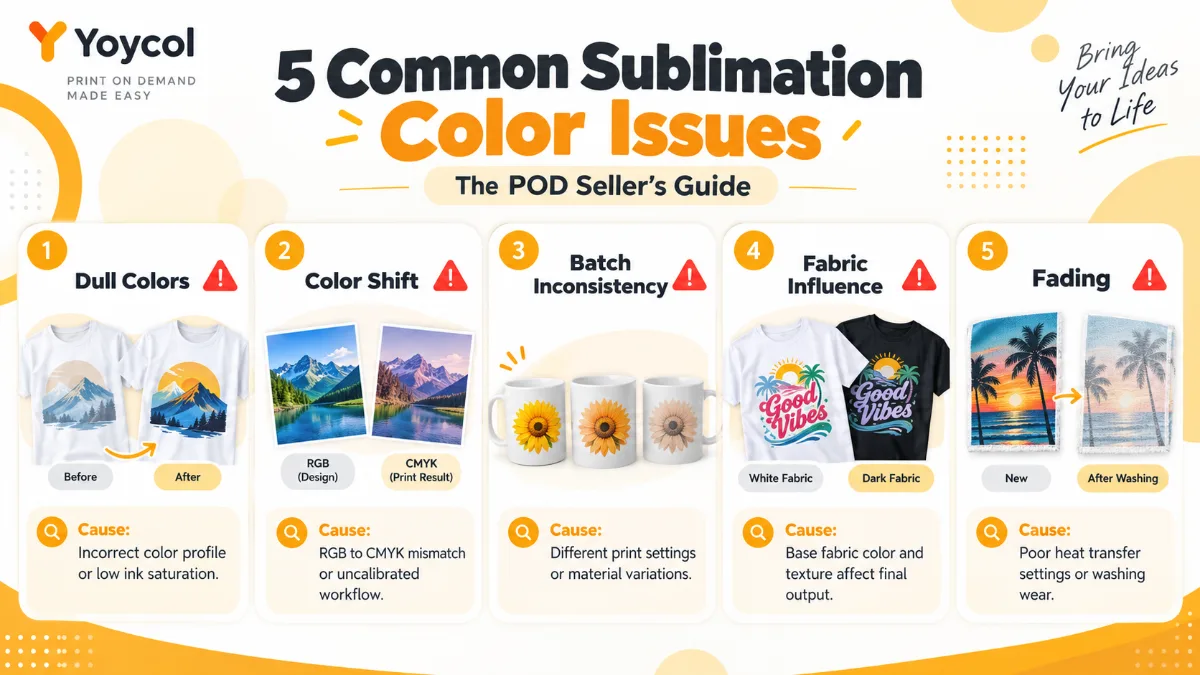
Sublimation color matching is more complex than other printing methods because of the unique physics involved:
The Science of Sublimation Colors
Sublimation inks convert from solid to gas when heated, then bond with polyester fibers. This process creates color through:
- Ink chemistry — different pigments react differently to heat
- Fabric composition — polyester content affects color absorption
- Temperature and time — heat press settings change color intensity
- Fabric color — white, gray, or colored fabric affects final result
This means the color you see on screen will never exactly match the printed result — but you can get very close with proper color management.
Common Color Matching Problems
Problem #1: Colors Look Dull After Printing
- Cause: Designing in CMYK instead of RGB
- Solution: Always design in sRGB color mode
Problem #2: Colors Shift (e.g., Blue Prints Purple)
- Cause: Monitor not calibrated, wrong color profile
- Solution: Calibrate monitor, use sRGB, test print color charts
Problem #3: Inconsistent Colors Across Products
- Cause: Different fabric batches, heat press settings vary
- Solution: Document settings, use color charts, test each batch
Problem #4: Fabric Color Affects Design
- Cause: White areas in design show fabric color
- Solution: Design with fabric color in mind, use white polyester fabric
Problem #5: Colors Fade After Washing
- Cause: Incorrect heat/pressure, low-quality ink
- Solution: Follow supplier's heat settings, use reputable ink suppliers
The Color Management Workflow
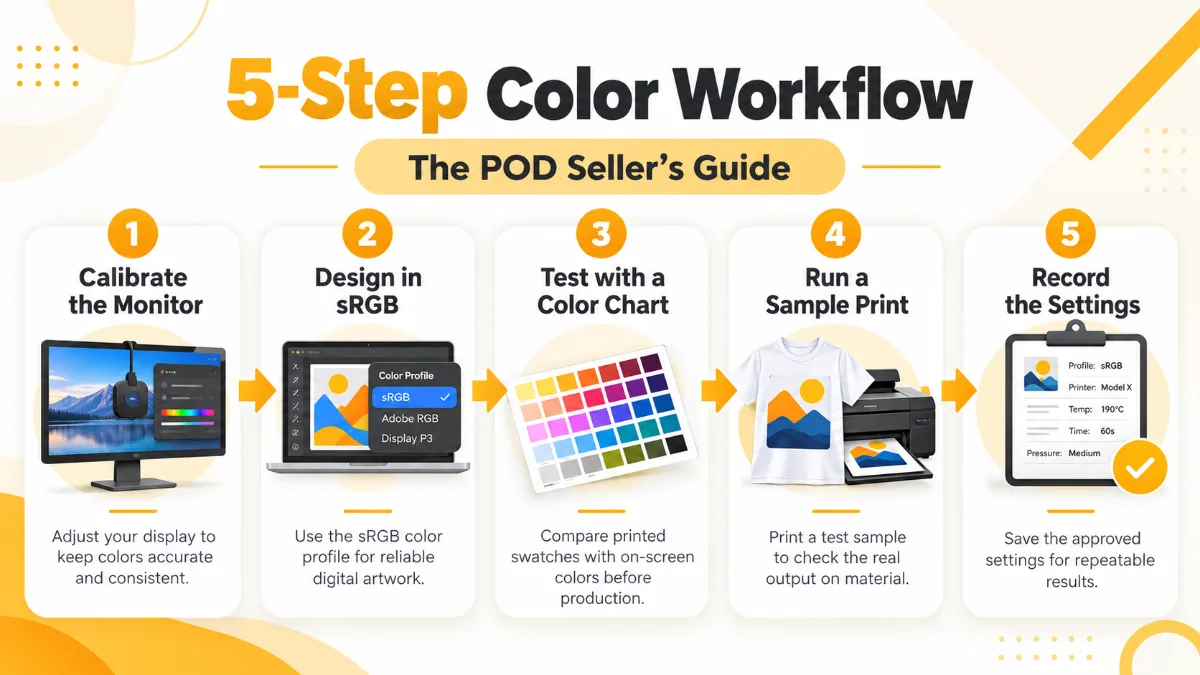
Achieving accurate sublimation colors requires a systematic workflow:
Step 1: Calibrate Your Monitor
Your monitor is the foundation of color accuracy:
Why calibrate?
- Monitors drift over time (colors change)
- Factory settings are rarely accurate
- Different monitors show colors differently
How to calibrate:
- Hardware calibration (best): Use a colorimeter like X-Rite ColorMunki ($150-$300)
- Software calibration (basic): Use built-in OS tools (Windows: Display Calibration, Mac: Display Calibrator Assistant)
- Frequency: Calibrate every 2-4 weeks for consistent results
Target settings:
- Brightness: 120 cd/m² (standard for design work)
- Gamma: 2.2
- White point: D65 (6500K)
- Color space: sRGB
Step 2: Design in sRGB
This is non-negotiable for sublimation:
- sRGB is the standard color space for digital displays and sublimation
- CMYK is for offset printing (not sublimation)
- Adobe RGB has a wider gamut but can cause unexpected results
Always design in sRGB. Check your software settings:
- Photoshop: Image → Mode → RGB Color
- Illustrator: File → Document Color Mode → RGB
- Canva: Automatically uses RGB
Step 3: Use a Color Chart
Color charts (also called color swatches or test prints) are essential for accurate color matching:
What is a color chart? A printed sheet with hundreds of color swatches, each labeled with its RGB or HEX value. You print it on your sublimation printer using your specific ink, paper, fabric, and heat press settings.
Why use a color chart?
- Shows how colors actually print on your setup
- Accounts for ink, paper, fabric, and heat press variations
- Creates a reference for future designs
How to use:
- Download a sublimation color chart (many suppliers provide free charts)
- Print on the same fabric you'll use for production
- Use the same heat press settings (temperature, time, pressure)
- Label the chart with your setup details
- Reference when designing (pick colors from the chart, not from screen)
Step 4: Test Print Before Production
Never skip test prints for important designs:
What to test:
- Color accuracy — do colors match your design?
- Detail clarity — are fine lines and text sharp?
- Fabric interaction — how does fabric color affect design?
How to test:
- Print a small section of your design (or full design on scrap fabric)
- Use production settings (same fabric, ink, heat press)
- Compare to your design on screen (using color chart as reference)
- Adjust design if needed, then reprint
When to test:
- New designs (especially with brand colors)
- New fabric batches
- After changing ink or paper suppliers
- After adjusting heat press settings
Step 5: Document Your Settings
Consistency requires documentation:
What to document:
- Ink brand and type (e.g., Hiipoo Sublimation Ink)
- Paper brand and type (e.g., A-sub 120gsm)
- Fabric composition (e.g., 100% polyester, 95% polyester/5% spandex)
- Heat press settings (temperature, time, pressure)
- Printer settings (resolution, color profile, paper type)
- Monitor calibration date
Why document?
- Replicate successful prints
- Troubleshoot problems
- Maintain consistency across batches
- Train team members
Advanced Color Matching Techniques
Once you've mastered the basics, these advanced techniques will take your color accuracy to the next level:
Technique #1: ICC Profiles
ICC (International Color Consortium) profiles are custom color maps for your specific printer, ink, paper, and fabric combination:
What they do:
- Tell your printer how to translate screen colors to print colors
- Compensate for equipment and material variations
- Improve color accuracy significantly
How to use:
- Download ICC profiles from your ink or paper supplier (many provide free profiles)
- Install in your printer software
- Choose profile when printing sublimation designs
Limitations:
- ICC profiles are specific to ink + paper + printer + fabric combinations
- Changing any component requires a new profile
- Custom ICC profiles can be expensive ($200-$500)
Technique #2: Soft Proofing
Soft proofing simulates how your design will look when printed, before you actually print:
How it works:
- Photoshop uses your ICC profile to show a preview
- You see approximately how colors will print
- Adjust design before printing
How to use:
- Photoshop: View → Proof Setup → Custom → choose your ICC profile
- View → Proof Colors (toggle on/off to compare)
Technique #3: Color Correction
If your test prints show consistent color shifts, you can correct them:
Example problem: All blues print too purple
Solution:
- Adjust blue hues toward cyan in your design
- Test print again
- Repeat until colors match
Tip: Keep a log of corrections for each color family. Over time, you'll learn how to compensate automatically.
7 Tips for Consistent Sublimation Colors
-
Use the Same Fabric Supplier — Different suppliers use different polyester blends. Stick with one supplier for consistency.
-
Control Heat Press Variables — Temperature ±5°F, time ±5 seconds, and pressure inconsistencies all affect color. Use a timer, temperature gun, and pressure gauge.
-
Pre-Press Fabric — Remove moisture and sizing: pre-press for 10-15 seconds at pressing temperature, let cool before sublimation.
-
Store Ink and Paper Properly — Ink at room temperature away from sunlight. Paper in dry environment, sealed in plastic.
-
Clean Printer Regularly — Clogged nozzles cause color inconsistencies. Run nozzle checks daily, clean print heads as needed.
-
Use Quality Materials — Hiipoo/Cosmos ink, A-sub/TeckWrap paper, 100% polyester or high polyester blend (>85%) fabric.
-
Maintain a Color Library — Print color charts on each fabric type, label with RGB/HEX values, reference when designing.
Frequently Asked Questions
Why do my sublimation colors look different on screen vs. printed? Common causes: monitor not calibrated, designing in CMYK instead of RGB, fabric color affecting design. Calibrate monitor, design in sRGB, use color charts.
How do I match brand colors in sublimation? Use a color chart to find the closest match, then adjust your design. Test print on actual fabric. Some brand colors (especially bright reds, oranges) are difficult to match exactly.
What's the best color profile for sublimation? sRGB is the standard. Some suppliers provide custom ICC profiles for their ink + paper + fabric combinations.
How often should I calibrate my monitor? Every 2-4 weeks for consistent results. Monitors drift over time, especially in warm environments.
Can I match Pantone colors in sublimation? Approximately, but not exactly. Use a Pantone color bridge guide to find the closest RGB equivalent, then test print. Some colors (metallics, neons) cannot be reproduced in sublimation.
Why do colors fade after washing? Incorrect heat/pressure settings, low-quality ink, or fabric with low polyester content. Follow supplier's heat settings and use 100% polyester fabric.
How do I fix colors that print too dark? Reduce heat press temperature by 5-10°F, reduce time by 5 seconds, or lighten colors in your design. Test print and adjust.
What's the difference between RGB and CMYK? RGB is for screens (red, green, blue light). CMYK is for offset printing (cyan, magenta, yellow, black ink). Sublimation uses RGB.
Can I use the same color chart for different fabrics? No. Different fabrics (even from the same supplier) absorb ink differently. Create separate color charts for each fabric type.
How do I achieve consistent colors across different products? Document all settings (ink, paper, fabric, heat press, printer), use color charts, test print each batch, and maintain equipment regularly.
Sublimation color matching is a skill that requires patience and systematic testing — calibrate your monitor, design in sRGB, use color charts, test print, and document everything.
Once you master color management, you'll achieve consistent, accurate, vibrant prints that look professional and satisfy customers every time.
Ready to start creating color-accurate sublimation designs? Browse Yoycol's sublimation collection →
This guide is part of our sublimation and design series. Explore our how to design for sublimation guide, sublimation on polyester guide, or learn what is all-over-print.