Designing for sublimation printing is both an art and a science — and mastering it is the key to creating stunning all-over-print products that customers love and that print perfectly every time.
Unlike screen printing or DTG (direct-to-garment), sublimation has unique technical requirements: specific file formats, color profiles, resolution standards, and design considerations that ensure your vision translates from screen to fabric without surprises.
For POD sellers, understanding how to design for sublimation is critical:
- Print accuracy — what you see on screen matches the final product
- Vibrant colors — designs pop with bright, eye-catching hues
- No wasted samples — get it right the first time
- Professional quality — customers recognize the difference
- Faster production — files that meet specs ship faster
This guide covers everything you need to know about designing for sublimation: file requirements, color profiles, resolution, design principles, software recommendations, and common mistakes to avoid.
If you're new to sublimation, our what is all-over-print guide explains the technology. And if you want to see design ideas, check our best all-over-print products guide for inspiration.
Sublimation Design Basics: What You Need to Know
Before diving into design, you need to understand the technical requirements that make sublimation different from other printing methods.
How Sublimation Printing Works
Sublimation is a heat-transfer process:
- Design is printed onto special sublimation paper using sublimation inks
- Heat and pressure are applied (typically 380-400°F for 45-60 seconds)
- Ink converts to gas and bonds with polyester fibers or polymer coatings
- Result: Permanent, full-color, photo-quality print that won't crack, fade, or peel
This process has specific implications for design:
- Colors must be vibrant — sublimation excels at bright, saturated colors
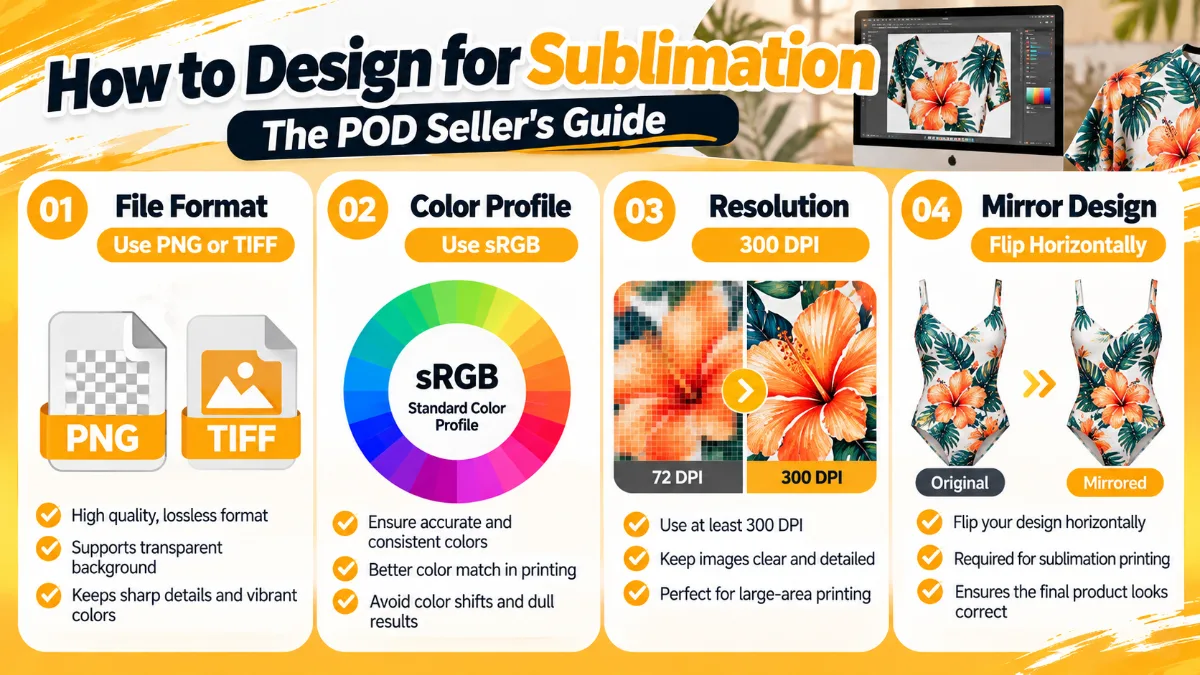
- Designs must be mirrored — prints transfer face-down, so flip horizontally
- Fabric must be polyester — sublimation doesn't work on cotton (unless coated)
- White backgrounds print as fabric color — there's no white ink in sublimation
File Requirements (The Non-Negotiables)
| Requirement | Standard | Why It Matters |
|---|---|---|
| File format | PNG or TIFF | Preserves transparency and quality |
| Color profile | sRGB | Ensures accurate color reproduction |
| Resolution | 300 DPI (dots per inch) | Sharp, clear prints without pixelation |
| Dimensions | Actual print size | No scaling = no distortion |
| Background | Transparent or white | White prints as fabric color |
| Color mode | RGB (not CMYK) | Sublimation uses RGB color space |
Color Profile: sRGB vs. CMYK
This is the #1 mistake beginners make:
- sRGB — standard RGB color space for digital displays and sublimation
- CMYK — print color space for offset printing (not sublimation)
Always design in sRGB. If you design in CMYK, colors will shift and look dull after sublimation.
Resolution: Why 300 DPI Matters
DPI (dots per inch) determines print sharpness:
- 72 DPI — screen resolution (looks fine on monitor, prints pixelated)
- 150 DPI — acceptable for large-format prints viewed from distance
- 300 DPI — standard for sublimation (sharp, professional quality)
- 600 DPI — overkill (larger file size, no visible difference)
Always design at 300 DPI. If your design is 12" × 12", create a canvas that's 3600 × 3600 pixels (12 × 300 = 3600).
Step-by-Step: Creating Your First Sublimation Design
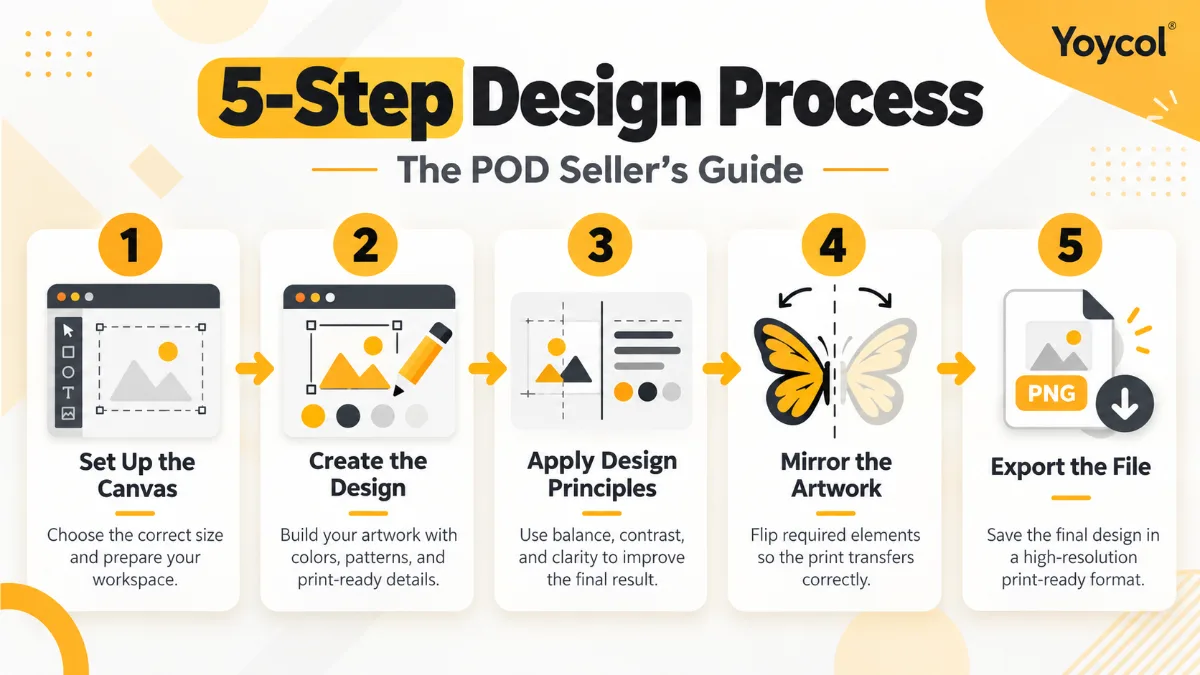
Now let's walk through the process of creating a sublimation-ready design from scratch.
Step 1: Set Up Your Canvas
Open your design software and create a new file with these settings:
- Width/Height: Actual print size (e.g., 12" × 12" for a t-shirt)
- Resolution: 300 DPI
- Color mode: RGB
- Background: Transparent or white
Pro tip: Check your POD supplier's template for exact dimensions. Most provide pre-sized templates for common products.
Step 2: Create or Import Your Design
You have two options:
Option A: Create from scratch
- Use shapes, text, and drawing tools
- Build your design layer by layer
- Full creative control
Option B: Import existing artwork
- Import photos, illustrations, or patterns
- Ensure source images are high resolution (at least 300 DPI at print size)
- Avoid low-quality stock photos or web images (usually 72 DPI)
Step 3: Design for Sublimation
Keep these principles in mind:
1. Use bright, saturated colors
- Sublimation excels at vibrant hues
- Avoid muted, pastel tones (they can look dull)
- Test colors on screen at 100% zoom
2. Think about contrast
- High contrast designs pop on fabric
- Light designs on dark fabric = white background shows through
- Dark designs on light fabric = fabric color affects design
3. Avoid fine details
- Small text (< 12pt) may not print clearly
- Thin lines (< 1px) may break up
- Simplify complex designs for better results
4. Create seamless patterns (for AOP)
- If designing for all-over-print, ensure patterns tile seamlessly
- Use the offset filter in Photoshop to test tiling
- Check for visible repeat lines
Step 4: Mirror Your Design
This step is critical. Sublimation prints face-down, so you must mirror your design horizontally:
- Photoshop: Image → Image Rotation → Flip Canvas Horizontal
- Illustrator: Object → Transform → Reflect → Vertical axis
- Canva: Not built-in — export as PNG, then flip in another tool
Double-check: Text should appear backwards on screen. When printed and transferred, it will read correctly.
Step 5: Export and Save
Export your final design with these settings:
- Format: PNG (preserves transparency) or TIFF
- Color profile: sRGB
- Resolution: 300 DPI
- File size: Keep under 50MB (most suppliers have upload limits)
Name your file clearly: product-name-design-name-size-300dpi.png
Example: tshirt-galaxy-pattern-large-300dpi.png
Best Software for Sublimation Design
Here are the top tools for creating sublimation designs:
Professional Options
1. Adobe Photoshop
- Best for: Photo editing, complex designs, pattern creation
- Pros: Industry standard, powerful tools, precise control
- Cons: Subscription ($20.99/month), steep learning curve
- Ideal for: Serious POD sellers, designers
2. Adobe Illustrator
- Best for: Vector graphics, logos, scalable designs
- Pros: Infinite resolution, clean edges, professional output
- Cons: Subscription ($20.99/month), vector-to-raster conversion needed
- Ideal for: Logo designers, illustrators
Budget-Friendly Options
3. Canva
- Best for: Quick designs, templates, beginners
- Pros: Free version available, easy to use, templates
- Cons: Limited control, no mirroring tool, resolution limits on free plan
- Ideal for: Beginners, non-designers
4. GIMP (Free)
- Best for: Photo editing on a budget
- Pros: Free, open-source, similar to Photoshop
- Cons: Less intuitive, fewer tutorials
- Ideal for: Budget-conscious sellers
5. Photopea (Free, Browser-Based)
- Best for: Quick edits without installation
- Pros: Free, runs in browser, Photoshop-like interface
- Cons: Requires internet, slower for large files
- Ideal for: Quick edits, Chromebook users
Recommendation: Start with Canva (free) to learn basics, then upgrade to Photoshop as your business grows.
Common Sublimation Design Mistakes (And How to Avoid Them)
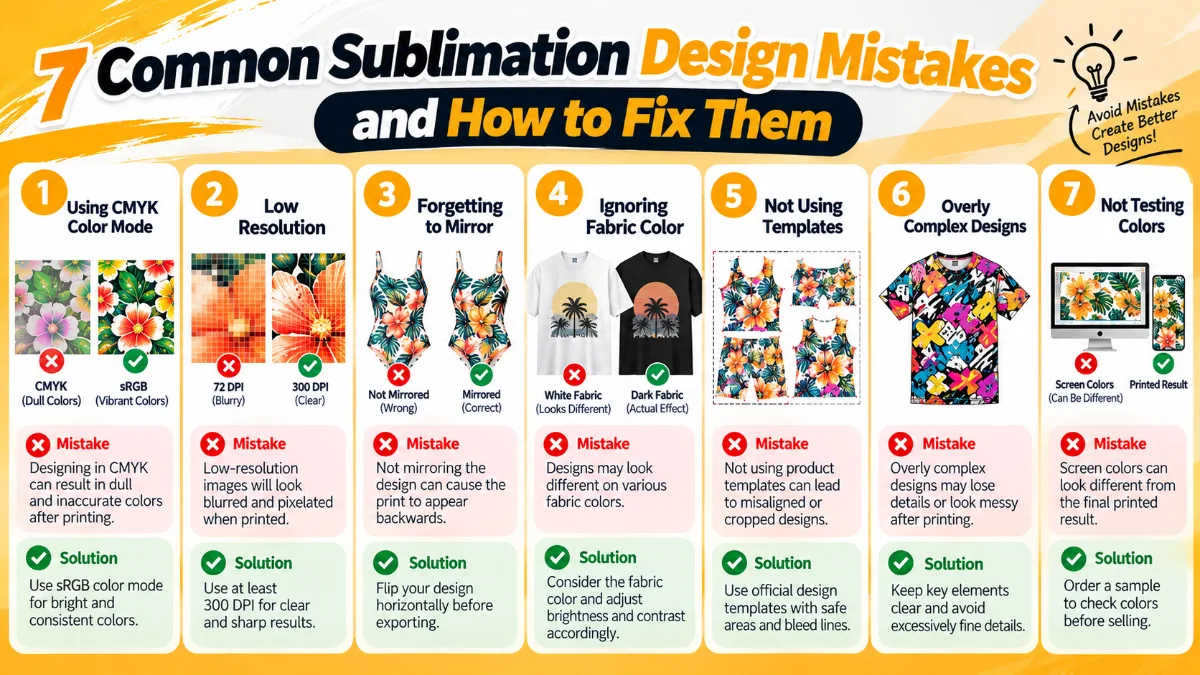
Even experienced designers make these mistakes. Here's how to avoid them:
Mistake #1: Designing in CMYK
- Problem: Colors look dull or shift after sublimation
- Solution: Always design in sRGB color mode
Mistake #2: Using Low-Resolution Images
- Problem: Prints look pixelated or blurry
- Solution: Use images that are 300 DPI at actual print size
Mistake #3: Forgetting to Mirror
- Problem: Text and designs appear backwards
- Solution: Always flip design horizontally before printing
Mistake #4: Ignoring Fabric Color
- Problem: White areas in design print as fabric color
- Solution: Design with fabric color in mind
Mistake #5: Not Using Templates
- Problem: Design doesn't fit product or bleeds incorrectly
- Solution: Always use supplier-provided templates
Mistake #6: Overcomplicating Designs
- Problem: Fine details don't print well
- Solution: Simplify designs, use bold shapes and text
Mistake #7: Not Testing Colors
- Problem: Screen colors don't match printed colors
- Solution: Order test prints, calibrate monitor, use color swatches
7 Design Styles That Sell Well with Sublimation
-
Galaxy / Space — Cosmic patterns, nebulas, stars, planets. Evergreen aesthetic.
-
Floral / Botanical — Roses, tropical leaves, wildflowers. Popular with women's fashion.
-
Geometric / Abstract — Triangles, circles, modern art. Clean, contemporary.
-
Animal Print — Leopard, zebra, snake patterns. Bold statement pieces.
-
Holiday / Seasonal — Christmas, Halloween, Valentine's Day. Seasonal spikes.
-
Fandom / Pop Culture — Anime, gaming, movies (respect IP). Passionate fans.
-
Personalized / Custom — Names, photos, monograms. Perfect for gifts.
Frequently Asked Questions
What file format is best for sublimation? PNG is the most popular format because it preserves transparency and quality. TIFF is also acceptable. Avoid JPEG (loses quality with compression).
What color profile should I use for sublimation? Always use sRGB. Never use CMYK — it's for offset printing, not sublimation.
What resolution do I need for sublimation designs? 300 DPI (dots per inch) at actual print size. Lower resolutions will look pixelated.
Do I need to mirror my sublimation design? Yes. Sublimation prints face-down, so you must flip your design horizontally before printing.
Can I use photos for sublimation? Yes, sublimation excels at photo-quality prints. Ensure photos are high resolution (300 DPI at print size).
What software is best for sublimation design? Adobe Photoshop is the industry standard. Canva is great for beginners. GIMP is a free alternative.
Why do my colors look different after sublimation? Common causes: designing in CMYK instead of RGB, monitor not calibrated, fabric color affecting design. Order test prints to dial in colors.
Can I design for sublimation on my phone? Yes, apps like Canva and Procreate work. However, desktop software (Photoshop, GIMP) offers more control.
How do I create seamless patterns for all-over-print? Use the offset filter in Photoshop or pattern preview tools in Illustrator. Test tile your design to check for visible repeat lines.
What's the difference between sublimation and DTG design? Sublimation requires mirrored designs, sRGB color, and works only on polyester. DTG prints directly on garments, supports CMYK, and works on cotton.
Designing for sublimation is a skill that improves with practice — master the technical requirements (sRGB, 300 DPI, mirrored designs), understand the process, and test before scaling.
Once you nail the basics, you'll create stunning all-over-print products that look professional, print accurately, and sell consistently.
Ready to start creating sublimation designs? Browse Yoycol's design templates →
This guide is part of our sublimation and design series. Explore our sublimation on polyester guide, best fabric for sublimation guide, or learn what is all-over-print.