

Squarespace — How to connect your Squarespace store with YoYcol?
Connecting your Squarespace store to YoYcol allows you to publish products, sync store information, and fulfill eligible orders through YoYcol.
Before you begin
Please make sure that:
- You have an active YoYcol account.
- You can sign in to the Squarespace account that owns or manages the website you want to connect.
- Your Squarespace account has permission to authorize third-party applications for that website.
Step 1: Go to Stores
Sign in to your YoYcol account and go to Stores. Click Connect Store or Add store to open the store connection page.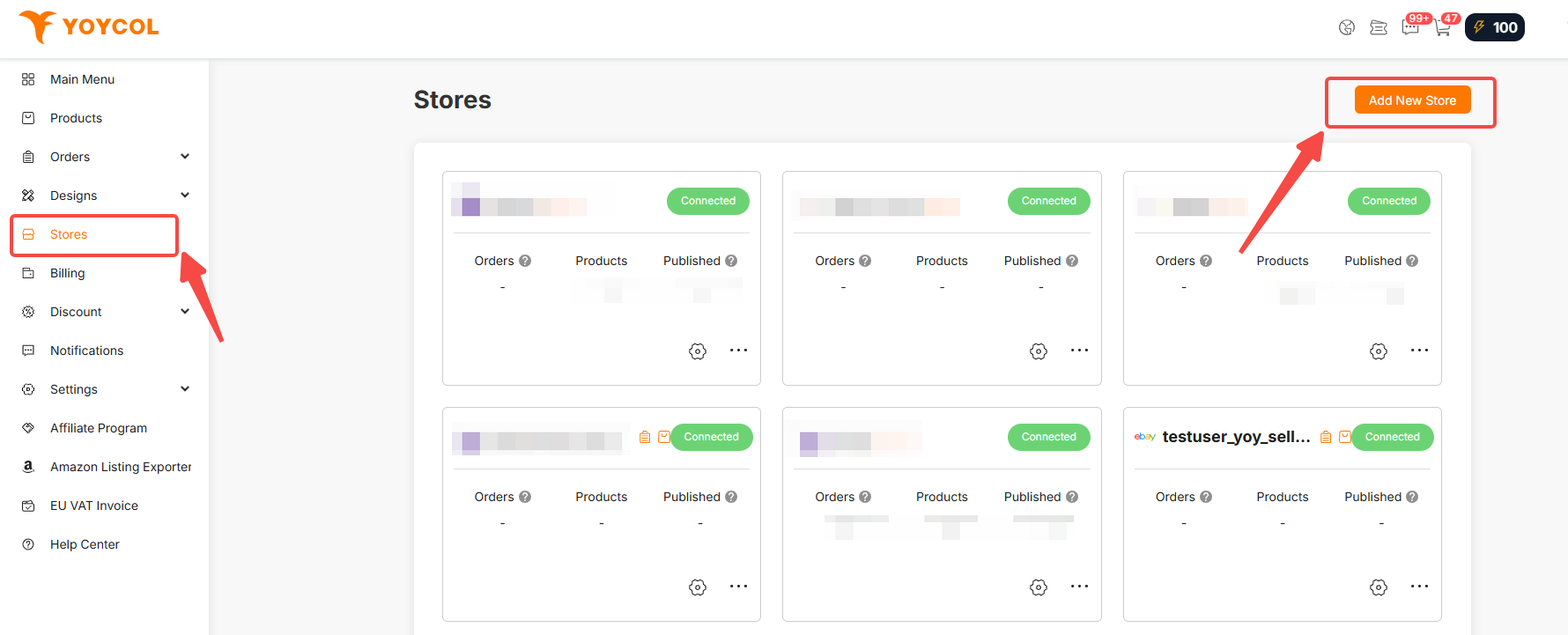
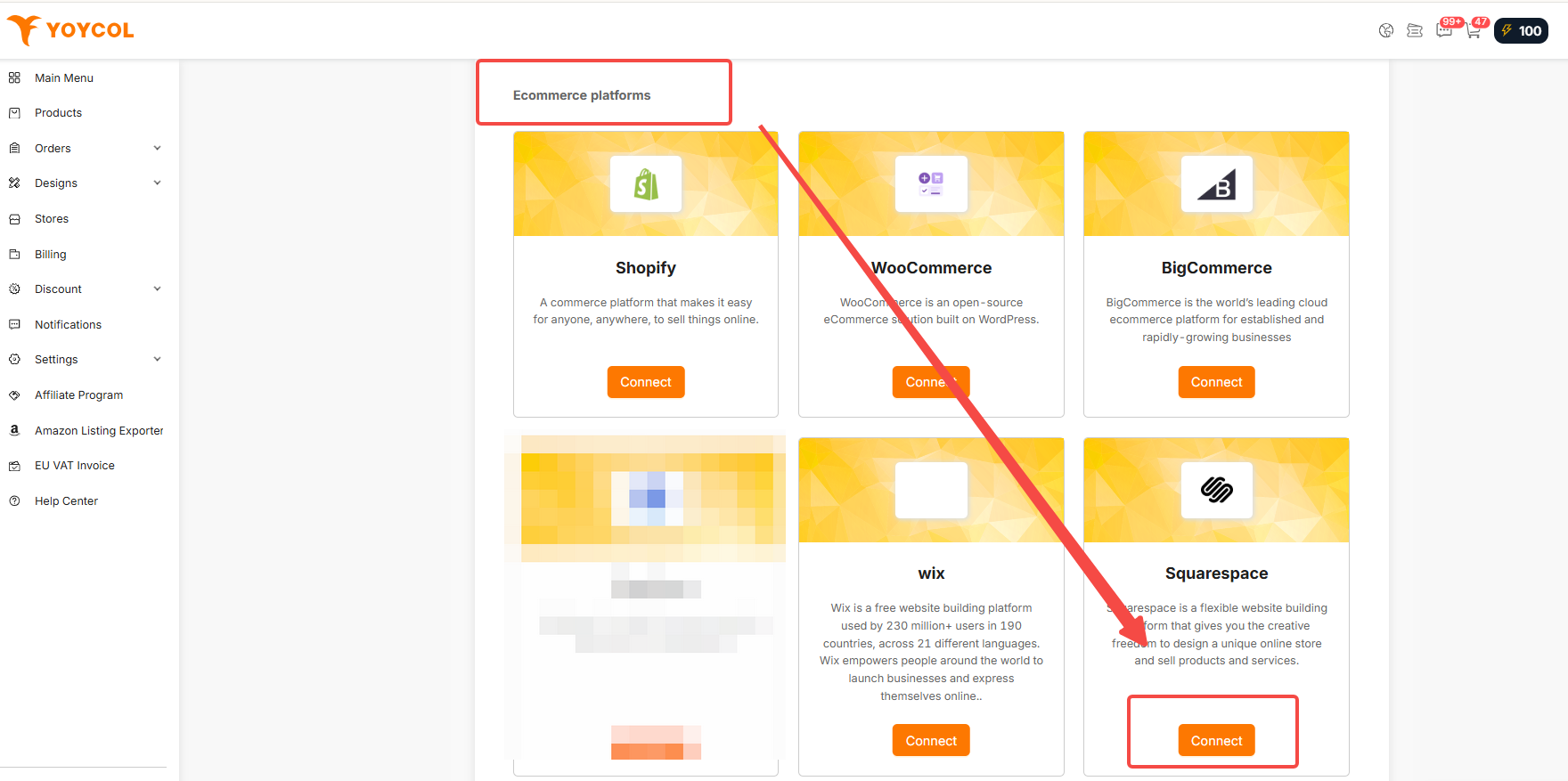
Step 2: Select Squarespace
In the Ecommerce platforms section, find Squarespace and click Connect.
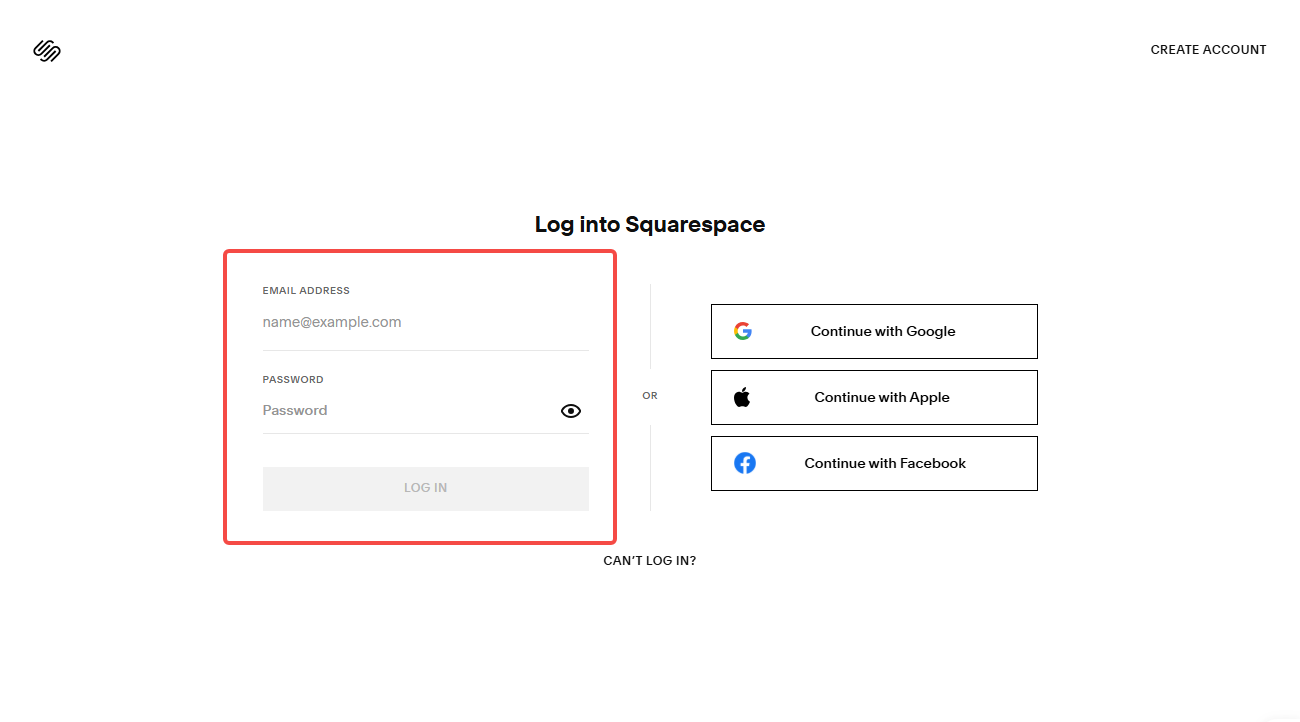
Step 3: Sign in to Squarespace
You will be redirected to Squarespace. If you are not already signed in, enter your Squarespace account details to continue.
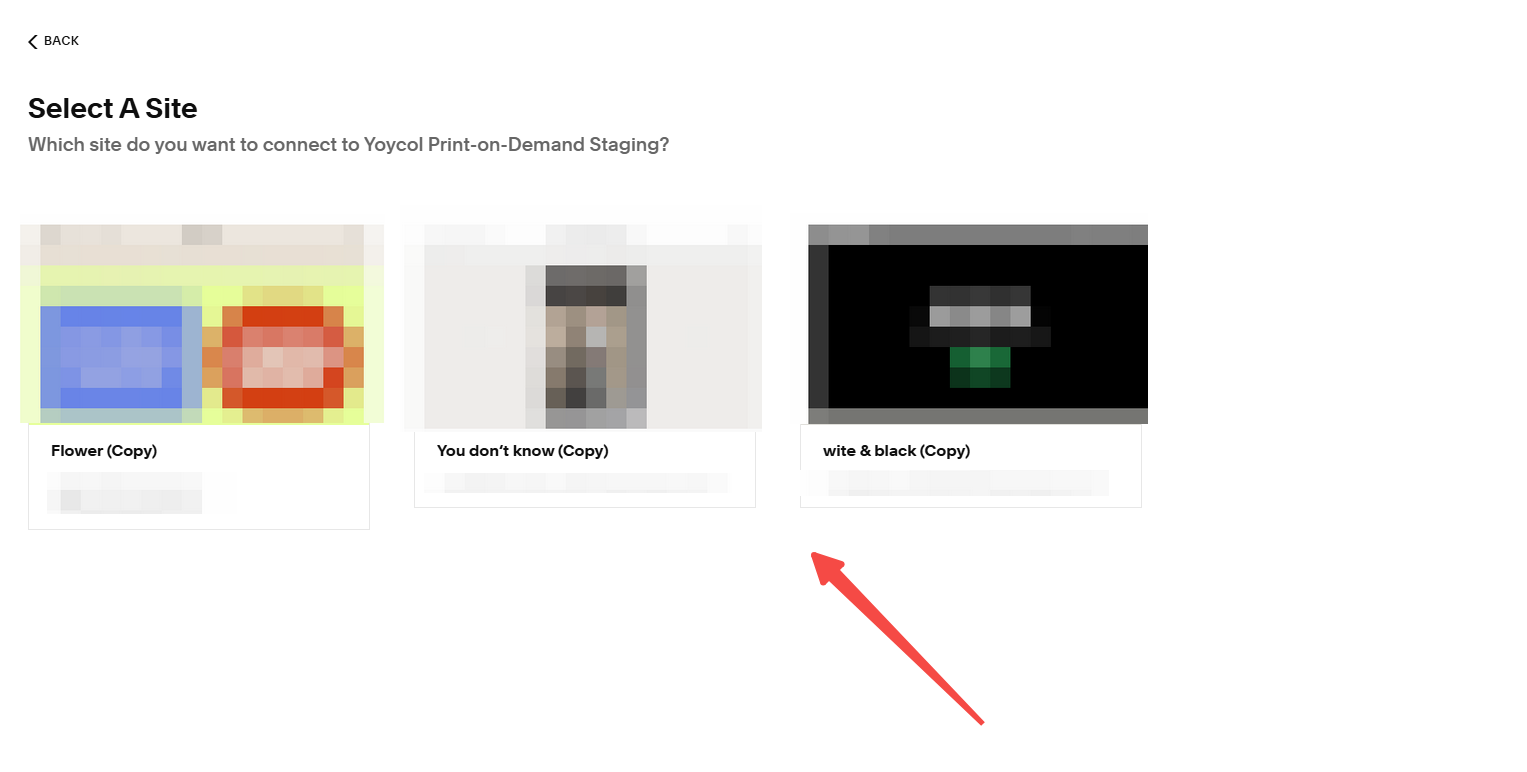
Step 4: Select your website
Select the Squarespace website you want to connect to YoYcol. If your account manages more than one website, make sure you choose the correct one.
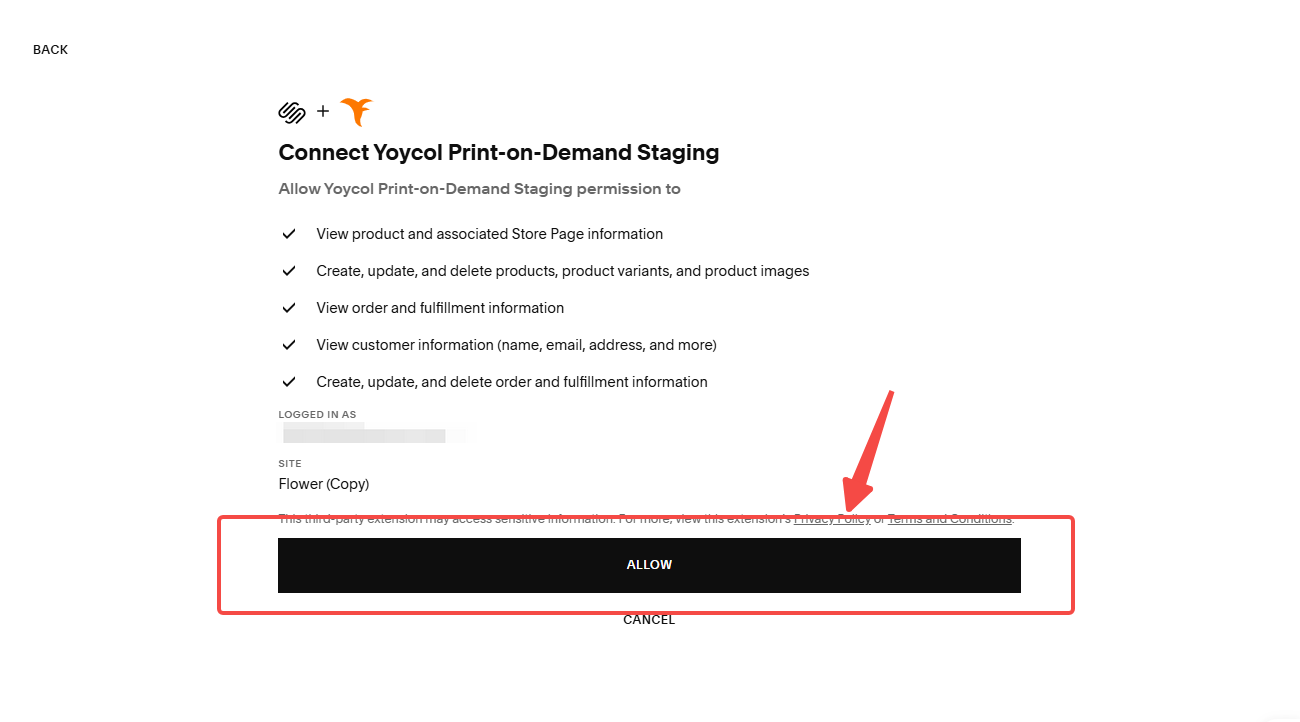
Step 5: Authorize YoYcol
Review the permissions requested by YoYcol, then click Allow to authorize the connection.
If you click Deny or close the authorization page, the store will not be connected. You can return to YoYcol and restart the connection process at any time.
Step 6: Confirm the connection
After authorization, Squarespace will redirect you back to YoYcol. YoYcol will initialize your store information and synchronization settings. Please wait until the process is complete.
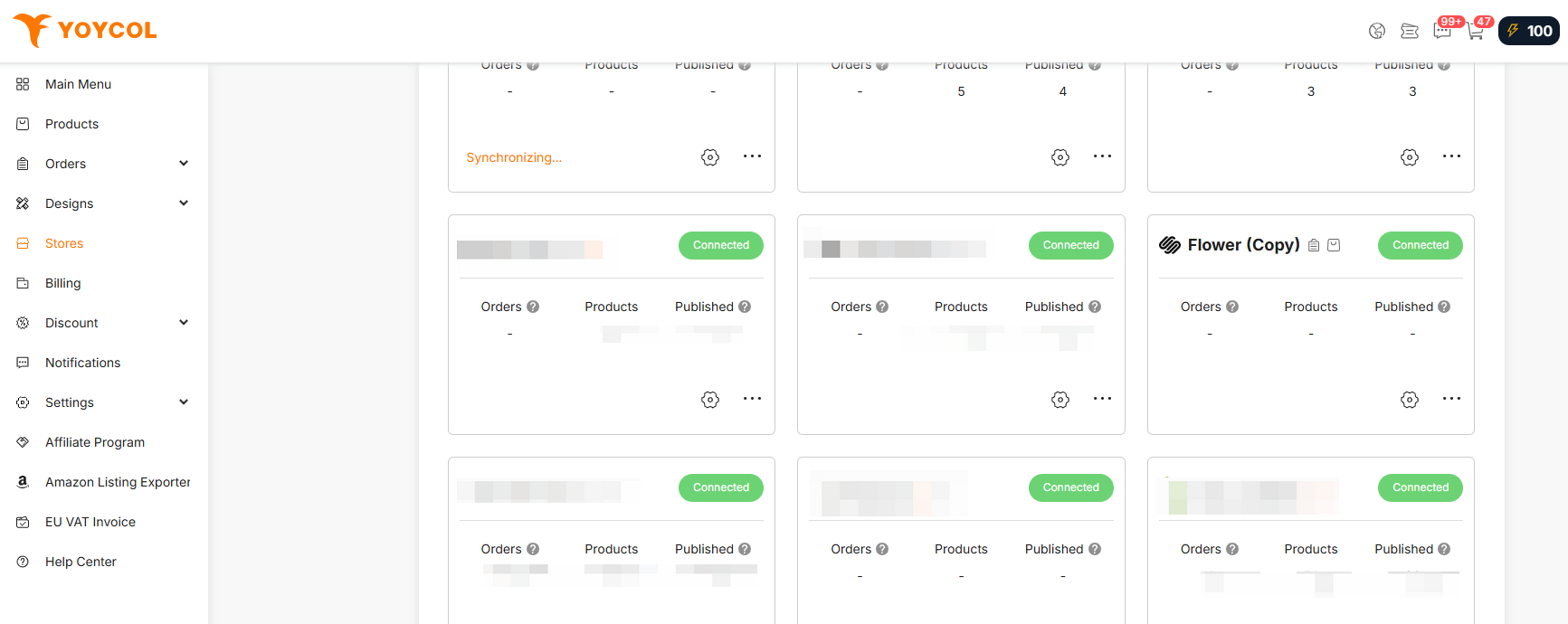
When your Squarespace store appears on the Stores page with the status Connected, the connection has been completed successfully.
Related articles
What should you do after connecting to a Squarespace store?
Squarespace connection instructions and troubleshooting