You've picked your niche, designed your first products, and opened your store. Now comes the part that makes everything work: connecting your print-on-demand supplier to your storefront so orders flow automatically — no manual work, no spreadsheets, no guesswork.
This guide walks you through exactly how to connect Yoycol to every major selling platform: Shopify, Etsy, WooCommerce, Wix, BigCommerce, and eBay. Each platform gets its own section with step-by-step instructions, so you can jump straight to the one you're using.
If you haven't picked a platform yet, our Etsy vs Shopify comparison for POD breaks down the pros and cons. And if you're starting from zero, the complete store setup guide covers the full launch process.
Why Connect Yoycol to Your Store?
Before we get into the how, let's be clear about why integration matters.
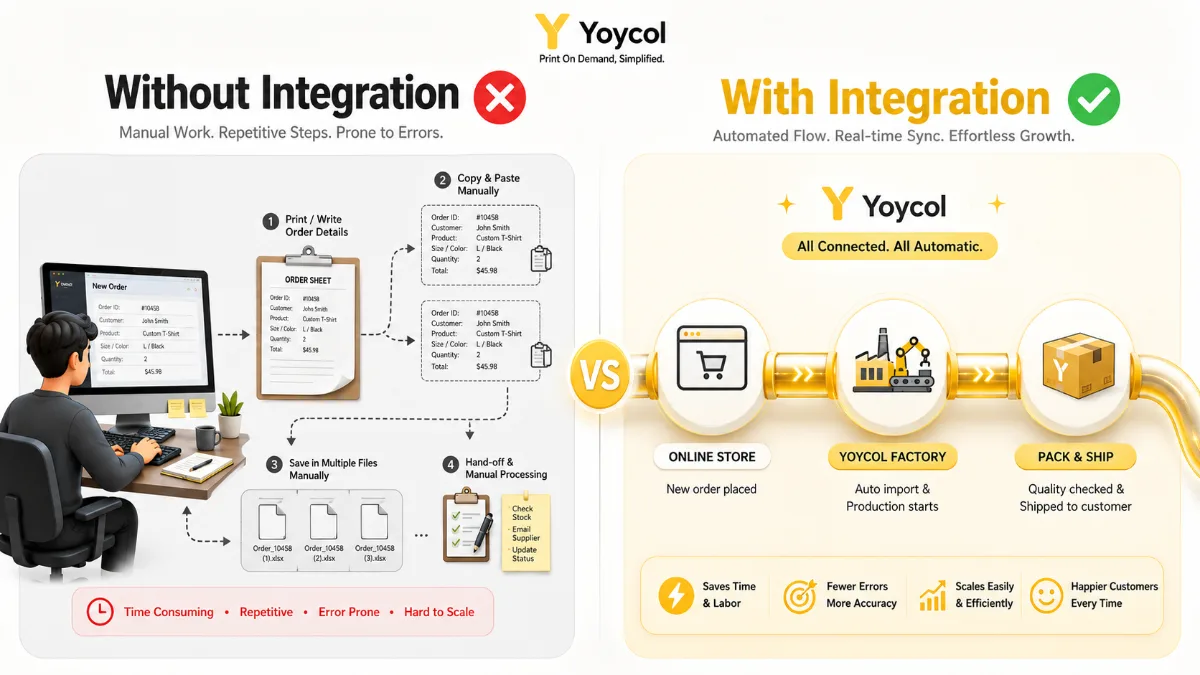
Without connecting Yoycol to your store, every order requires manual work:
- Customer places an order on your store
- You manually log into your supplier
- You re-enter the customer's shipping details
- You upload the design file again
- You track shipping separately and update the customer
This doesn't scale. One order per day? Maybe manageable. Ten orders per day? You'll spend hours on data entry.
With Yoycol connected to your store:
- Customer places an order
- Order details automatically sync to Yoycol
- Yoycol produces and ships the product
- Tracking number syncs back to your store
- Customer gets notified automatically
Zero manual data entry. Zero copy-paste errors. Fully automated fulfillment.
Step 0: Create Your Yoycol Account
Before connecting anything, you need a Yoycol account.
- Go to Yoycol.com and sign up (free — no monthly fees, no commitments)
- Verify your email address
- Complete your store profile: store name, shipping address, return address
- Add a payment method (PayPal or bank card)
💡 Tip: Make sure your shipping address and return address are set up before connecting — this prevents sync errors later.
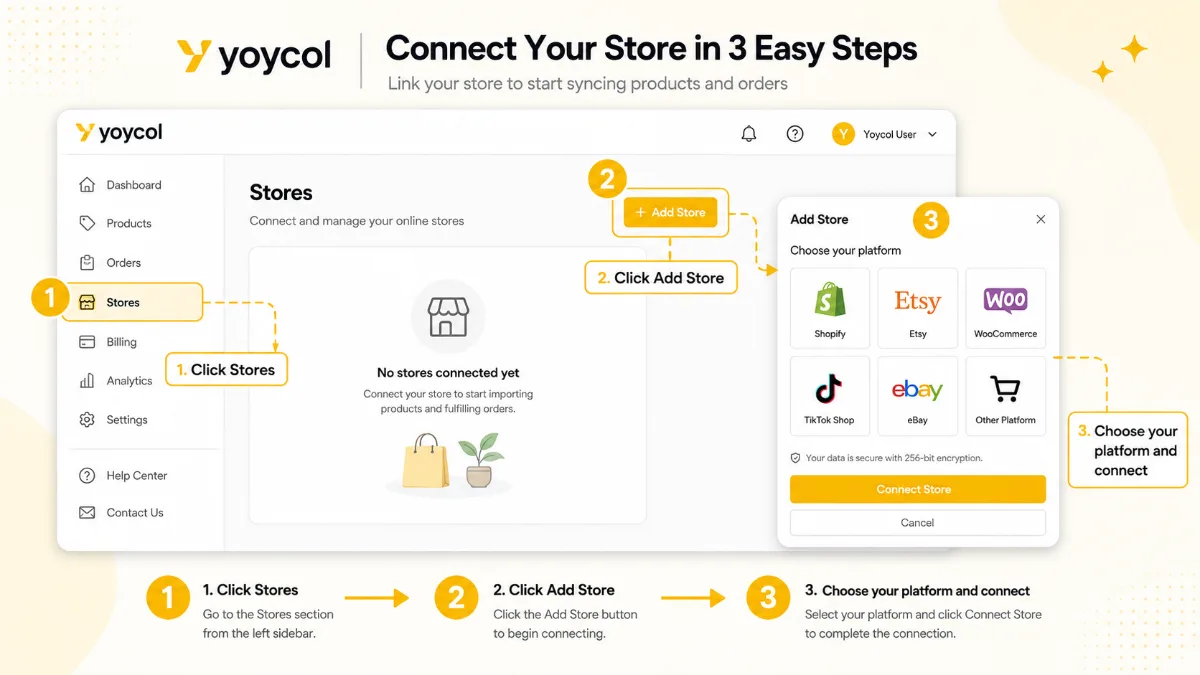
Once your account is ready, navigate to "Stores" or "Integrations" in your Yoycol dashboard. This is where you'll add each platform.
Platform 1: Shopify
Shopify integration is the most popular Yoycol connection. Here's how to set it up:
Step-by-Step
- In Yoycol: Go to Stores → Add Store → Shopify
- Click "Connect" — you'll be redirected to your Shopify admin
- Log in to your Shopify account (if not already logged in)
- Approve permissions — Yoycol requests access to products, orders, and fulfillment. These are all required for automatic sync.
- Confirm — you'll be redirected back to Yoycol with a "Connected" confirmation
After Connecting
- Import products: Browse Yoycol's catalog in the Yoycol app (inside Shopify admin) and click "Import" on any product. It appears in your Shopify product list, ready to customize and publish.
- Order sync: When a customer orders a connected product, Yoycol receives the order details automatically.
- Tracking sync: Once Yoycol ships the order, the tracking number automatically updates in Shopify and notifies the customer.
Troubleshooting
- "Products not syncing" — Make sure you've selected a Yoycol product variant (size, color) before importing. Incomplete variants won't sync.
- "Orders not appearing in Yoycol" — Check that the order status is "Unfulfilled" in Shopify. Already-fulfilled orders won't push to Yoycol.
If you're setting up Shopify for the first time, our complete Shopify POD setup guide covers everything from theme selection to final launch.
Platform 2: Etsy
Etsy is the #1 marketplace for POD sellers — and Yoycol's Etsy integration is straightforward.
Step-by-Step
- In Yoycol: Go to Stores → Add Store → Etsy
- Click "Connect" — you'll be redirected to Etsy's authorization page
- Log in to your Etsy seller account
- Authorize Yoycol to access your shop data
- Confirm — you'll return to Yoycol with the connection confirmed
After Connecting
- List products: Select products from Yoycol's catalog, customize the design, set your price, and push them as Etsy listings directly.
- Order sync: Etsy orders for connected products automatically appear in your Yoycol dashboard.
- Tracking sync: Shipping updates flow back to Etsy automatically.
Important Notes
- Etsy listing fees ($0.20/listing) still apply — Yoycol doesn't cover these.
- Etsy's policies require that products are made by or on behalf of the seller using a production partner. You must disclose Yoycol as your production partner in your Etsy shop settings (Settings → Production Partners → Add "Yoycol").
- Brand your listings: Even though Yoycol fulfills the order, the listing title, description, photos, and pricing are yours to control.
If you're new to Etsy, our complete Etsy POD guide covers listing optimization and getting your first sale.
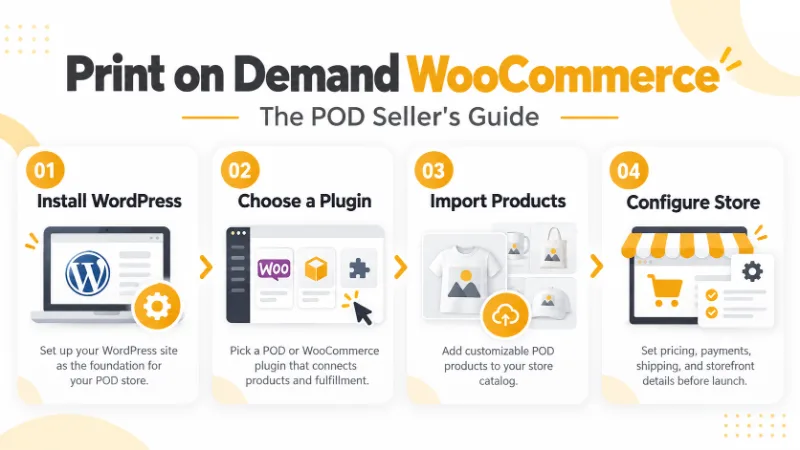
Platform 3: WooCommerce
WooCommerce is the self-hosted WordPress e-commerce platform — ideal if you want full control over your store.
Step-by-Step
- In Yoycol: Go to Stores → Add Store → WooCommerce
- Enter your WooCommerce store URL (e.g.,
https://yourstore.com) - Click "Connect" — you'll be redirected to WooCommerce's OAuth authorization page
- Authorize the Yoycol connection
- Return to Yoycol — the connection is confirmed
After Connecting
- Product import: Import products from Yoycol's catalog into WooCommerce.
- Order sync: WooCommerce orders trigger automatic fulfillment in Yoycol.
- Tracking sync: Tracking numbers sync back to WooCommerce orders.
Requirements
- WooCommerce must be running on a live, accessible domain (localhost won't work)
- WooCommerce REST API must be enabled (it is by default on recent versions)
- SSL certificate (HTTPS) is required
Platform 4: Wix, BigCommerce, and eBay
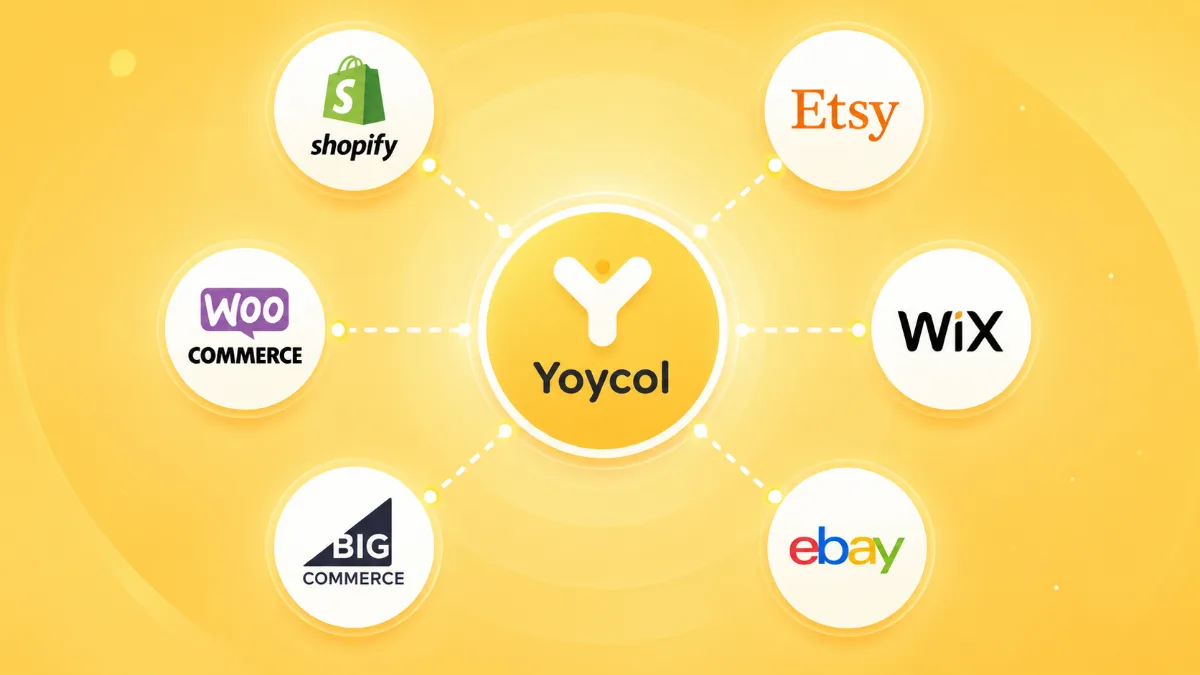
Yoycol also supports:
Wix
- Go to Stores → Add Store → Wix
- Authorize the connection through Wix's OAuth flow
- Products sync and orders flow automatically
BigCommerce
- Go to Stores → Add Store → BigCommerce
- Enter your store URL and API credentials
- Complete the connection
eBay
- Go to Stores → Add Store → eBay
- Authorize via eBay's OAuth
- Sync products and orders
Each platform follows the same core workflow: authorize → import products → orders auto-sync → tracking auto-sync. The specific steps vary slightly by platform, but the result is identical — hands-free fulfillment.
What Happens After You Connect?
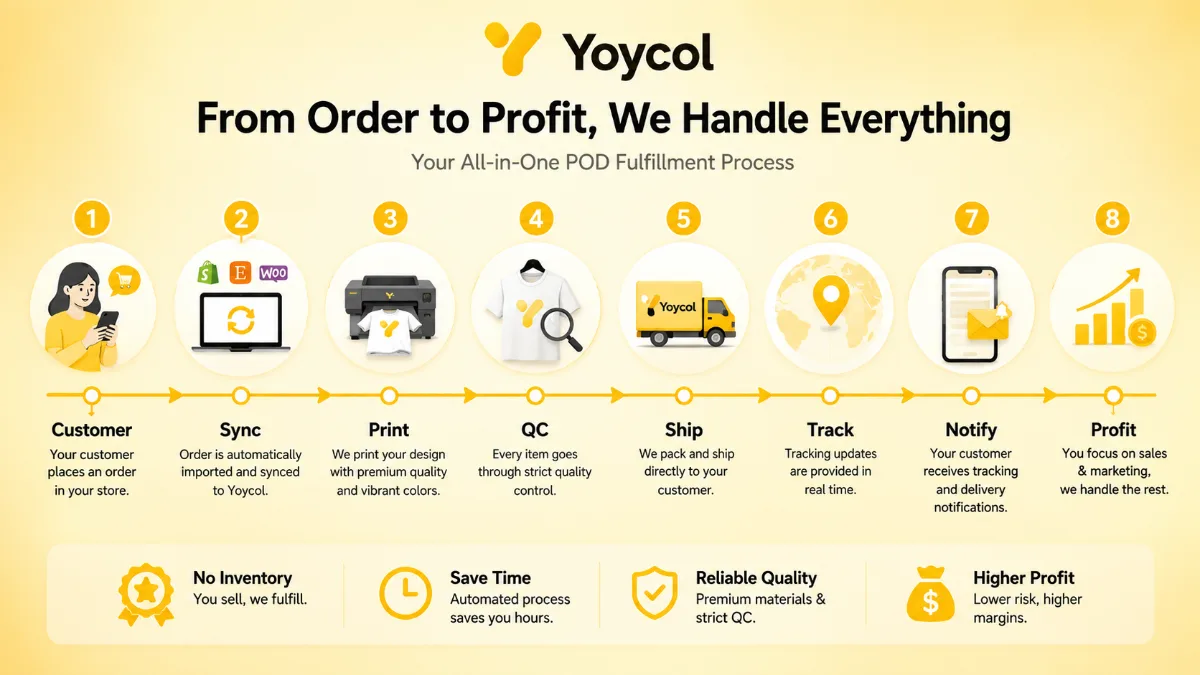
Here's the complete order lifecycle after connection:
| Step | What Happens | Who Does It |
|---|---|---|
| 1 | Customer places order on your store | Customer |
| 2 | Order details sync to Yoycol automatically | System |
| 3 | Yoycol prints and produces the product | Yoycol |
| 4 | Yoycol quality-checks and packages the order | Yoycol |
| 5 | Yoycol ships the order with tracking | Yoycol |
| 6 | Tracking number syncs back to your store | System |
| 7 | Customer receives shipping notification | System |
| 8 | You pay Yoycol's base cost (difference = your profit) | You |
Your only job: design products and market your store. Everything else is automated.
Payment Flow
- You set the retail price on your store (e.g., $35)
- Yoycol charges you the base cost (e.g., $12)
- Your profit ($23) stays in your store account
- You receive payment through your store's payment processor (Stripe, PayPal, etc.)
You never handle inventory, never pack a box, never visit a post office.
Troubleshooting Common Issues
"My store isn't syncing"
- Double-check the connection status in Yoycol's Stores page
- Re-authorize if the connection token has expired
- Make sure your store platform account is in good standing (no payment holds or suspensions)
"Orders are stuck / not appearing"
- Check that the order status is correct on your store side (unfulfilled/pending)
- Verify the product is a connected Yoycol product (not a manually added one)
- Look for error messages in Yoycol's dashboard notifications
"Tracking isn't updating"
- Tracking updates typically appear within 24 hours of shipment
- Some platforms (especially Etsy) may take up to 48 hours to reflect tracking
- If still not updating after 48 hours, contact Yoycol support
Frequently Asked Questions
Is it free to connect Yoycol to my store? Yes. Connecting Yoycol to Shopify, Etsy, WooCommerce, Wix, BigCommerce, or eBay is completely free. There are no setup fees, no monthly subscription costs, and no integration fees. You only pay when an order is placed (the base product cost).
Can I connect Yoycol to multiple stores? Yes. You can connect the same Yoycol account to multiple stores across different platforms. For example, you could connect one Yoycol account to both a Shopify store and an Etsy shop simultaneously. All orders flow into the same Yoycol dashboard.
Do I need to manually forward orders to Yoycol? No. Once connected, orders sync automatically. You don't need to log into Yoycol, re-enter customer details, or upload design files. The integration handles everything.
Can I use Yoycol without connecting to a store? Yes, but it's less efficient. You can place orders manually through the Yoycol dashboard, but you'll need to enter customer shipping details for each order manually. The integration eliminates this step entirely.
How fast are orders fulfilled after they sync? Yoycol typically fulfills orders within 1–5 business days depending on the product type (simple t-shirts are faster than complex all-over-print hoodies). After fulfillment, shipping times vary by destination and shipping method selected.
Connecting Yoycol to your store takes about 5 minutes and eliminates every repetitive task in your fulfillment workflow. Whether you sell on Shopify, Etsy, WooCommerce, or any other supported platform, the result is the same: you design and market, Yoycol handles the rest.
Ready to connect? Create your free Yoycol account →
This guide is part of our print on demand store setup series. Next up: learn how many listings you need to make your first sale.